> ## Documentation Index
> Fetch the complete documentation index at: https://docs.callkaro.ai/llms.txt
> Use this file to discover all available pages before exploring further.
# Check Availability
> Check Cal.com calendar availability during calls
## Overview
The Check Availability function allows your AI agent to check available time slots from your Cal.com calendar during calls. Customers can see when you're available before booking.
**Requirements:**
* Active Cal.com account
* Cal.com API key
* Cal.com Event ID
## Setup
### Step 1: Get Cal.com API Key
1. Log in to [Cal.com](https://cal.com)
2. Go to [API Keys Settings](https://app.cal.com/settings/developer/api-keys)
3. Click **Generate API Key** if you don't have one
4. Copy the API key
### Step 2: Get Event ID
1. Go to [Event Types](https://app.cal.com/event-types) in Cal.com
2. Click on the event type you want to use for availability checks
3. Copy the **Event ID** from the URL
* Example URL: `https://app.cal.com/event-types/{event_id}`
* Event ID in this example: `{event_id}`
### Step 3: Configure in CallKaro
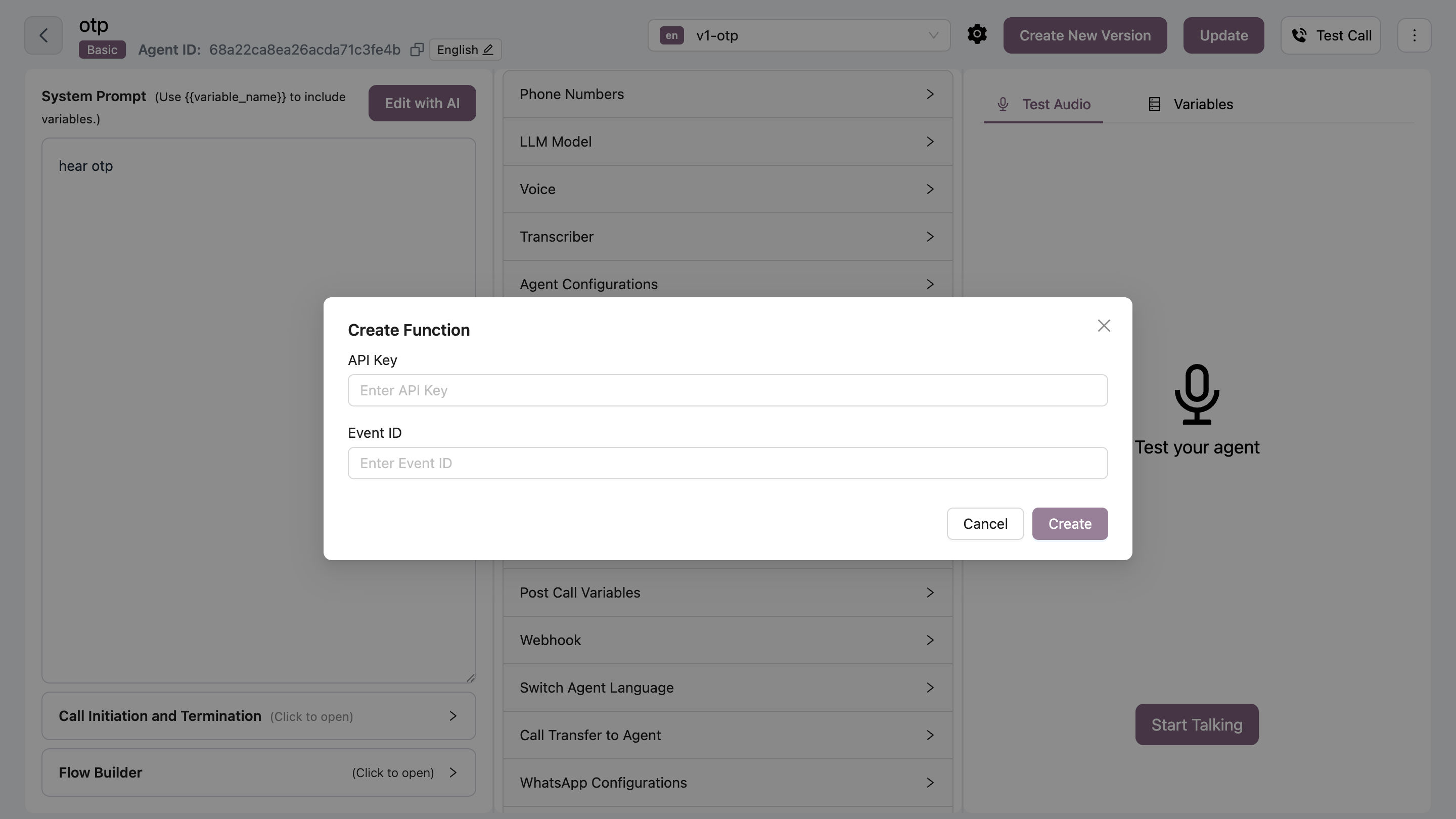 Navigate to your agent → Functions tab → Click Add → Select "Check for Availabilities (cal.com)"
Paste your Cal.com API key
Paste your Cal.com Event ID
Click Save to activate the function
## How It Works
1. **Customer asks about availability** - AI detects availability query
2. **AI queries Cal.com** - Fetches available slots
3. **AI presents options** - Lists available time slots
4. **Customer decides** - Can proceed to book or check other times
## Use Cases
* **Availability queries** - Answer "when are you available?"
* **Pre-booking check** - Show slots before scheduling
* **Flexible scheduling** - Let customers browse options
* **Multi-day availability** - Check availability across days/weeks
## Combining with Book Meeting
Use both functions together for complete scheduling:
1. **Check Availability** - Customer browses available slots
2. **Book a Meeting** - Customer selects and books a time
## Best Practices
* **Same event type** - Use matching Event ID for check and book functions
* **Updated calendar** - Keep Cal.com calendar synchronized
* **Clear timeframes** - Specify date ranges when checking
* **Timezone handling** - Set correct timezone in Cal.com
This function only checks availability. Use "Book a Meeting" function to actually schedule appointments.
## Troubeshooting
**Solutions:**
* Verify API key is valid
* Check Event ID is correct
* Ensure availability is set in Cal.com
* Check for calendar conflicts
**Solutions:**
* Update timezone in Cal.com settings
* Verify event type timezone
* Check customer timezone handling
Set up both "Check Availability" and "Book a Meeting" functions for a complete scheduling experience.
Navigate to your agent → Functions tab → Click Add → Select "Check for Availabilities (cal.com)"
Paste your Cal.com API key
Paste your Cal.com Event ID
Click Save to activate the function
## How It Works
1. **Customer asks about availability** - AI detects availability query
2. **AI queries Cal.com** - Fetches available slots
3. **AI presents options** - Lists available time slots
4. **Customer decides** - Can proceed to book or check other times
## Use Cases
* **Availability queries** - Answer "when are you available?"
* **Pre-booking check** - Show slots before scheduling
* **Flexible scheduling** - Let customers browse options
* **Multi-day availability** - Check availability across days/weeks
## Combining with Book Meeting
Use both functions together for complete scheduling:
1. **Check Availability** - Customer browses available slots
2. **Book a Meeting** - Customer selects and books a time
## Best Practices
* **Same event type** - Use matching Event ID for check and book functions
* **Updated calendar** - Keep Cal.com calendar synchronized
* **Clear timeframes** - Specify date ranges when checking
* **Timezone handling** - Set correct timezone in Cal.com
This function only checks availability. Use "Book a Meeting" function to actually schedule appointments.
## Troubeshooting
**Solutions:**
* Verify API key is valid
* Check Event ID is correct
* Ensure availability is set in Cal.com
* Check for calendar conflicts
**Solutions:**
* Update timezone in Cal.com settings
* Verify event type timezone
* Check customer timezone handling
Set up both "Check Availability" and "Book a Meeting" functions for a complete scheduling experience.