> ## Documentation Index
> Fetch the complete documentation index at: https://docs.callkaro.ai/llms.txt
> Use this file to discover all available pages before exploring further.
# Variable Mapping
> Map WhatsApp template variables to call data
## Overview
WhatsApp templates use variables (placeholders) like `{{1}}`, `{{2}}`, etc. Variable mapping connects these placeholders to actual data from your calls.
## Variable Sources
Choose where each template variable gets its data:
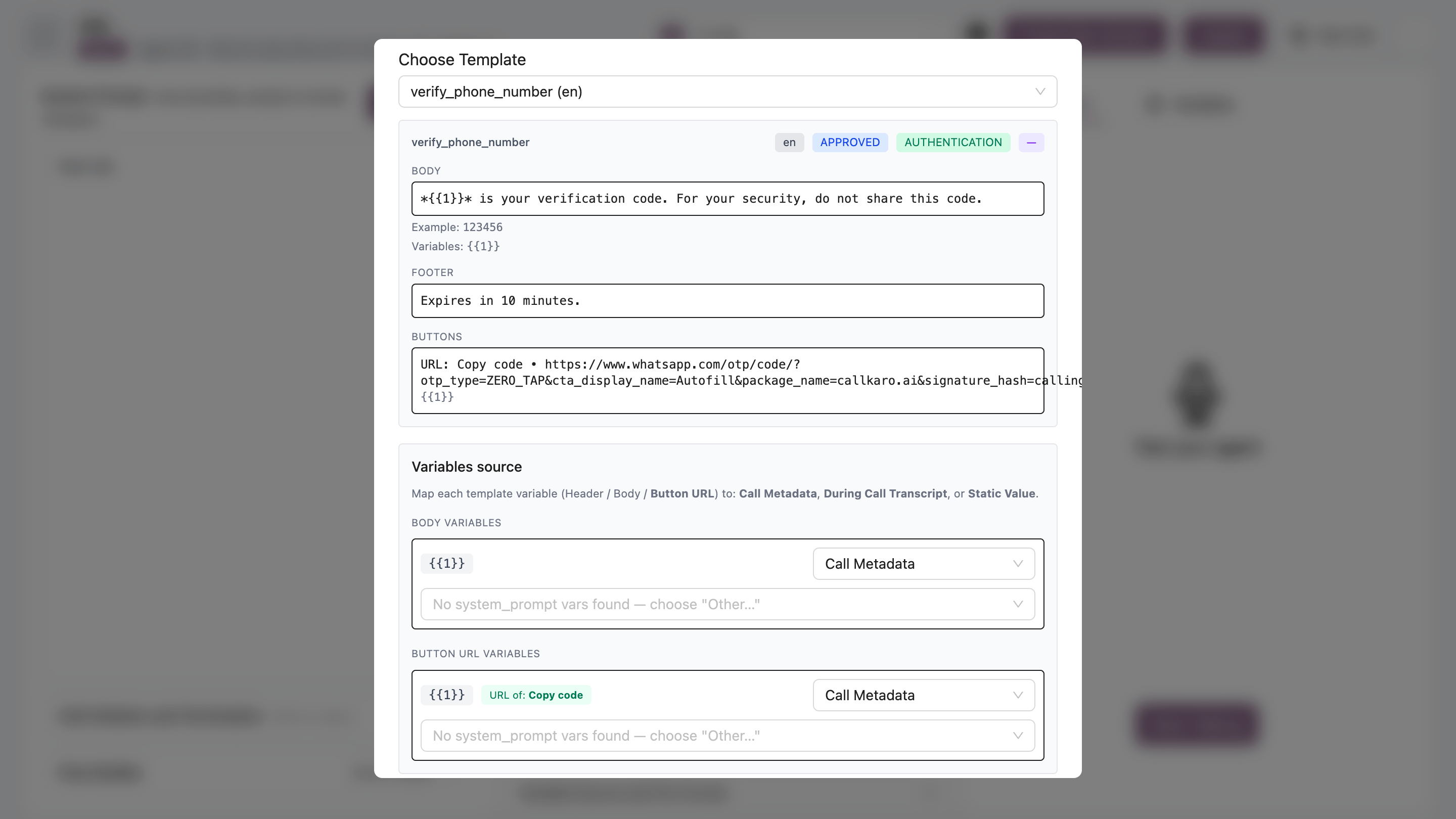 ### 1. Call Metadata
Customer information from your system.
**Examples:**
* `customer_name` - Customer's name
* `customer_email` - Email address
* `customer_phone` - Phone number
* `lead_id` - CRM lead ID
* Custom fields you defined
**Configuration:**
* Select from dropdown of available metadata fields
* Or choose "Other" to enter custom metadata key
### 2. In-Call Variables (In-Call Only)
Dynamic data extracted from the live conversation.
**Configuration:**
* **Variable Name**: What to extract (e.g., `otp_code`, `booking_id`)
* **Description**: Tell AI what to look for
**Example:**
```
Field: otp_code
Description: 6-digit OTP code mentioned during the call
```
The AI will listen for this data in the conversation and extract it.
### 3. Post-Call Variables (Post-Call Only)
AI-extracted information after the call ends.
**Examples:**
* `appointment_date` - Date customer selected
* `appointment_time` - Time customer selected
* `interested` - Whether customer showed interest
* `confirmation` - Whether customer confirmed
* Custom post-call variables you defined
**Configuration:**
* Select from dropdown of configured post-call variables
### 4. Static Values
Fixed text that never changes.
**Examples:**
* Company name: `"ABC Company"`
* Support email: `"support@company.com"`
* Website: `"www.company.com"`
## Template Sections
WhatsApp templates have three sections where variables can appear:
### Header Variables
Variables in the template header (usually `{{1}}`).
**Example Header:**
```
Hello {{1}}!
```
**Mapping:**
* `{{1}}` → Call Metadata: `customer_name`
### Body Variables
Variables in the main message body.
**Example Body:**
```
Your appointment is on {{1}} at {{2}}.
Location: {{3}}
```
**Mapping:**
* `{{1}}` → Post-Call Variables: `appointment_date`
* `{{2}}` → Post-Call Variables: `appointment_time`
* `{{3}}` → Static Value: `"123 Main St"`
### Button URL Variables
Variables in button click-to-action URLs.
**Example Button:**
```
[View Details] → https://company.com/booking/{{1}}
```
**Mapping:**
* `{{1}}` → Post-Call Variables: `booking_id`
## In-Call vs Post-Call Differences
| Feature | In-Call | Post-Call |
| ----------------- | ----------------- | ------------------- |
| **Call Metadata** | ✅ Available | ✅ Available |
| **Dynamic Data** | In-Call Variables | Post-Call Variables |
| **Static Values** | ✅ Available | ✅ Available |
| **Data Source** | Live conversation | Call analysis |
## Mapping Examples
### Example 1: OTP Message (In-Call)
**Template:**
```
{{1}}, your OTP is {{2}}. Valid for 5 minutes.
```
**Mapping:**
* `{{1}}` → Call Metadata: `customer_name`
* `{{2}}` → In-Call Variables:
* Name: `otp_code`
* Description: "6-digit verification code"
### Example 2: Appointment Confirmation (Post-Call)
**Template:**
```
Hi {{1}}, confirmed for {{2}} at {{3}}.
Call {{4}} to reschedule.
```
**Mapping:**
* `{{1}}` → Call Metadata: `customer_name`
* `{{2}}` → Post-Call Variables: `appointment_date`
* `{{3}}` → Post-Call Variables: `appointment_time`
* `{{4}}` → Static Value: `(555) 123-4567`
### Example 3: Payment Link (In-Call)
**Template with Button:**
```
Hi {{1}}, complete your payment of ${{2}}.
[Pay Now] → https://pay.company.com/{{3}}
```
**Mapping:**
* `{{1}}` → Call Metadata: `customer_name`
* `{{2}}` → In-Call Variables:
* Name: `payment_amount`
* Description: "Total amount to pay"
* `{{3}}` → In-Call Variables:
* Name: `payment_id`
* Description: "Unique payment ID"
## Metadata Fields
### System Metadata
Built-in fields automatically extracted from `{{placeholders}}` in your system prompt:
**Example System Prompt:**
```
You are calling {{customer_name}} about {{appointment_type}}.
Their email is {{customer_email}}.
```
**Available Metadata:**
* `customer_name`
* `appointment_type`
* `customer_email`
### Custom Metadata
Add custom fields using "Other" option:
**Steps:**
1. Select "Other..." in metadata dropdown
2. Enter custom key name (e.g., `lead_score`)
3. This field will be available in your API calls
## Best Practices
* **Use metadata** - For customer info that doesn't change during calls
* **In-call for real-time** - OTPs, payment IDs, dynamically generated data
* **Post-call for analysis** - Appointment details, customer decisions
* **Static for constants** - Company info, support contacts
* **Test before deploying** - Send test messages to verify mappings
* **Clear variable names** - Use descriptive names for in-call variables
In-call variables depend on AI extraction. Test thoroughly to ensure AI understands what to extract from conversations.
Keep in-call variable descriptions clear and specific so AI knows exactly what to listen for.
### 1. Call Metadata
Customer information from your system.
**Examples:**
* `customer_name` - Customer's name
* `customer_email` - Email address
* `customer_phone` - Phone number
* `lead_id` - CRM lead ID
* Custom fields you defined
**Configuration:**
* Select from dropdown of available metadata fields
* Or choose "Other" to enter custom metadata key
### 2. In-Call Variables (In-Call Only)
Dynamic data extracted from the live conversation.
**Configuration:**
* **Variable Name**: What to extract (e.g., `otp_code`, `booking_id`)
* **Description**: Tell AI what to look for
**Example:**
```
Field: otp_code
Description: 6-digit OTP code mentioned during the call
```
The AI will listen for this data in the conversation and extract it.
### 3. Post-Call Variables (Post-Call Only)
AI-extracted information after the call ends.
**Examples:**
* `appointment_date` - Date customer selected
* `appointment_time` - Time customer selected
* `interested` - Whether customer showed interest
* `confirmation` - Whether customer confirmed
* Custom post-call variables you defined
**Configuration:**
* Select from dropdown of configured post-call variables
### 4. Static Values
Fixed text that never changes.
**Examples:**
* Company name: `"ABC Company"`
* Support email: `"support@company.com"`
* Website: `"www.company.com"`
## Template Sections
WhatsApp templates have three sections where variables can appear:
### Header Variables
Variables in the template header (usually `{{1}}`).
**Example Header:**
```
Hello {{1}}!
```
**Mapping:**
* `{{1}}` → Call Metadata: `customer_name`
### Body Variables
Variables in the main message body.
**Example Body:**
```
Your appointment is on {{1}} at {{2}}.
Location: {{3}}
```
**Mapping:**
* `{{1}}` → Post-Call Variables: `appointment_date`
* `{{2}}` → Post-Call Variables: `appointment_time`
* `{{3}}` → Static Value: `"123 Main St"`
### Button URL Variables
Variables in button click-to-action URLs.
**Example Button:**
```
[View Details] → https://company.com/booking/{{1}}
```
**Mapping:**
* `{{1}}` → Post-Call Variables: `booking_id`
## In-Call vs Post-Call Differences
| Feature | In-Call | Post-Call |
| ----------------- | ----------------- | ------------------- |
| **Call Metadata** | ✅ Available | ✅ Available |
| **Dynamic Data** | In-Call Variables | Post-Call Variables |
| **Static Values** | ✅ Available | ✅ Available |
| **Data Source** | Live conversation | Call analysis |
## Mapping Examples
### Example 1: OTP Message (In-Call)
**Template:**
```
{{1}}, your OTP is {{2}}. Valid for 5 minutes.
```
**Mapping:**
* `{{1}}` → Call Metadata: `customer_name`
* `{{2}}` → In-Call Variables:
* Name: `otp_code`
* Description: "6-digit verification code"
### Example 2: Appointment Confirmation (Post-Call)
**Template:**
```
Hi {{1}}, confirmed for {{2}} at {{3}}.
Call {{4}} to reschedule.
```
**Mapping:**
* `{{1}}` → Call Metadata: `customer_name`
* `{{2}}` → Post-Call Variables: `appointment_date`
* `{{3}}` → Post-Call Variables: `appointment_time`
* `{{4}}` → Static Value: `(555) 123-4567`
### Example 3: Payment Link (In-Call)
**Template with Button:**
```
Hi {{1}}, complete your payment of ${{2}}.
[Pay Now] → https://pay.company.com/{{3}}
```
**Mapping:**
* `{{1}}` → Call Metadata: `customer_name`
* `{{2}}` → In-Call Variables:
* Name: `payment_amount`
* Description: "Total amount to pay"
* `{{3}}` → In-Call Variables:
* Name: `payment_id`
* Description: "Unique payment ID"
## Metadata Fields
### System Metadata
Built-in fields automatically extracted from `{{placeholders}}` in your system prompt:
**Example System Prompt:**
```
You are calling {{customer_name}} about {{appointment_type}}.
Their email is {{customer_email}}.
```
**Available Metadata:**
* `customer_name`
* `appointment_type`
* `customer_email`
### Custom Metadata
Add custom fields using "Other" option:
**Steps:**
1. Select "Other..." in metadata dropdown
2. Enter custom key name (e.g., `lead_score`)
3. This field will be available in your API calls
## Best Practices
* **Use metadata** - For customer info that doesn't change during calls
* **In-call for real-time** - OTPs, payment IDs, dynamically generated data
* **Post-call for analysis** - Appointment details, customer decisions
* **Static for constants** - Company info, support contacts
* **Test before deploying** - Send test messages to verify mappings
* **Clear variable names** - Use descriptive names for in-call variables
In-call variables depend on AI extraction. Test thoroughly to ensure AI understands what to extract from conversations.
Keep in-call variable descriptions clear and specific so AI knows exactly what to listen for.