> ## Documentation Index
> Fetch the complete documentation index at: https://docs.callkaro.ai/llms.txt
> Use this file to discover all available pages before exploring further.
# Recordings
> View and filter all call recordings from a batch
## What is the Recordings Page?
The Recordings page displays all call recordings from a batch call campaign. You can filter, search, and export call data with detailed information about each call.
## Accessing Recordings
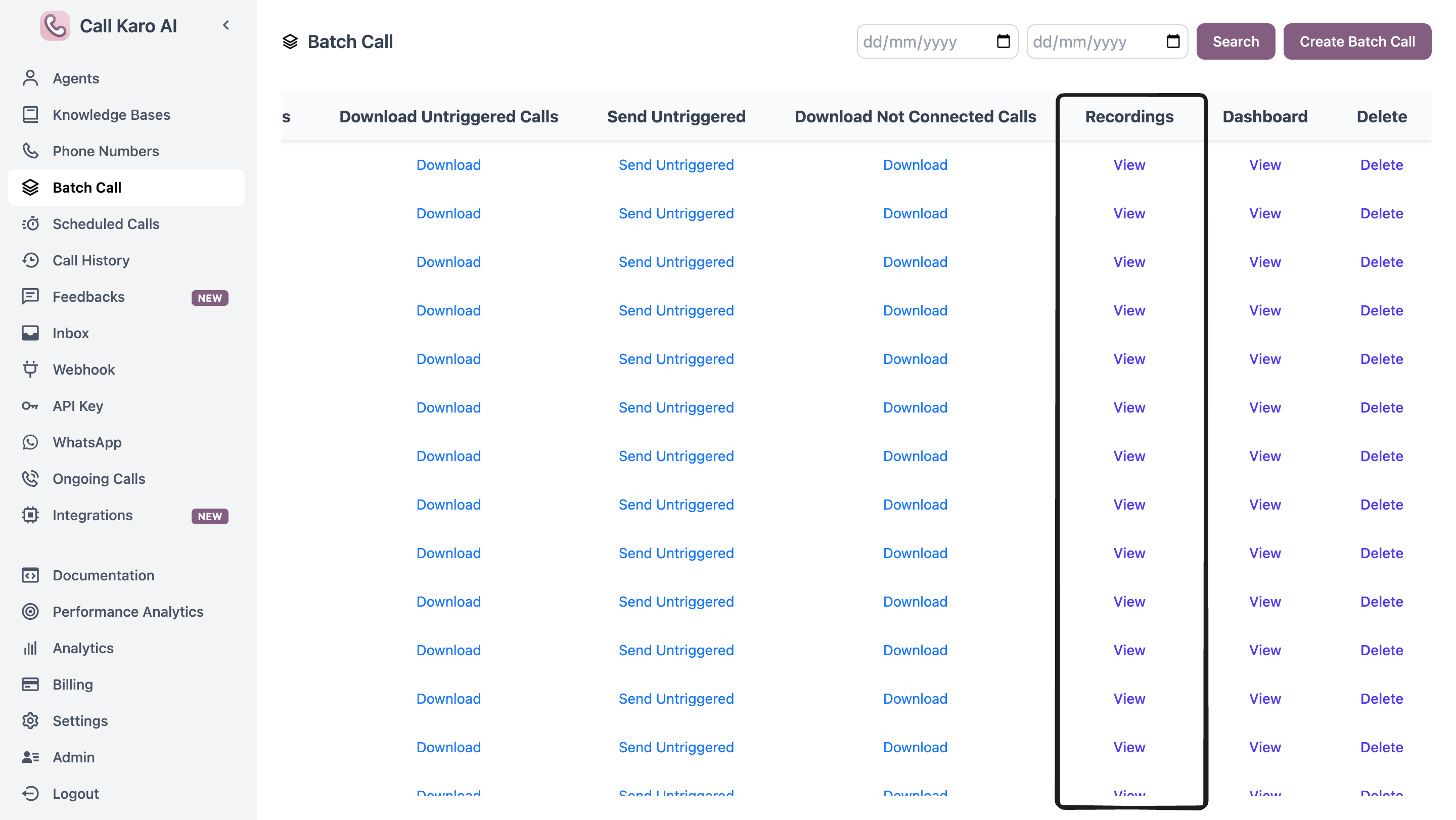
Navigate to the batch call recordings page:
**Dashboard → Batch Calls → \[Select Batch] → View (Recordings Column)**
 ## Filters
### Version Filter
Select specific agent versions to view only calls made with those versions.
### Duration Filter
Filter calls by duration:
* **Not Connected** - 0 seconds
* **1-10s** - Very short calls
* **11-30s** - Short calls
* **31-60s** - Medium calls
* **>60s** - Long calls
### Trial Filter
Filter by trial number (Trial 1, Trial 2, Trial 3, etc.) or Inbound calls.
### Hangup Reason Filter
Filter by disconnect reason (`USER_UNAVAILABLE`, `CLIENT_INITIATED`, `VOICEMAIL_DETECTED`, etc.).
### Phone Number Search
Enter a phone number to find specific calls.
### Funnel Metrics Filter
Toggle funnel metrics to filter calls:
* Click metric name to enable/disable filter
* Use switch to filter by `true` or `false` value
* Multiple metrics can be active
## Table Columns
| Column | Description |
| ----------------- | --------------------------------------------------------------------------------------------- |
| **Trial Number** | Which retry attempt (Trial 1, Trial 2, etc.) |
| **From** | Caller phone number |
| **To** | Recipient phone number |
| **Agent** | AI agent name |
| **Version** | Agent version used |
| **Time** | Call timestamp |
| **Last Stage** | Final stage reached (Converted, Connected, Not Connected, Voicemail, or custom funnel metric) |
| **Disposition** | Reason provided by agent (hover to see full text) |
| **Duration** | Call length in hours, minutes, seconds |
| **Model** | LLM model and temperature (hover for details) |
| **Voice** | Voice provider and name (hover for details) |
| **Transcriber** | Transcription provider and language |
| **Latency** | Average total latency - hover for breakdown |
| **Cost** | Total cost in credits (hover for breakdown by service) |
| **Hangup Reason** | Why call ended |
## Actions
### Search
Click **Search** to apply all selected filters and reload the table.
### Dashboard
Navigate to the batch call dashboard with analytics and charts.
### Export as Excel
Download all filtered recordings as an Excel file with:
* All call details
* Metadata fields
* Post-call variables
* Function calls (if any)
## How to Use
1. **Select Filters** - Choose versions, durations, trials, hangup reasons, phone number
2. **Toggle Funnel Metrics** - Click metric names and set true/false filters
3. **Click Search** - Apply filters to table
4. **Click Row** - Open call details sidebar
5. **Export** - Download filtered results
Use the **Last Stage** column to quickly identify where contacts dropped off in your funnel.
## Filters
### Version Filter
Select specific agent versions to view only calls made with those versions.
### Duration Filter
Filter calls by duration:
* **Not Connected** - 0 seconds
* **1-10s** - Very short calls
* **11-30s** - Short calls
* **31-60s** - Medium calls
* **>60s** - Long calls
### Trial Filter
Filter by trial number (Trial 1, Trial 2, Trial 3, etc.) or Inbound calls.
### Hangup Reason Filter
Filter by disconnect reason (`USER_UNAVAILABLE`, `CLIENT_INITIATED`, `VOICEMAIL_DETECTED`, etc.).
### Phone Number Search
Enter a phone number to find specific calls.
### Funnel Metrics Filter
Toggle funnel metrics to filter calls:
* Click metric name to enable/disable filter
* Use switch to filter by `true` or `false` value
* Multiple metrics can be active
## Table Columns
| Column | Description |
| ----------------- | --------------------------------------------------------------------------------------------- |
| **Trial Number** | Which retry attempt (Trial 1, Trial 2, etc.) |
| **From** | Caller phone number |
| **To** | Recipient phone number |
| **Agent** | AI agent name |
| **Version** | Agent version used |
| **Time** | Call timestamp |
| **Last Stage** | Final stage reached (Converted, Connected, Not Connected, Voicemail, or custom funnel metric) |
| **Disposition** | Reason provided by agent (hover to see full text) |
| **Duration** | Call length in hours, minutes, seconds |
| **Model** | LLM model and temperature (hover for details) |
| **Voice** | Voice provider and name (hover for details) |
| **Transcriber** | Transcription provider and language |
| **Latency** | Average total latency - hover for breakdown |
| **Cost** | Total cost in credits (hover for breakdown by service) |
| **Hangup Reason** | Why call ended |
## Actions
### Search
Click **Search** to apply all selected filters and reload the table.
### Dashboard
Navigate to the batch call dashboard with analytics and charts.
### Export as Excel
Download all filtered recordings as an Excel file with:
* All call details
* Metadata fields
* Post-call variables
* Function calls (if any)
## How to Use
1. **Select Filters** - Choose versions, durations, trials, hangup reasons, phone number
2. **Toggle Funnel Metrics** - Click metric names and set true/false filters
3. **Click Search** - Apply filters to table
4. **Click Row** - Open call details sidebar
5. **Export** - Download filtered results
Use the **Last Stage** column to quickly identify where contacts dropped off in your funnel.