> ## Documentation Index
> Fetch the complete documentation index at: https://docs.callkaro.ai/llms.txt
> Use this file to discover all available pages before exploring further.
# Heltar Integration
> Connect Heltar for WhatsApp messaging
## Overview
Connect Heltar to enable WhatsApp messaging capabilities with your AI agents. Heltar allows you to send WhatsApp messages during and after AI calls using approved templates.
**Benefits:**
* Send follow-up messages after calls
* Share links and confirmations on WhatsApp
* Automate WhatsApp outreach
* Track message delivery
## Integration Steps
### Step 1: Get API Key from Heltar
1. Log in to your Heltar dashboard
2. Navigate to API settings
3. Copy your API key
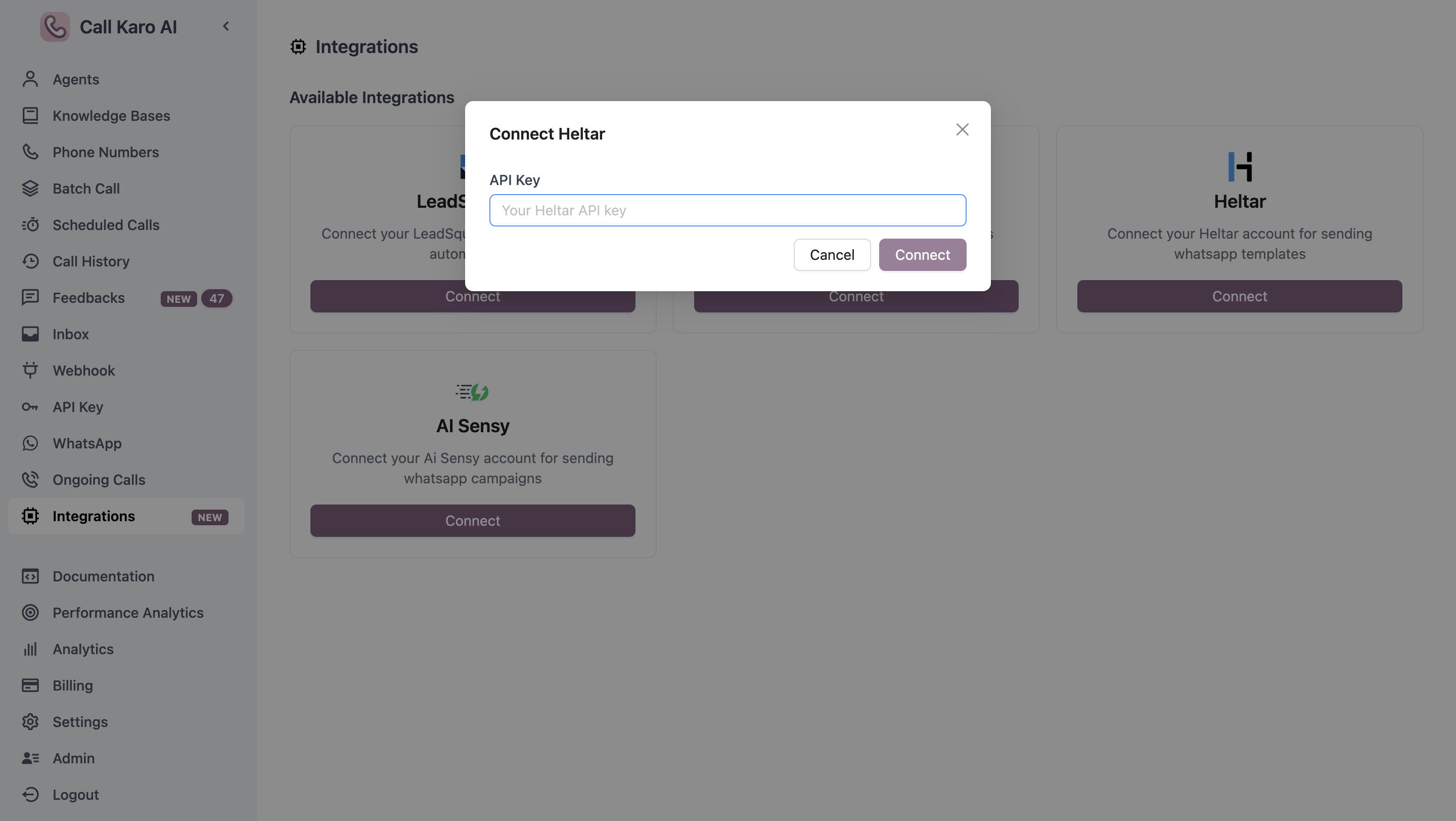
 ### Step 2: Connect Heltar in CallKaro
1. Navigate to **Dashboard → Integrations**
2. Find **Heltar** integration
3. Click **Connect**
4. Paste your Heltar API key
5. Click **Save**
### Step 2: Connect Heltar in CallKaro
1. Navigate to **Dashboard → Integrations**
2. Find **Heltar** integration
3. Click **Connect**
4. Paste your Heltar API key
5. Click **Save**
 ## Configure WhatsApp Messaging
Once Heltar is connected, you can configure WhatsApp messaging for your agents.
Learn how to set up WhatsApp messaging for your agents
Ensure you have approved WhatsApp templates in your Heltar account before configuring agent messaging.
## Configure WhatsApp Messaging
Once Heltar is connected, you can configure WhatsApp messaging for your agents.
Learn how to set up WhatsApp messaging for your agents
Ensure you have approved WhatsApp templates in your Heltar account before configuring agent messaging.