> ## Documentation Index
> Fetch the complete documentation index at: https://docs.callkaro.ai/llms.txt
> Use this file to discover all available pages before exploring further.
# HubSpot Integration
> Automatically call new contacts from your HubSpot CRM
## Overview
Connect your HubSpot CRM to automatically trigger AI calls when new contacts are created. HubSpot integration requires a developer account and private app setup.
**How It Works:**
1. Convert to HubSpot developer account
2. Create private app with required scopes
3. Configure webhook for contact creation
4. Copy access token to CallKaro
5. Map contact fields to agent variables
## Requirements
* HubSpot account (can be converted to developer account)
* Access to HubSpot app settings
* CallKaro API key
## Step 1: Convert to Developer Account
You can convert your current HubSpot account to a developer account to access app creation features.
Converting to a developer account is free and enables private app creation.
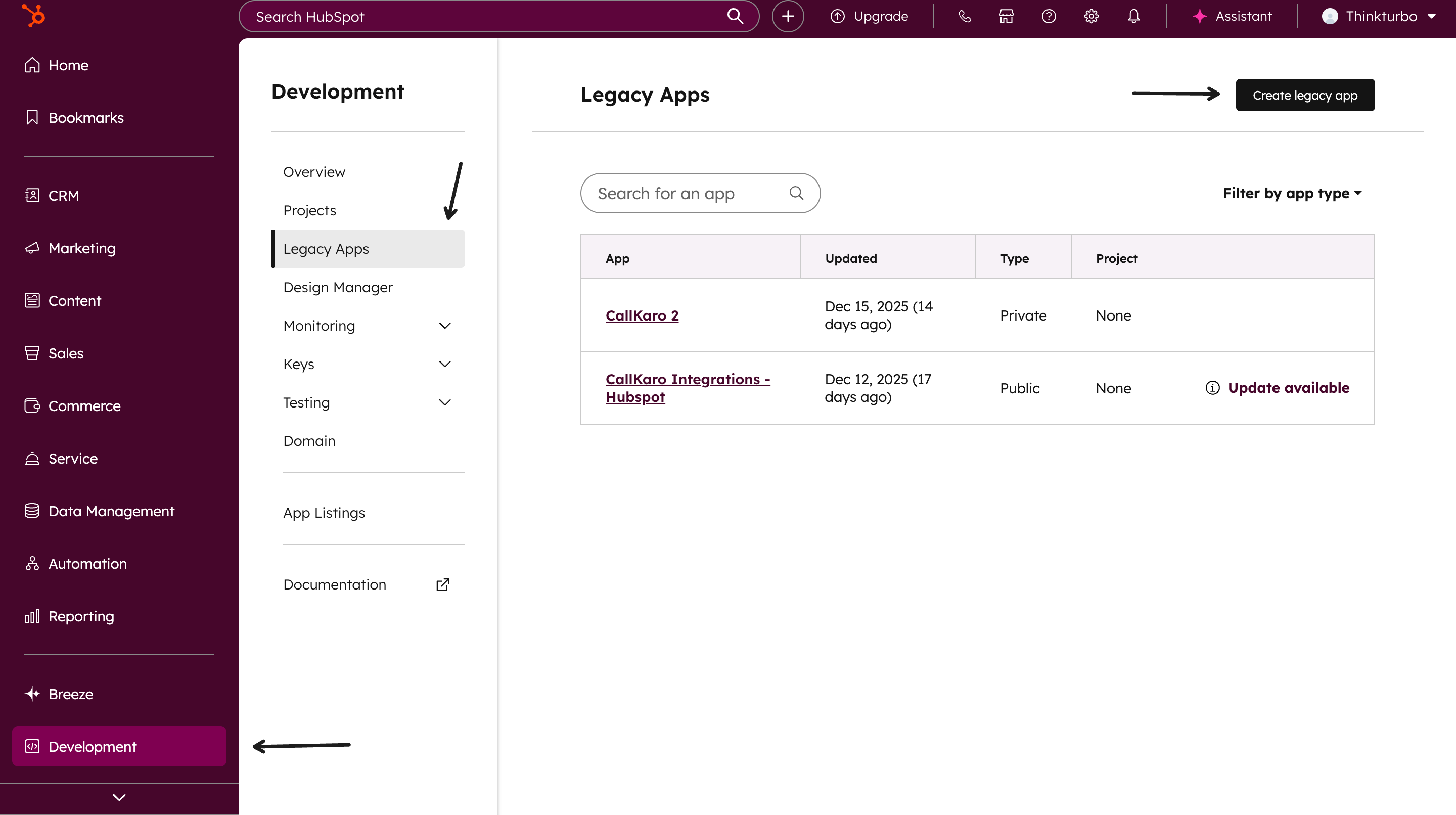
## Step 2: Navigate to Legacy Apps
1. Log in to your HubSpot account
2. Go to **Developer → Legacy Apps**
3. Click **Create App**
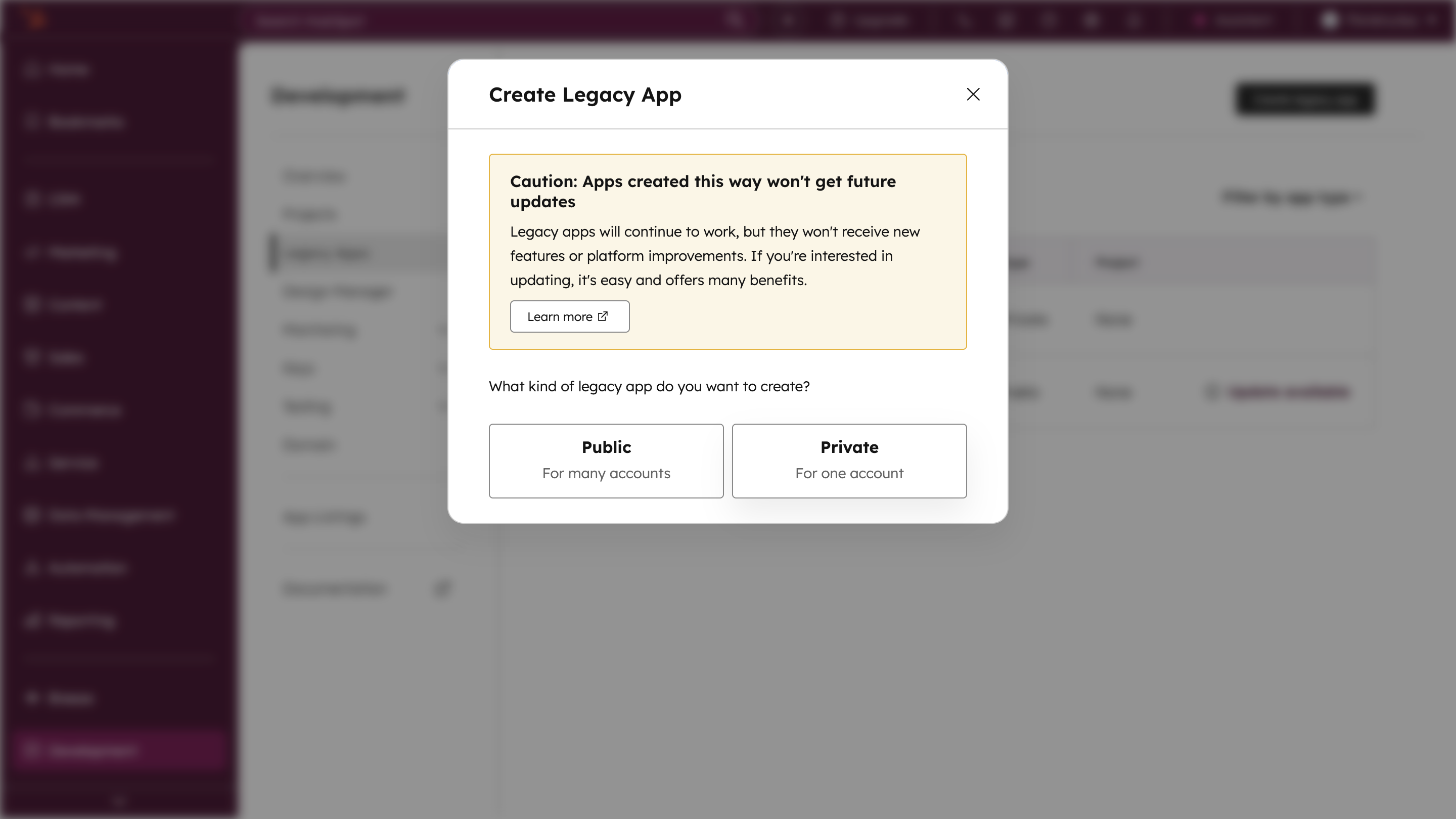
 ## Step 3: Create Private App
1. Click **Create App**
2. Choose **Private** app type
## Step 3: Create Private App
1. Click **Create App**
2. Choose **Private** app type
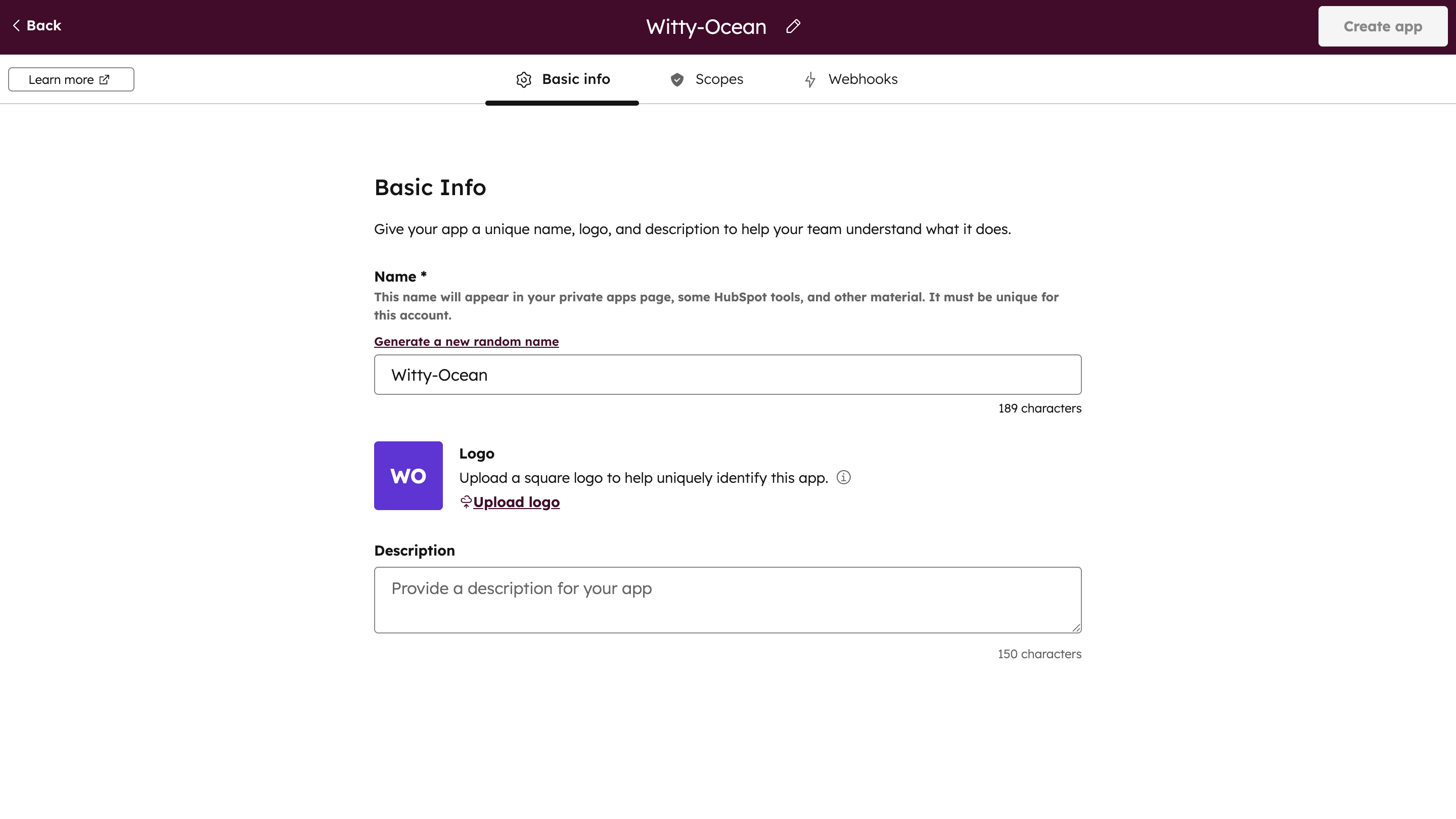
 ## Step 4: Enter Basic Information
Fill in your app details:
* **App Name** - Name for your integration (e.g., "CallKaro AI Integration")
* **Logo** - Optional app logo
## Step 4: Enter Basic Information
Fill in your app details:
* **App Name** - Name for your integration (e.g., "CallKaro AI Integration")
* **Logo** - Optional app logo
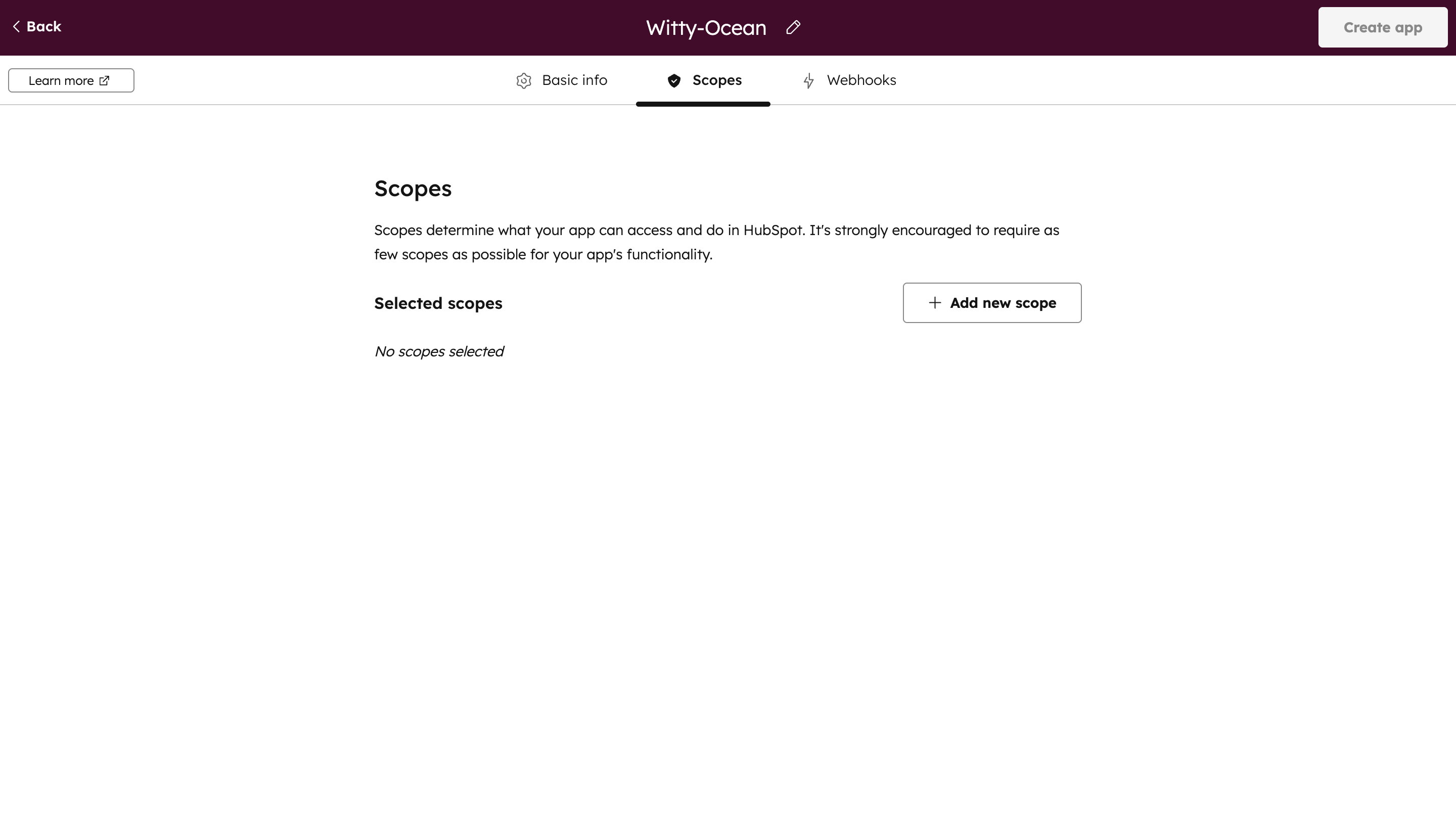
 ## Step 5: Add Required Scopes
1. Navigate to **Scopes** tab
2. Click **+ Add New Scope**
## Step 5: Add Required Scopes
1. Navigate to **Scopes** tab
2. Click **+ Add New Scope**
 ## Step 6: Select Contact Scopes
Search for "contact" and add these scopes:
* `crm.objects.contacts.read`
* `crm.objects.contacts.write`
* `crm.schemas.contacts.read`
* `crm.schemas.contacts.write`
## Step 6: Select Contact Scopes
Search for "contact" and add these scopes:
* `crm.objects.contacts.read`
* `crm.objects.contacts.write`
* `crm.schemas.contacts.read`
* `crm.schemas.contacts.write`
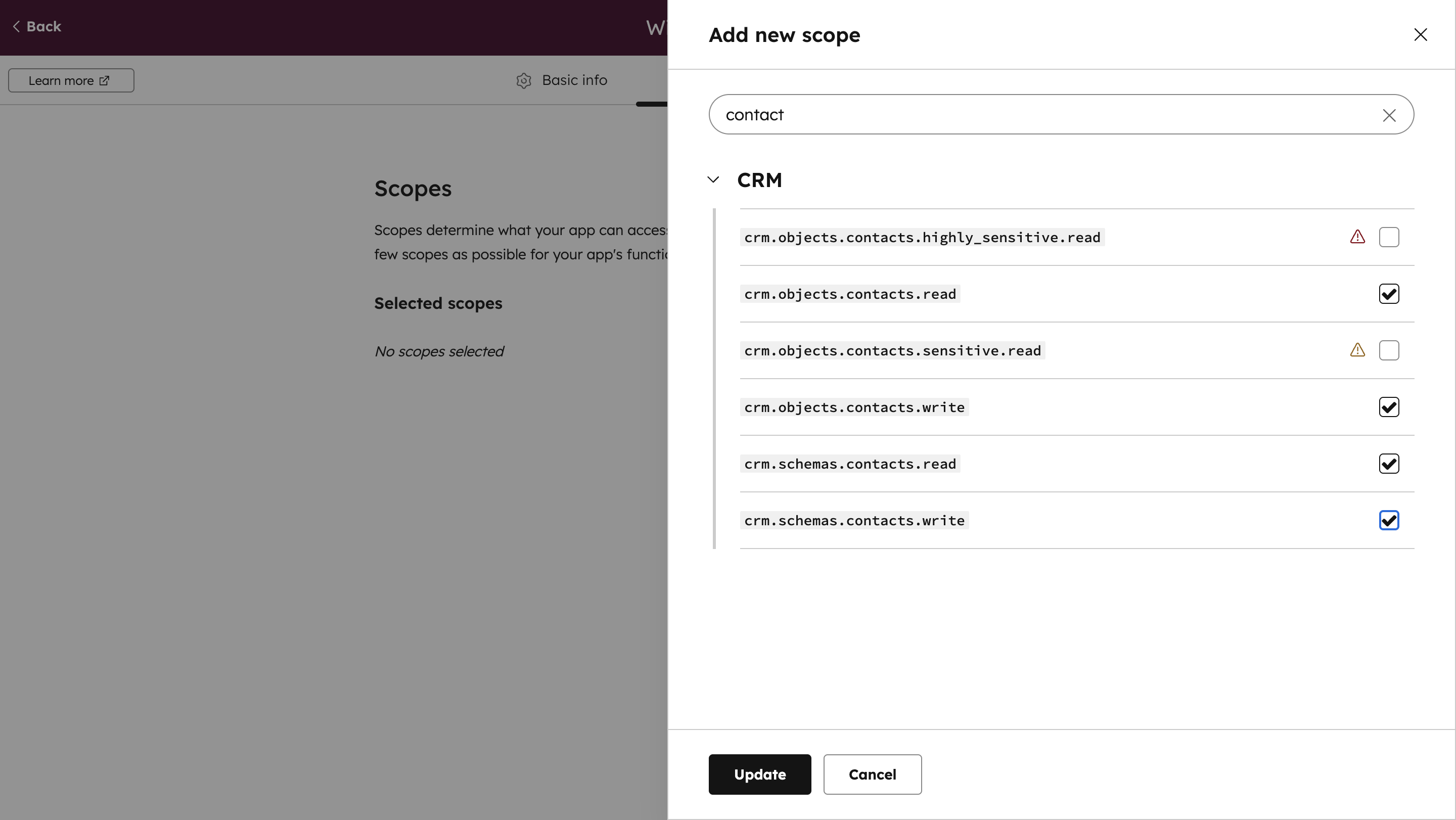 These scopes allow CallKaro to read contact data when new contacts are created.
## Step 7: Configure Webhook URL
1. Navigate to **Webhooks** tab
2. Enter your CallKaro webhook URL:
```
https://api.callkaro.ai/call/crm-webhook?agent_id=YOUR_AGENT_ID&type=hubspot&x_api_key=YOUR_API_KEY
```
**Replace:**
* `YOUR_AGENT_ID` - Your CallKaro agent ID
* `YOUR_API_KEY` - Your CallKaro API key (found in Dashboard → API Keys)
These scopes allow CallKaro to read contact data when new contacts are created.
## Step 7: Configure Webhook URL
1. Navigate to **Webhooks** tab
2. Enter your CallKaro webhook URL:
```
https://api.callkaro.ai/call/crm-webhook?agent_id=YOUR_AGENT_ID&type=hubspot&x_api_key=YOUR_API_KEY
```
**Replace:**
* `YOUR_AGENT_ID` - Your CallKaro agent ID
* `YOUR_API_KEY` - Your CallKaro API key (found in Dashboard → API Keys)
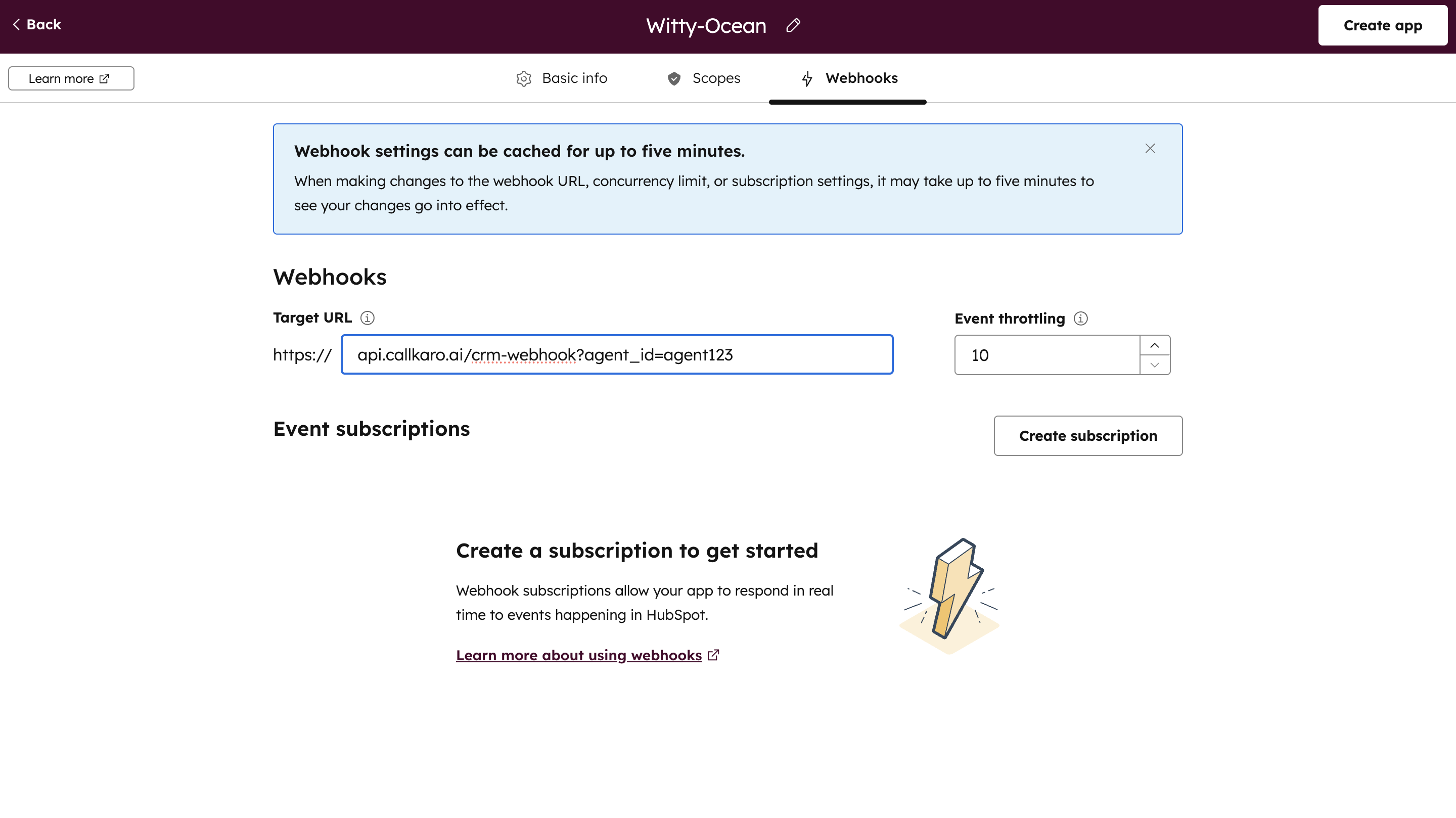 Get your agent ID from the agent configuration page URL.
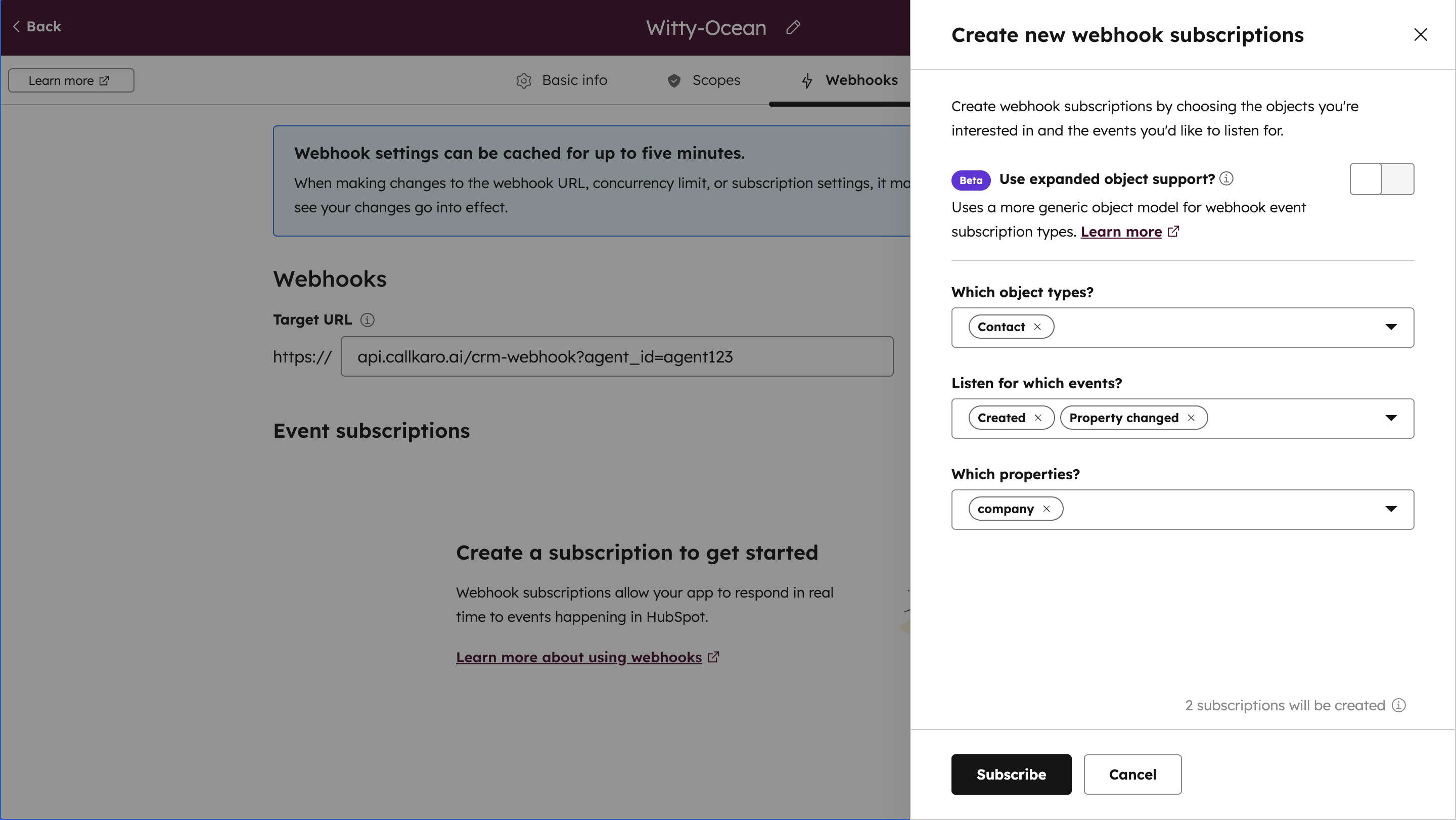
## Step 8: Create Webhook Subscription
1. Click **Create Subscription**
2. Choose trigger event: **eg. Contact Created**
3. This determines when the webhook fires
Get your agent ID from the agent configuration page URL.
## Step 8: Create Webhook Subscription
1. Click **Create Subscription**
2. Choose trigger event: **eg. Contact Created**
3. This determines when the webhook fires
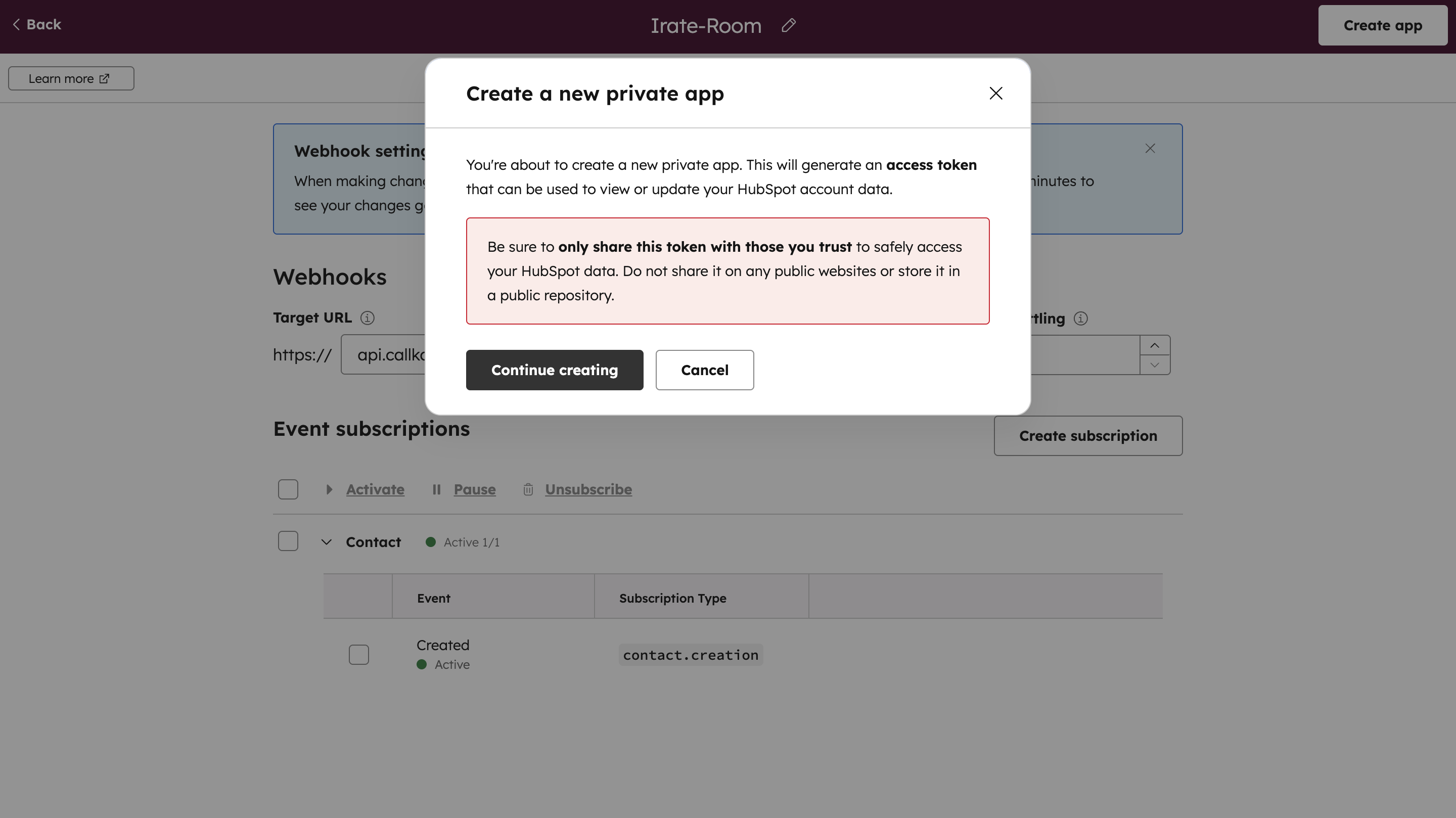
 ## Step 9: Finalize App Creation
1. Click **Create App**
2. Review settings and click **Continue Creating**
## Step 9: Finalize App Creation
1. Click **Create App**
2. Review settings and click **Continue Creating**
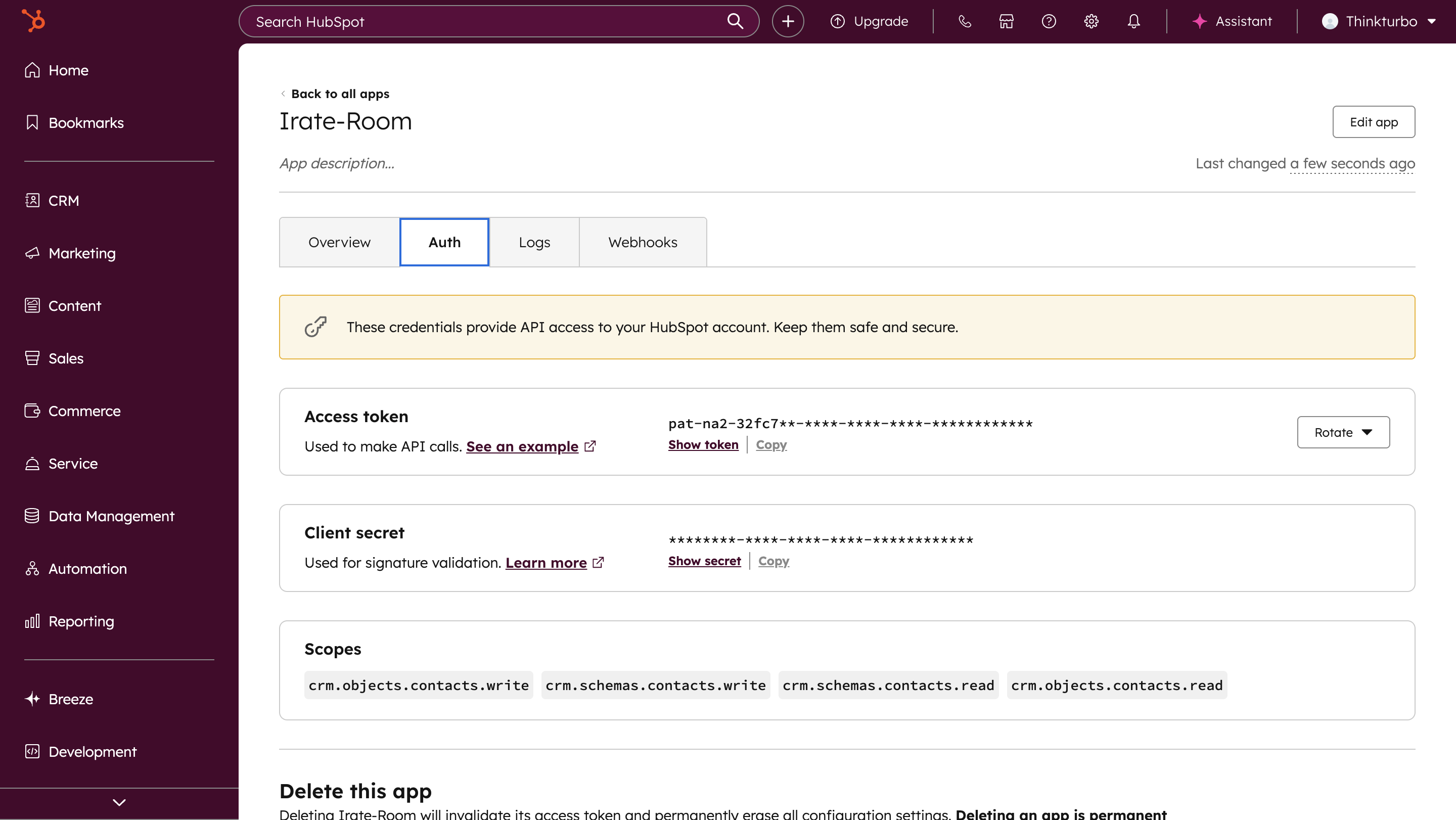
 ## Step 10: Copy Access Token
1. Navigate to **Auth** section in your new app
2. Copy the **Access Token**
3. Save it securely - you'll need it for CallKaro
## Step 10: Copy Access Token
1. Navigate to **Auth** section in your new app
2. Copy the **Access Token**
3. Save it securely - you'll need it for CallKaro
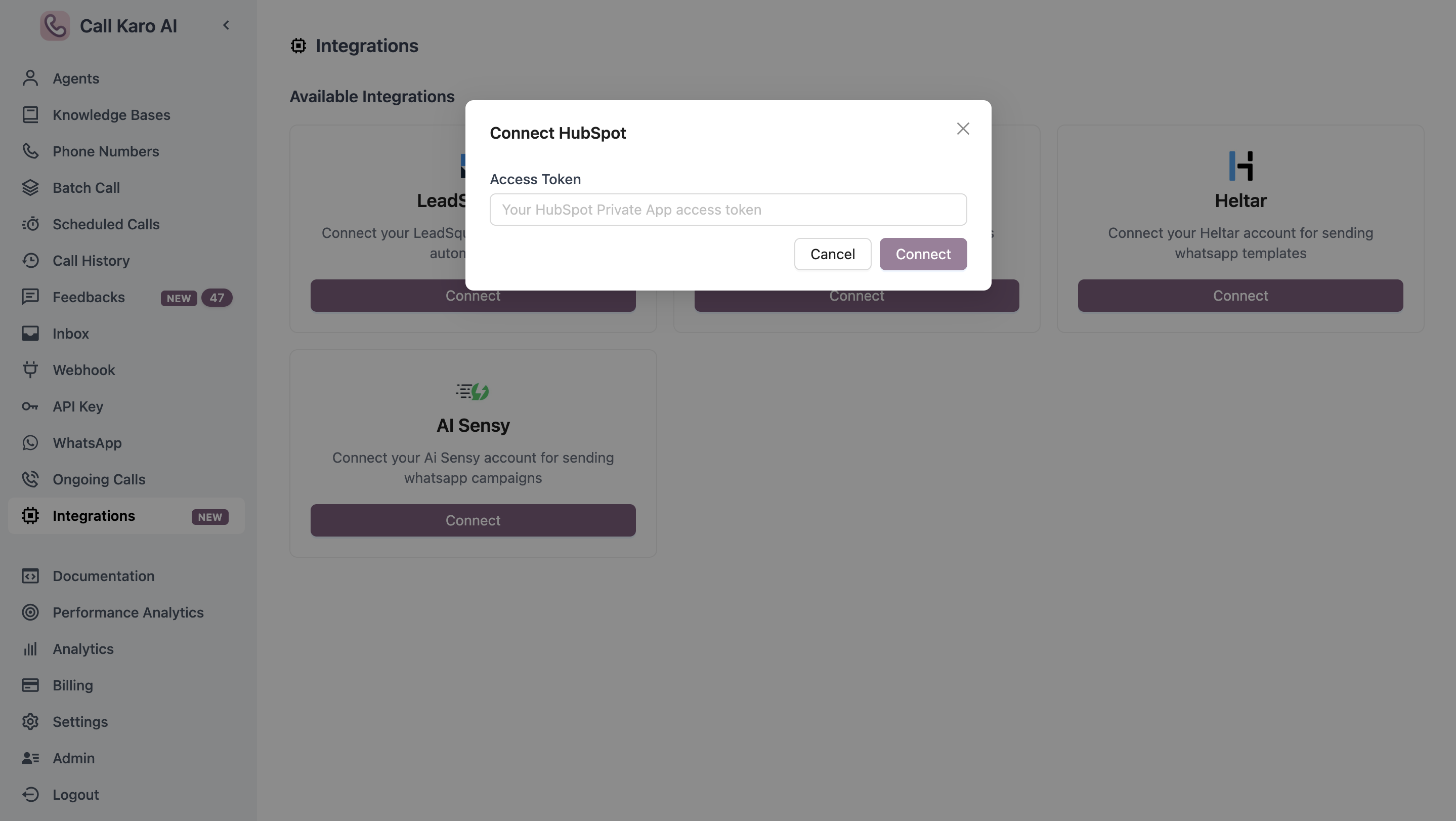
 ## Step 11: Connect in CallKaro Dashboard
1. Go to **CallKaro Dashboard → Integrations**
2. Find **HubSpot** integration
3. Click **Connect**
4. Paste your Access Token
5. Click **Save**
## Step 11: Connect in CallKaro Dashboard
1. Go to **CallKaro Dashboard → Integrations**
2. Find **HubSpot** integration
3. Click **Connect**
4. Paste your Access Token
5. Click **Save**
 ## Step 12: Configure Variable Mapping
Map HubSpot contact fields to your agent's call metadata variables.
1. Go to your agent configuration
2. Navigate to **Variable Source** tab
3. Add variable mappings:
* Variable Name: `firstname`
* Source: `hubspot`
* HubSpot Field: `firstname`
Learn how to map CRM fields to agent variables
### Common Field Mappings
| Agent Variable | HubSpot Field |
| -------------- | ------------- |
| `firstname` | `firstname` |
| `lastname` | `lastname` |
| `email` | `email` |
| `phone` | `phone` |
| `company` | `company` |
| `city` | `city` |
## Advanced Parameters
Add optional parameters to control call behavior (same as webhook URL):
| Parameter | Description | Example |
| --------------------- | ------------------------------- | ------- |
| `min_trigger_time` | Earliest call time (HH:MM) | `09:00` |
| `max_trigger_time` | Latest call time (HH:MM) | `18:00` |
| `carry_over` | Carry over calls outside window | `true` |
| `num_of_retries` | Number of retry attempts | `3` |
| `gap_between_retries` | Hours between retries | `2,4,6` |
**Example with parameters:**
```
https://api.callkaro.ai/call/crm-webhook?agent_id=YOUR_AGENT_ID&type=hubspot&x_api_key=YOUR_API_KEY&min_trigger_time=09:00&max_trigger_time=18:00&num_of_retries=3&gap_between_retries=2,4,6
```
## Testing
1. Create a test contact in HubSpot
2. Check CallKaro Dashboard → Call History
3. Verify call was triggered with correct data
4. Review call details to confirm field mapping
## Troubleshooting
**Solutions:**
* Verify webhook URL is correct
* Check agent ID and API key
* Ensure app has required scopes
* Confirm webhook subscription is active
**Solutions:**
* Regenerate access token in HubSpot app
* Update token in CallKaro integrations
* Verify app is not deleted or disabled
**Solutions:**
* Check variable source is set to `hubspot`
* Verify HubSpot field names are correct
* Ensure contact has values for mapped fields
* Test with contacts that have all required data
Use HubSpot's workflow logs to debug webhook delivery issues.
## Step 12: Configure Variable Mapping
Map HubSpot contact fields to your agent's call metadata variables.
1. Go to your agent configuration
2. Navigate to **Variable Source** tab
3. Add variable mappings:
* Variable Name: `firstname`
* Source: `hubspot`
* HubSpot Field: `firstname`
Learn how to map CRM fields to agent variables
### Common Field Mappings
| Agent Variable | HubSpot Field |
| -------------- | ------------- |
| `firstname` | `firstname` |
| `lastname` | `lastname` |
| `email` | `email` |
| `phone` | `phone` |
| `company` | `company` |
| `city` | `city` |
## Advanced Parameters
Add optional parameters to control call behavior (same as webhook URL):
| Parameter | Description | Example |
| --------------------- | ------------------------------- | ------- |
| `min_trigger_time` | Earliest call time (HH:MM) | `09:00` |
| `max_trigger_time` | Latest call time (HH:MM) | `18:00` |
| `carry_over` | Carry over calls outside window | `true` |
| `num_of_retries` | Number of retry attempts | `3` |
| `gap_between_retries` | Hours between retries | `2,4,6` |
**Example with parameters:**
```
https://api.callkaro.ai/call/crm-webhook?agent_id=YOUR_AGENT_ID&type=hubspot&x_api_key=YOUR_API_KEY&min_trigger_time=09:00&max_trigger_time=18:00&num_of_retries=3&gap_between_retries=2,4,6
```
## Testing
1. Create a test contact in HubSpot
2. Check CallKaro Dashboard → Call History
3. Verify call was triggered with correct data
4. Review call details to confirm field mapping
## Troubleshooting
**Solutions:**
* Verify webhook URL is correct
* Check agent ID and API key
* Ensure app has required scopes
* Confirm webhook subscription is active
**Solutions:**
* Regenerate access token in HubSpot app
* Update token in CallKaro integrations
* Verify app is not deleted or disabled
**Solutions:**
* Check variable source is set to `hubspot`
* Verify HubSpot field names are correct
* Ensure contact has values for mapped fields
* Test with contacts that have all required data
Use HubSpot's workflow logs to debug webhook delivery issues.