> ## Documentation Index
> Fetch the complete documentation index at: https://docs.callkaro.ai/llms.txt
> Use this file to discover all available pages before exploring further.
# Run a Manual RCA
> Analyse a call set you choose yourself, on demand
The daily run covers yesterday, across the whole configured scope. When you need an answer right now — or about a specific set of calls — use **Run Manual RCA**.
 ## Running one
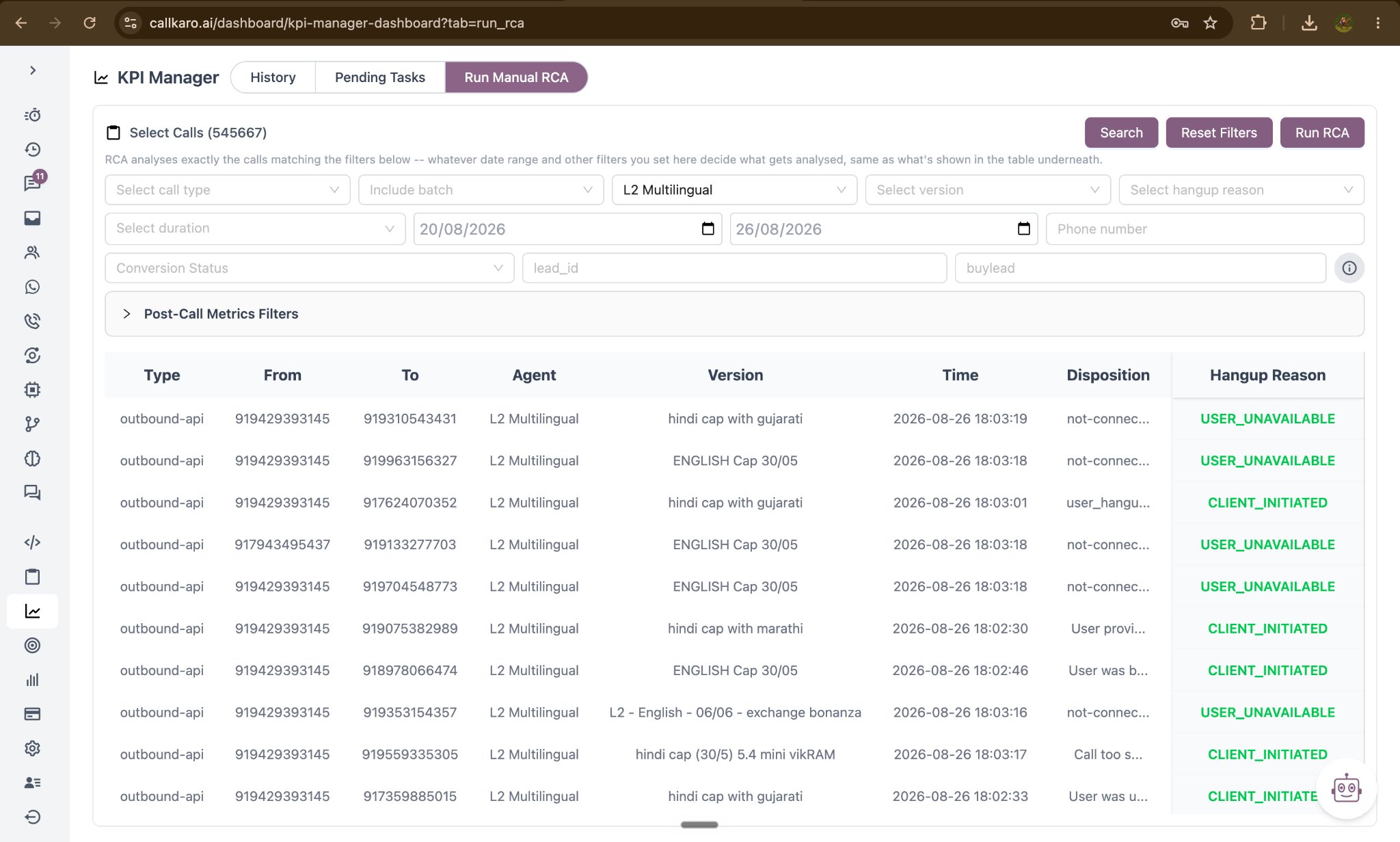
Choose the agent and filter the call list by date range and any other available criteria.
Review the results and select the calls you want analysed. The count is shown as you select.
Select **Run RCA**, then set:
* **Target (%)** — the value to measure this run against.
* **RCA Model** — the model for this run.
* **RCA Prompt (optional)** — focus for this run only; it does not overwrite the agent's saved prompt.
The run starts in the background. When it finishes, the report appears in **History → RCA**, tagged **Manual**.
Manual runs work regardless of the **Auto RCA** setting, which makes this the right tool for investigating a specific complaint, testing a prompt idea before committing to it, or analysing a single campaign.
A manual run reads through every call you selected, so it takes a few minutes to finish. You can leave the tab and come back — the report will be waiting in History → RCA.
## Running one
Choose the agent and filter the call list by date range and any other available criteria.
Review the results and select the calls you want analysed. The count is shown as you select.
Select **Run RCA**, then set:
* **Target (%)** — the value to measure this run against.
* **RCA Model** — the model for this run.
* **RCA Prompt (optional)** — focus for this run only; it does not overwrite the agent's saved prompt.
The run starts in the background. When it finishes, the report appears in **History → RCA**, tagged **Manual**.
Manual runs work regardless of the **Auto RCA** setting, which makes this the right tool for investigating a specific complaint, testing a prompt idea before committing to it, or analysing a single campaign.
A manual run reads through every call you selected, so it takes a few minutes to finish. You can leave the tab and come back — the report will be waiting in History → RCA.