> ## Documentation Index
> Fetch the complete documentation index at: https://docs.callkaro.ai/llms.txt
> Use this file to discover all available pages before exploring further.
# Set up KPI Manager
> Add data sources, define KPI metrics, and write the RCA prompt
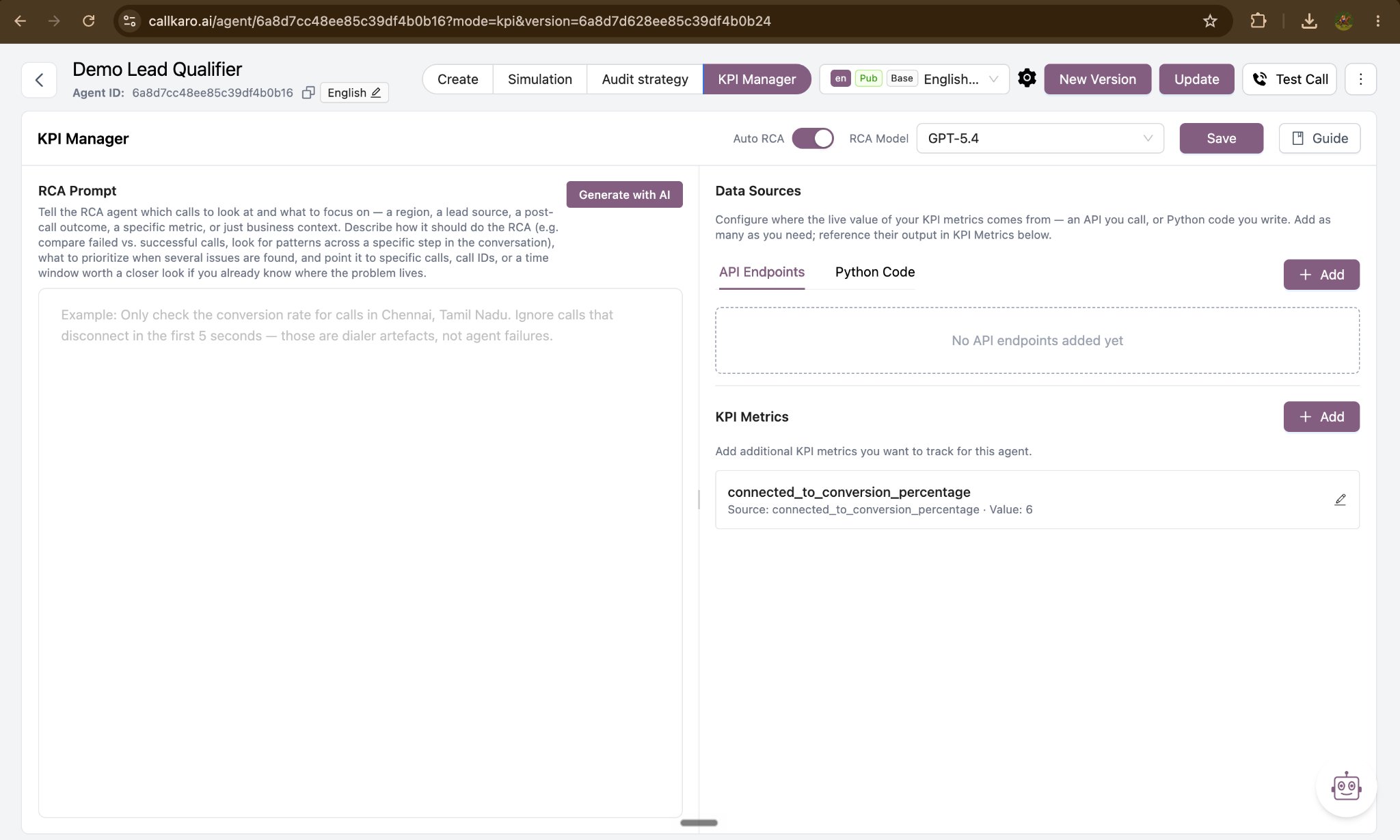
Setup is done once per agent and takes a few minutes. Open the agent, go to the **KPI Manager** tab, and work left to right.
 ## Step 1 — Add a data source
A data source supplies the live value of a metric. Open the **Data Sources** panel and choose one of the two tabs.
Use this when the number already exists behind an API in your systems. Callkaro will call it once per batch of calls, sending the phone numbers involved.
| Field | What to enter |
| --------------- | ---------------------------------------------------------------------------------------------------------------------------------- |
| **Unique Name** | A short identifier you will reference from your metrics — for example `crm` or `update_lead_status`. |
| **URL** | The full endpoint URL in your system. |
| **Method** | POST. |
| **Headers** | Any authentication or content headers the endpoint requires, as key/value pairs. |
| **Parameters** | What Callkaro sends for each call. `phone_number` is always included and cannot be removed; add any other call variables you need. |
| **Dummy cURL** | A generated, read-only preview of the exact request Callkaro will send. Copy it and test it against your endpoint before saving. |
## Step 1 — Add a data source
A data source supplies the live value of a metric. Open the **Data Sources** panel and choose one of the two tabs.
Use this when the number already exists behind an API in your systems. Callkaro will call it once per batch of calls, sending the phone numbers involved.
| Field | What to enter |
| --------------- | ---------------------------------------------------------------------------------------------------------------------------------- |
| **Unique Name** | A short identifier you will reference from your metrics — for example `crm` or `update_lead_status`. |
| **URL** | The full endpoint URL in your system. |
| **Method** | POST. |
| **Headers** | Any authentication or content headers the endpoint requires, as key/value pairs. |
| **Parameters** | What Callkaro sends for each call. `phone_number` is always included and cannot be removed; add any other call variables you need. |
| **Dummy cURL** | A generated, read-only preview of the exact request Callkaro will send. Copy it and test it against your endpoint before saving. |
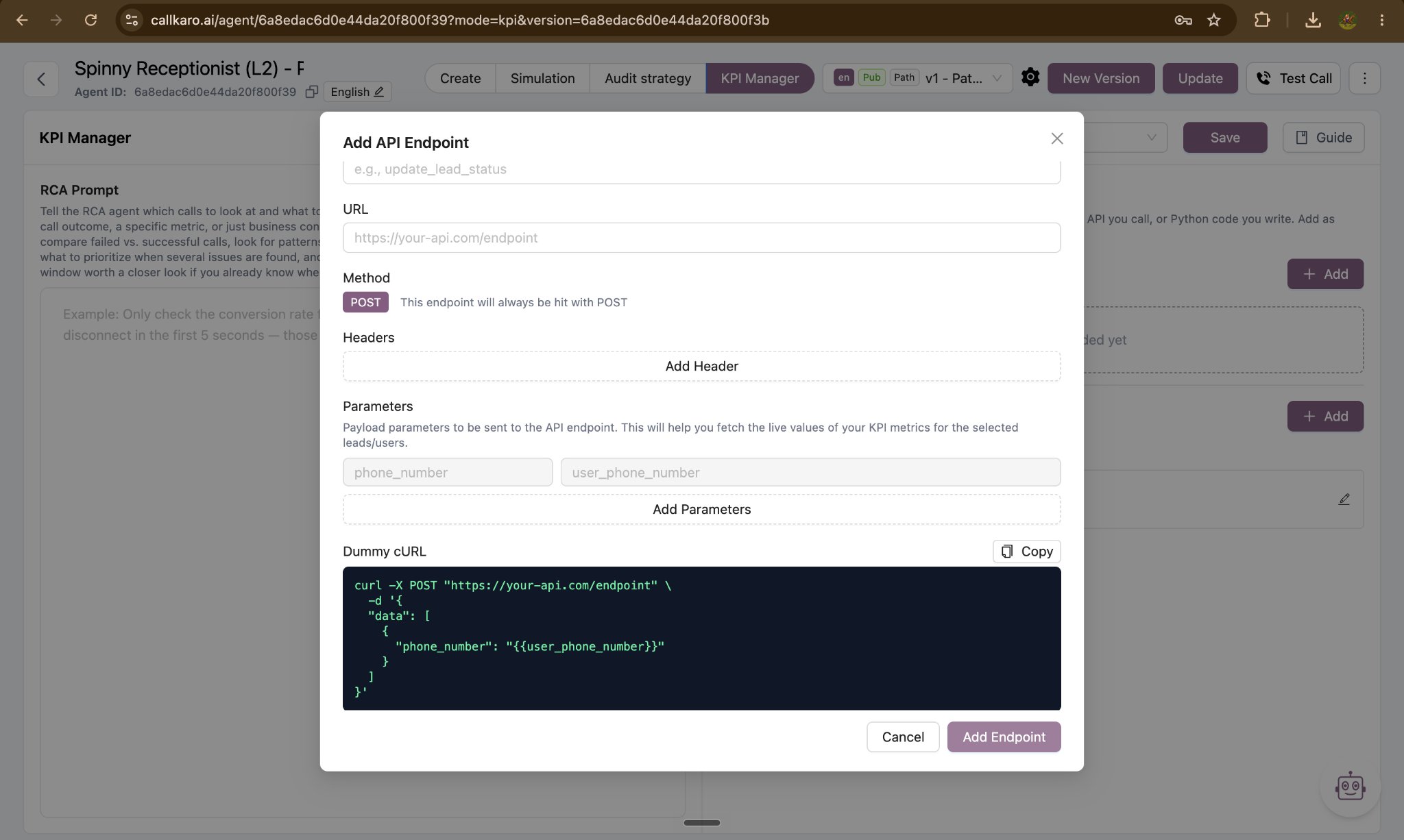 **Response shape matters.** Your endpoint's response is expected to be wrapped as `{ data: { ... } }`. A source named `crm` returning `{ data: { conversion_rate: 85 } }` is referenced from a metric as `crm.data.conversion_rate`.
Use this when the number needs to be computed, joined across systems, or cleaned up before it is usable. You write the logic; Callkaro runs it securely on the backend, once per batch.
| Field | What to enter |
| ------------------- | ------------------------------------------------------------------------------------------------------------------------------------ |
| **Unique Name** | The identifier your metrics will reference — for example `budget_quality`. |
| **Parameters** | Which call variables to include in each entry of the payload. `phone_number` is always included. |
| **Payload Preview** | A live, read-only preview of the exact list your function will receive. |
| **Python Code** | Your logic, written inside the fixed `async def generate_kpi_data(payload: list) -> dict` signature. Only the body is yours to edit. |
The rules for the function:
* `payload` is a **list** with one entry per lead in the batch, each carrying `phone_number` plus any parameters you configured.
* It must return a single JSON-serialisable **dict** summarising the batch — returned directly, with no wrapper.
* `httpx` is available for HTTP calls with no import needed.
* Whatever keys you return are what your metrics can reference, as `.`.
```python theme={null}
async def generate_kpi_data(payload: list) -> dict:
for entry in payload:
phone_number = entry.get("phone_number")
# Your logic here
async with httpx.AsyncClient(timeout=8.0) as client:
response = await client.get("https://your-system/metrics")
data = response.json()
return {
"l2s": 5.4,
"s2c": 4,
"message": "Focus on s2c for now",
}
```
**Response shape matters.** Your endpoint's response is expected to be wrapped as `{ data: { ... } }`. A source named `crm` returning `{ data: { conversion_rate: 85 } }` is referenced from a metric as `crm.data.conversion_rate`.
Use this when the number needs to be computed, joined across systems, or cleaned up before it is usable. You write the logic; Callkaro runs it securely on the backend, once per batch.
| Field | What to enter |
| ------------------- | ------------------------------------------------------------------------------------------------------------------------------------ |
| **Unique Name** | The identifier your metrics will reference — for example `budget_quality`. |
| **Parameters** | Which call variables to include in each entry of the payload. `phone_number` is always included. |
| **Payload Preview** | A live, read-only preview of the exact list your function will receive. |
| **Python Code** | Your logic, written inside the fixed `async def generate_kpi_data(payload: list) -> dict` signature. Only the body is yours to edit. |
The rules for the function:
* `payload` is a **list** with one entry per lead in the batch, each carrying `phone_number` plus any parameters you configured.
* It must return a single JSON-serialisable **dict** summarising the batch — returned directly, with no wrapper.
* `httpx` is available for HTTP calls with no import needed.
* Whatever keys you return are what your metrics can reference, as `.`.
```python theme={null}
async def generate_kpi_data(payload: list) -> dict:
for entry in payload:
phone_number = entry.get("phone_number")
# Your logic here
async with httpx.AsyncClient(timeout=8.0) as client:
response = await client.get("https://your-system/metrics")
data = response.json()
return {
"l2s": 5.4,
"s2c": 4,
"message": "Focus on s2c for now",
}
```
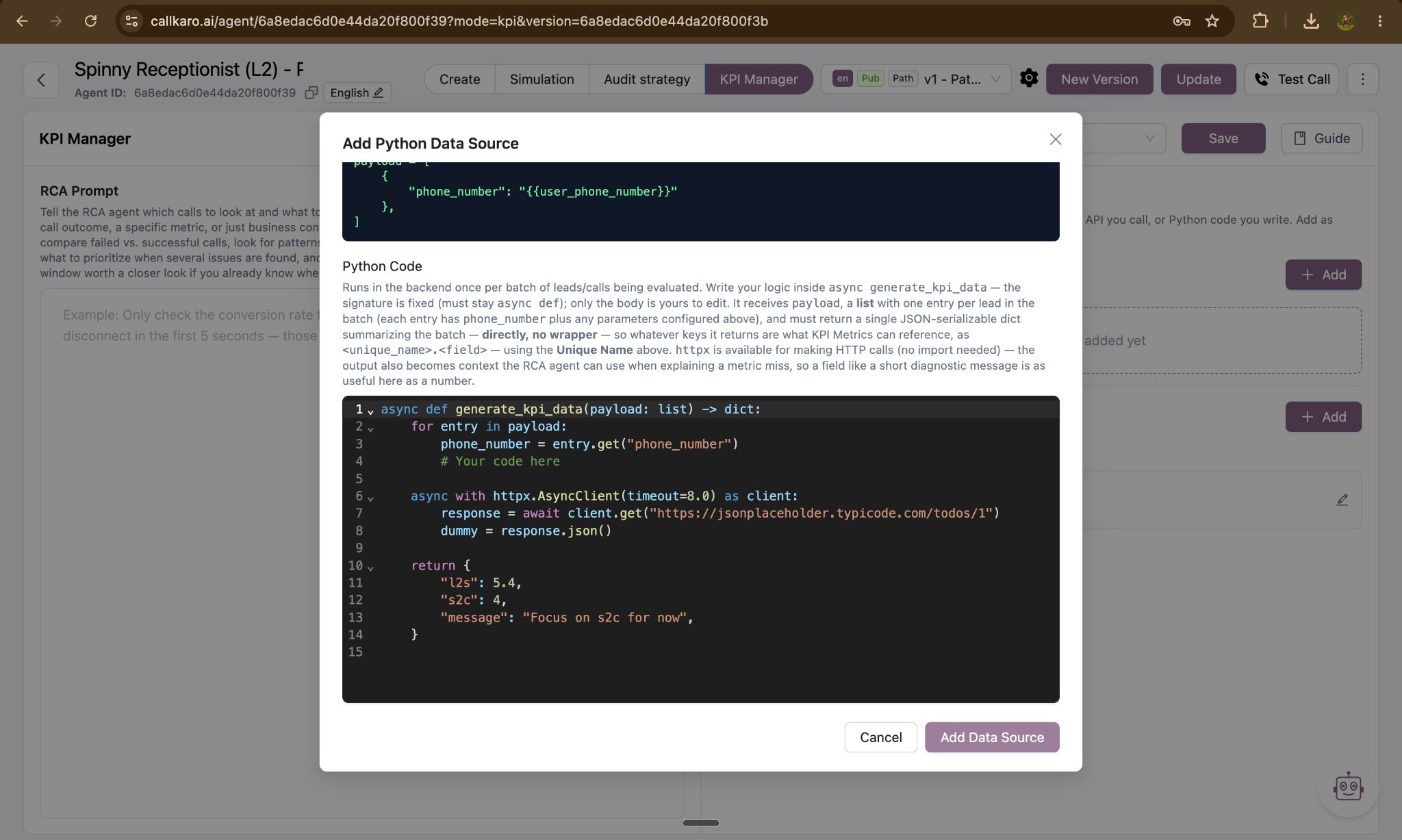 **A useful trick.** The output of a Python source also becomes context the RCA agent can read when explaining a miss. A short diagnostic string — like the `message` field above — is often as valuable as the number itself.
## Step 2 — Define your KPI metrics
A metric turns a raw field into a tracked business number with a target. Open **KPI Metrics** and select **Add**.
| Field | What to enter |
| -------------- | --------------------------------------------------------------------------------------------------------------------------------------- |
| **KPI Metric** | The name of the number you are tracking — for example `Conversion Rate`. The RCA agent reasons about this name, so make it descriptive. |
| **Source** | Where the value is read from, written as `.`. See the referencing rules below. |
| **Value** | The target this metric is expected to hit, as a percentage — for example `85`. |
### How to reference a source
| Source type | Returns | Reference it as |
| ---------------- | ----------------------------------- | --------------------------------------------------- |
| **API Endpoint** | `{ data: { conversion_rate: 85 } }` | `api.data.conversion_rate` — note the extra `.data` |
| **Python Code** | `{ l2s: 5.4 }` | `budget_quality.l2s` — no wrapper |
**A useful trick.** The output of a Python source also becomes context the RCA agent can read when explaining a miss. A short diagnostic string — like the `message` field above — is often as valuable as the number itself.
## Step 2 — Define your KPI metrics
A metric turns a raw field into a tracked business number with a target. Open **KPI Metrics** and select **Add**.
| Field | What to enter |
| -------------- | --------------------------------------------------------------------------------------------------------------------------------------- |
| **KPI Metric** | The name of the number you are tracking — for example `Conversion Rate`. The RCA agent reasons about this name, so make it descriptive. |
| **Source** | Where the value is read from, written as `.`. See the referencing rules below. |
| **Value** | The target this metric is expected to hit, as a percentage — for example `85`. |
### How to reference a source
| Source type | Returns | Reference it as |
| ---------------- | ----------------------------------- | --------------------------------------------------- |
| **API Endpoint** | `{ data: { conversion_rate: 85 } }` | `api.data.conversion_rate` — note the extra `.data` |
| **Python Code** | `{ l2s: 5.4 }` | `budget_quality.l2s` — no wrapper |
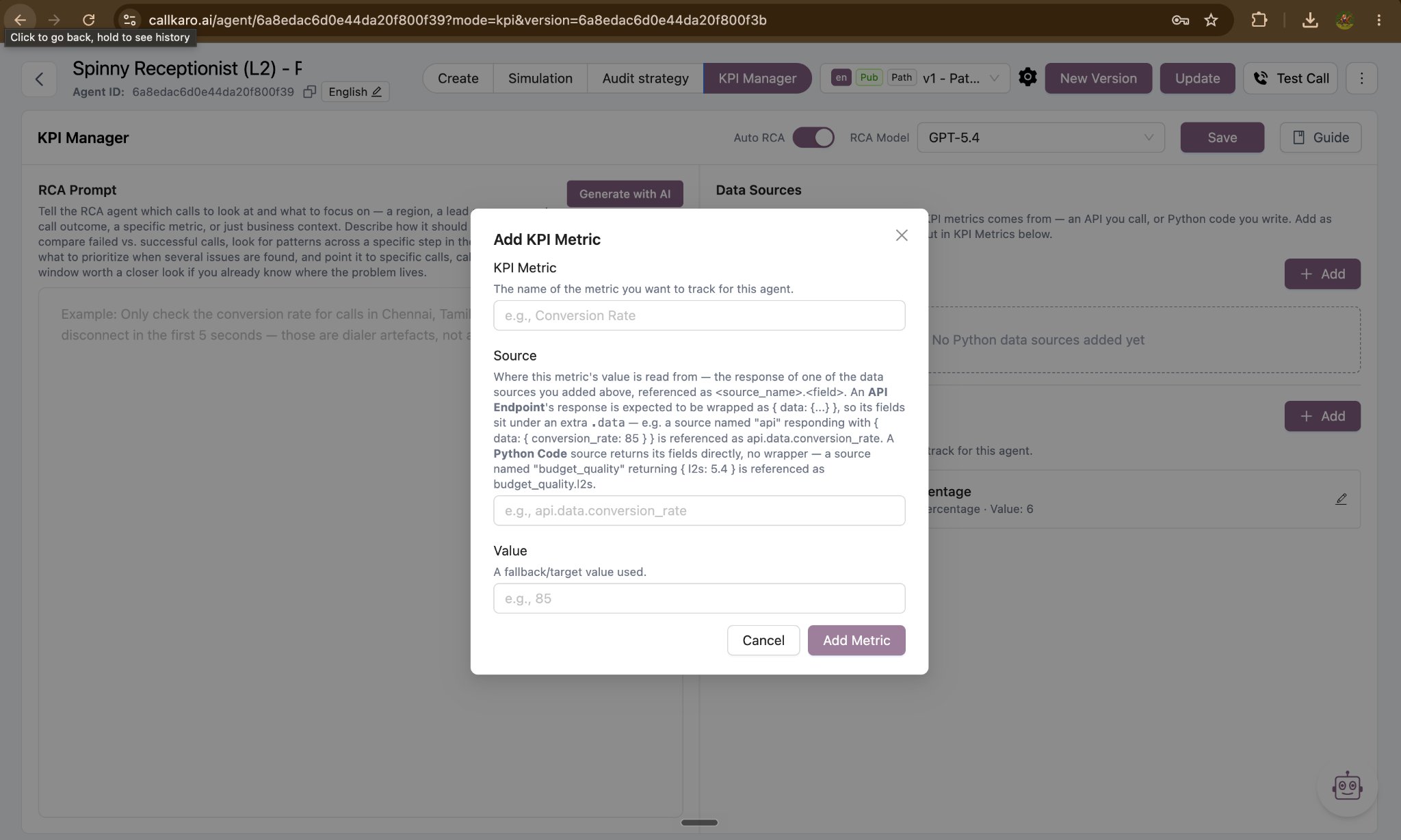 **One metric is built in.** Every agent starts with `connected_to_conversion_percentage` — the share of connected calls that converted. Callkaro calculates it for you from platform data, so it needs no data source. Its name and source are fixed; you only set its target value.
## Step 3 — Write the RCA prompt
This is the single highest-leverage field in KPI Manager. It tells the analysis which calls to look at and what to care about. It occupies the whole left panel of the screen because it deserves the room.
Use it to specify any of the following:
* **Scope** — a region, a lead source, a campaign, a post-call outcome, or a specific metric.
* **Exclusions** — call patterns that are artefacts rather than agent failures.
* **Method** — how to analyse, for example comparing failed against successful calls, or examining one step of the conversation.
* **Priority** — what matters most when several issues surface.
* **Leads** — specific calls, call IDs or time windows, when you already suspect where the problem is.
* **Business context** — anything about your business the analysis could not infer from the data.
| A weak prompt | A strong prompt |
| ------------------------------------------------------------------------ | ------------------------------------------------------------------------------------------------------------------------------------------------------------------------------------------------------------------------------------------------------------------------------------------------------------------ |
| "Find out why conversion is low." | "Only check the conversion rate for calls in Chennai, Tamil Nadu. Ignore calls that disconnect in the first 5 seconds — those are dialer artefacts, not agent failures. Compare converted against non-converted calls at the pricing objection step, and prioritise anything that affects the opening 30 seconds." |
| Analyses everything, prioritises nothing, and produces generic findings. | Narrows the call set, removes known noise, states the method, and sets priority — so every finding is relevant. |
**One metric is built in.** Every agent starts with `connected_to_conversion_percentage` — the share of connected calls that converted. Callkaro calculates it for you from platform data, so it needs no data source. Its name and source are fixed; you only set its target value.
## Step 3 — Write the RCA prompt
This is the single highest-leverage field in KPI Manager. It tells the analysis which calls to look at and what to care about. It occupies the whole left panel of the screen because it deserves the room.
Use it to specify any of the following:
* **Scope** — a region, a lead source, a campaign, a post-call outcome, or a specific metric.
* **Exclusions** — call patterns that are artefacts rather than agent failures.
* **Method** — how to analyse, for example comparing failed against successful calls, or examining one step of the conversation.
* **Priority** — what matters most when several issues surface.
* **Leads** — specific calls, call IDs or time windows, when you already suspect where the problem is.
* **Business context** — anything about your business the analysis could not infer from the data.
| A weak prompt | A strong prompt |
| ------------------------------------------------------------------------ | ------------------------------------------------------------------------------------------------------------------------------------------------------------------------------------------------------------------------------------------------------------------------------------------------------------------ |
| "Find out why conversion is low." | "Only check the conversion rate for calls in Chennai, Tamil Nadu. Ignore calls that disconnect in the first 5 seconds — those are dialer artefacts, not agent failures. Compare converted against non-converted calls at the pricing objection step, and prioritise anything that affects the opening 30 seconds." |
| Analyses everything, prioritises nothing, and produces generic findings. | Narrows the call set, removes known noise, states the method, and sets priority — so every finding is relevant. |
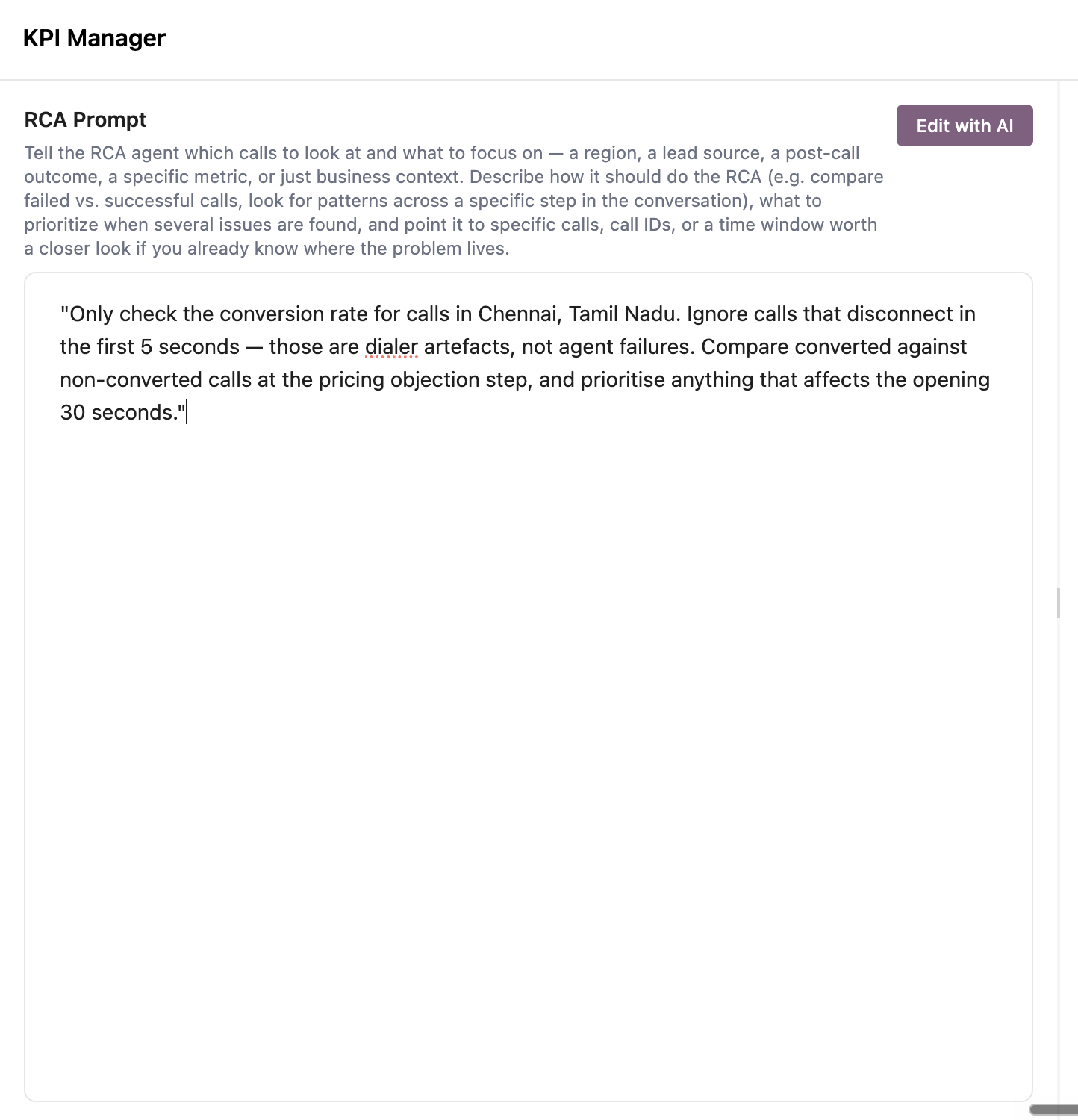 **Stuck on wording?** Use the **Generate with AI** control next to the RCA Prompt heading. Describe what you want in your own words and it drafts a prompt for you, which you can then edit.
Leaving the prompt blank is valid — the analysis then covers all calls and all metrics. The field accepts up to 10,000 characters.
## Step 4 — Choose the model and the automation setting
Both controls sit in the header bar at the top of the screen.
| Control | What it does |
| ------------- | ------------------------------------------------------------------------------------------------------------------------------------------------------------------------------------------------------- |
| **Auto RCA** | Switches the automatic daily analysis on or off for this agent. On by default. Turning it off stops the nightly analysis only — you can still run an analysis on demand from the dashboard at any time. |
| **RCA Model** | The AI model the analysis runs on for this agent. Available options: GPT-5.4 (default), GPT-5.6 Sol, GPT-5.6 Luna, Claude Opus 4.6, and Claude Sonnet 4.6. |
**Stuck on wording?** Use the **Generate with AI** control next to the RCA Prompt heading. Describe what you want in your own words and it drafts a prompt for you, which you can then edit.
Leaving the prompt blank is valid — the analysis then covers all calls and all metrics. The field accepts up to 10,000 characters.
## Step 4 — Choose the model and the automation setting
Both controls sit in the header bar at the top of the screen.
| Control | What it does |
| ------------- | ------------------------------------------------------------------------------------------------------------------------------------------------------------------------------------------------------- |
| **Auto RCA** | Switches the automatic daily analysis on or off for this agent. On by default. Turning it off stops the nightly analysis only — you can still run an analysis on demand from the dashboard at any time. |
| **RCA Model** | The AI model the analysis runs on for this agent. Available options: GPT-5.4 (default), GPT-5.6 Sol, GPT-5.6 Luna, Claude Opus 4.6, and Claude Sonnet 4.6. |
 ## Step 5 — Save
Select **Save**. Configuration is stored per agent and picked up on the next run.
**Changes are not retroactive.** Saving updates what the next run will use — the endpoints it calls, the metrics it tracks, and the prompt that scopes it. Reports already generated are unchanged.
## Step 5 — Save
Select **Save**. Configuration is stored per agent and picked up on the next run.
**Changes are not retroactive.** Saving updates what the next run will use — the endpoints it calls, the metrics it tracks, and the prompt that scopes it. Reports already generated are unchanged.