Overview
Connect AI Sensy to automatically send WhatsApp messages during live AI calls (in-call) or after calls end (post-call) using approved WhatsApp templates. Benefits:- Send follow-up messages instantly after calls
- Share links, confirmations, or summaries on WhatsApp
- Maintain WhatsApp compliance using approved templates
- Automate WhatsApp outreach without manual effort
Use Cases
Trigger WhatsApp campaigns for:- Call follow-ups after AI calls
- Sending payment or booking links
- Call summaries or next steps
- Reminder messages
- Lead confirmation messages
Requirements
- Active CallKaro AI account
- Active AI Sensy account (Basic or Pro plan)
Integration Steps
Step 1: Get API Credentials from AI Sensy
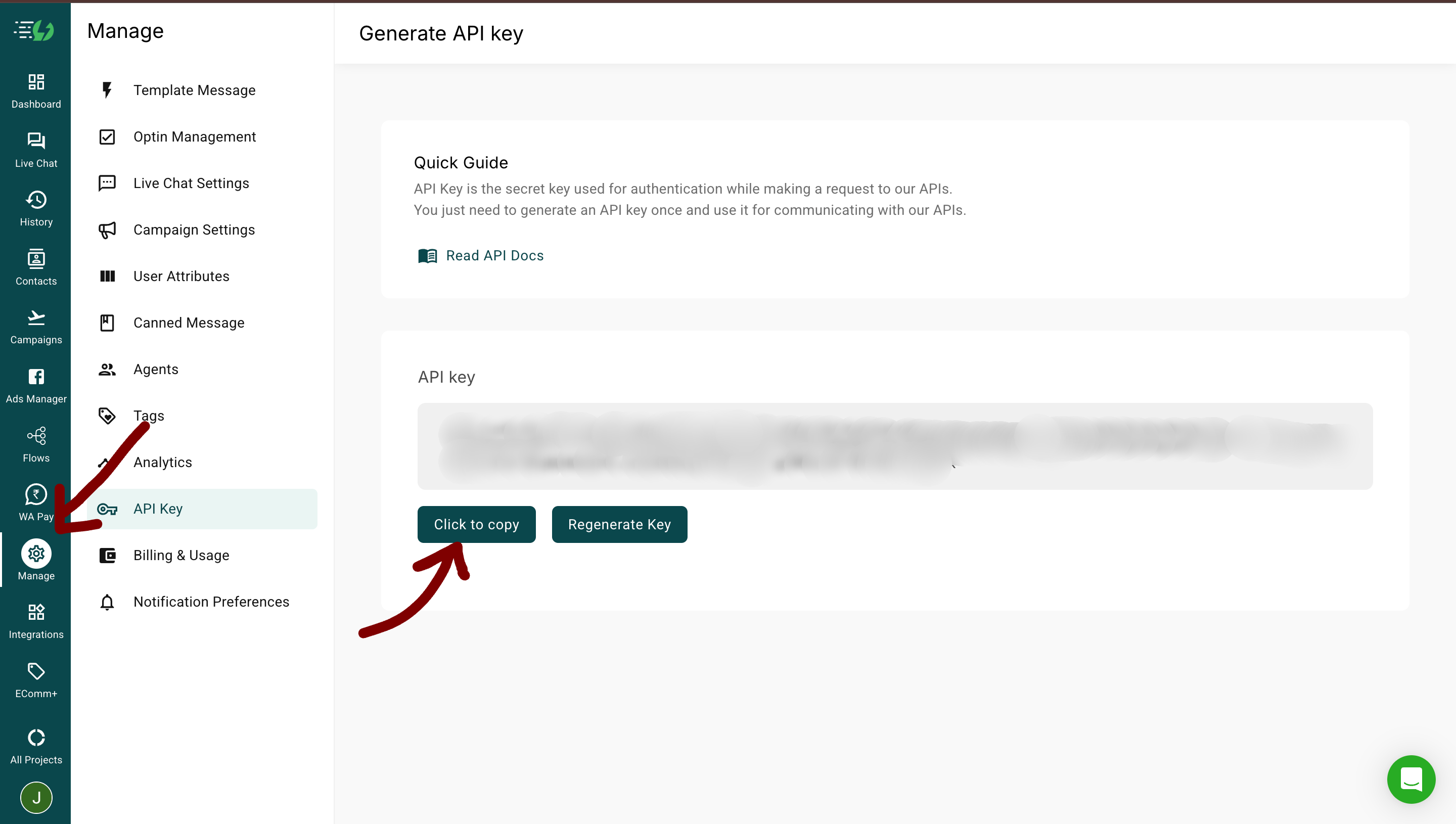
- Log in to AI Sensy Dashboard
- Navigate to Manage → API Keys
- Copy required credentials based on your plan:
- API Key only
- API Key
- Project ID (from dashboard URL)
- App Password (request from prime.care@aisensy.com)
Step 2: Create WhatsApp Template in AI Sensy
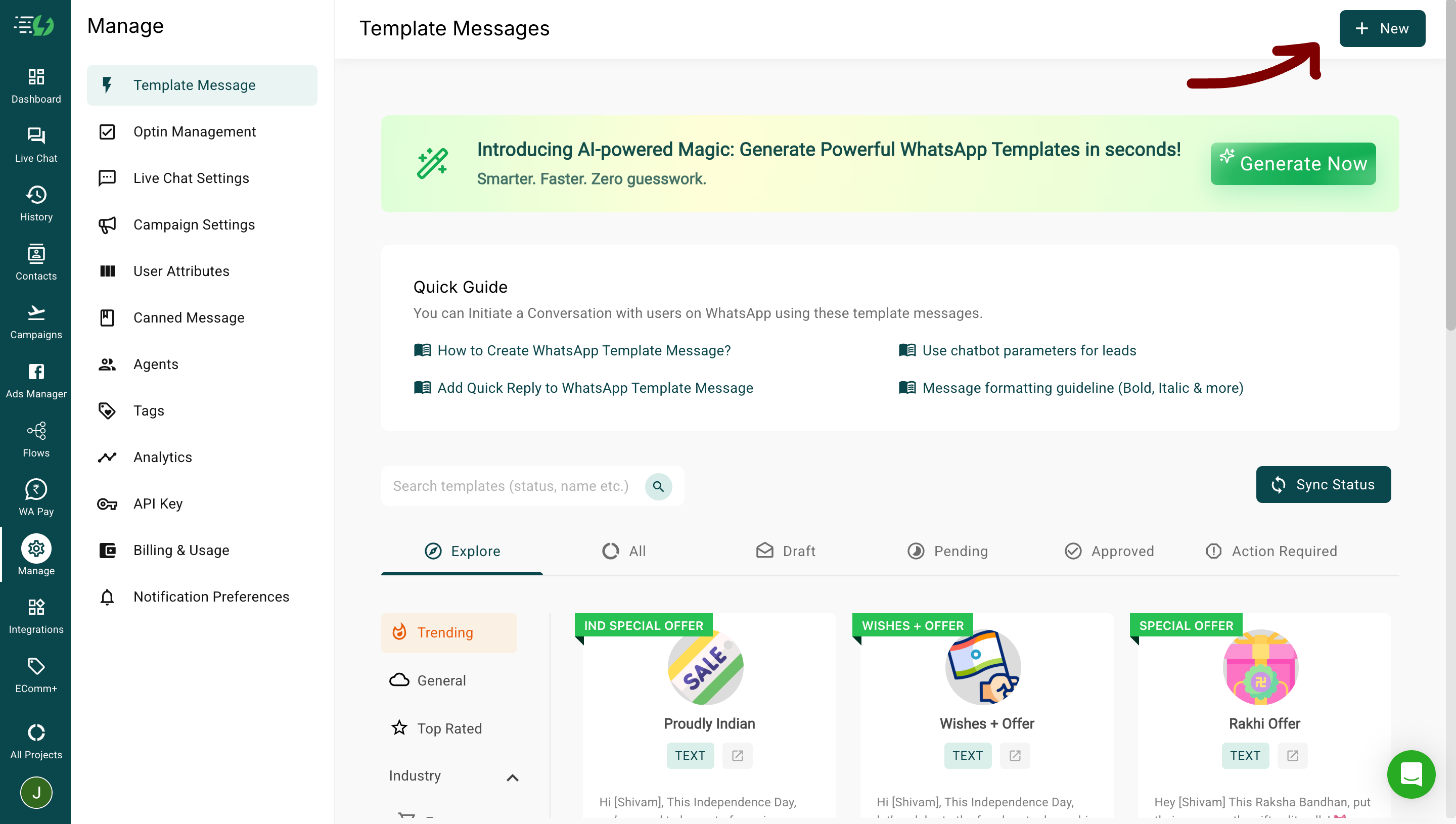
- Go to Templates section
- Click + New Template
- Fill in template details:
- Template Name
- Category (Marketing/Utility/Authentication)
- Language
- Message Content
- Add variables using
{{1}},{{2}},{{3}}, etc. - Submit for approval
Templates require WhatsApp approval (typically 24-48 hours).
Step 3: Create API Campaign in AI Sensy
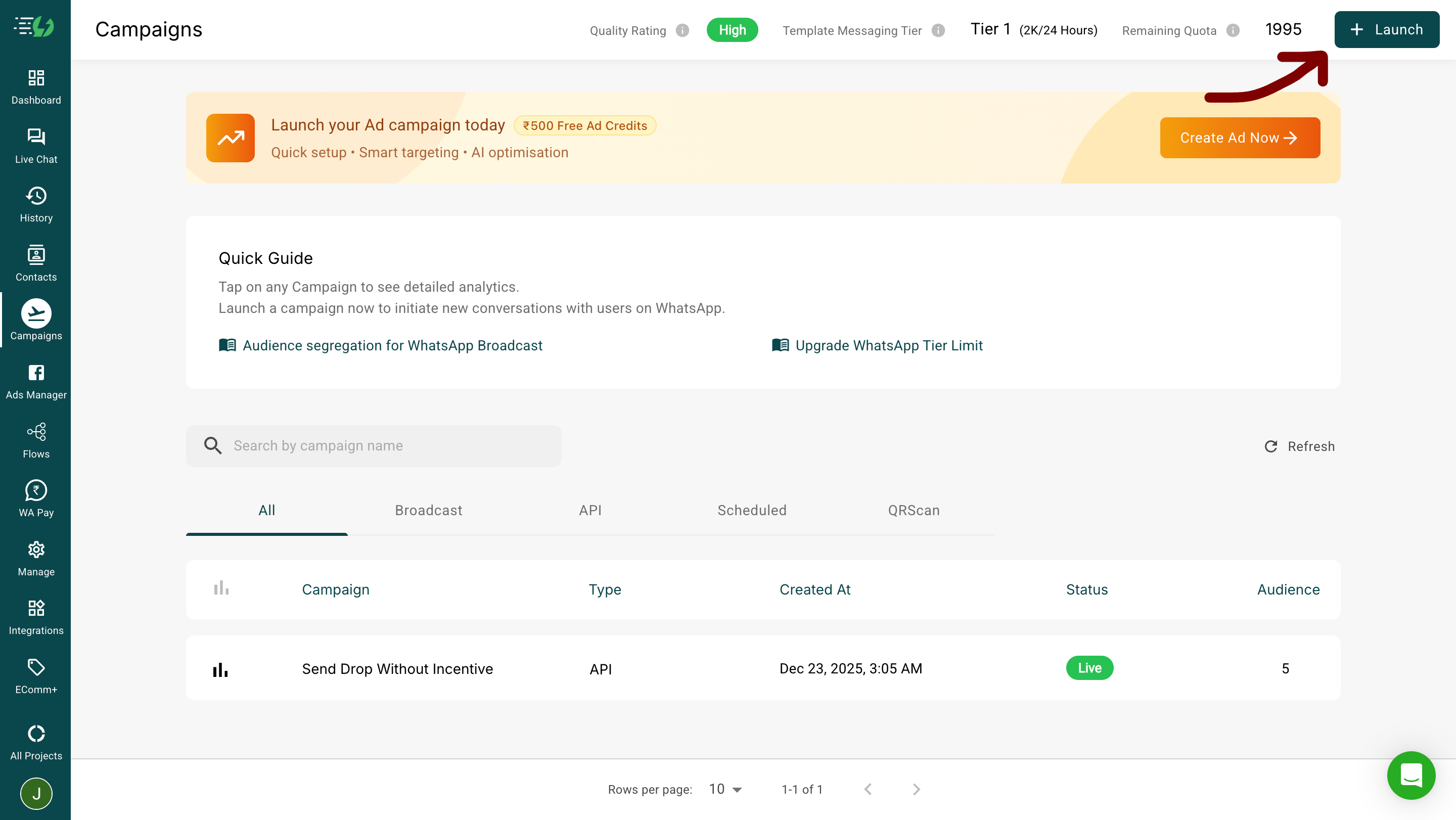
- Go to Campaigns
- Click Launch
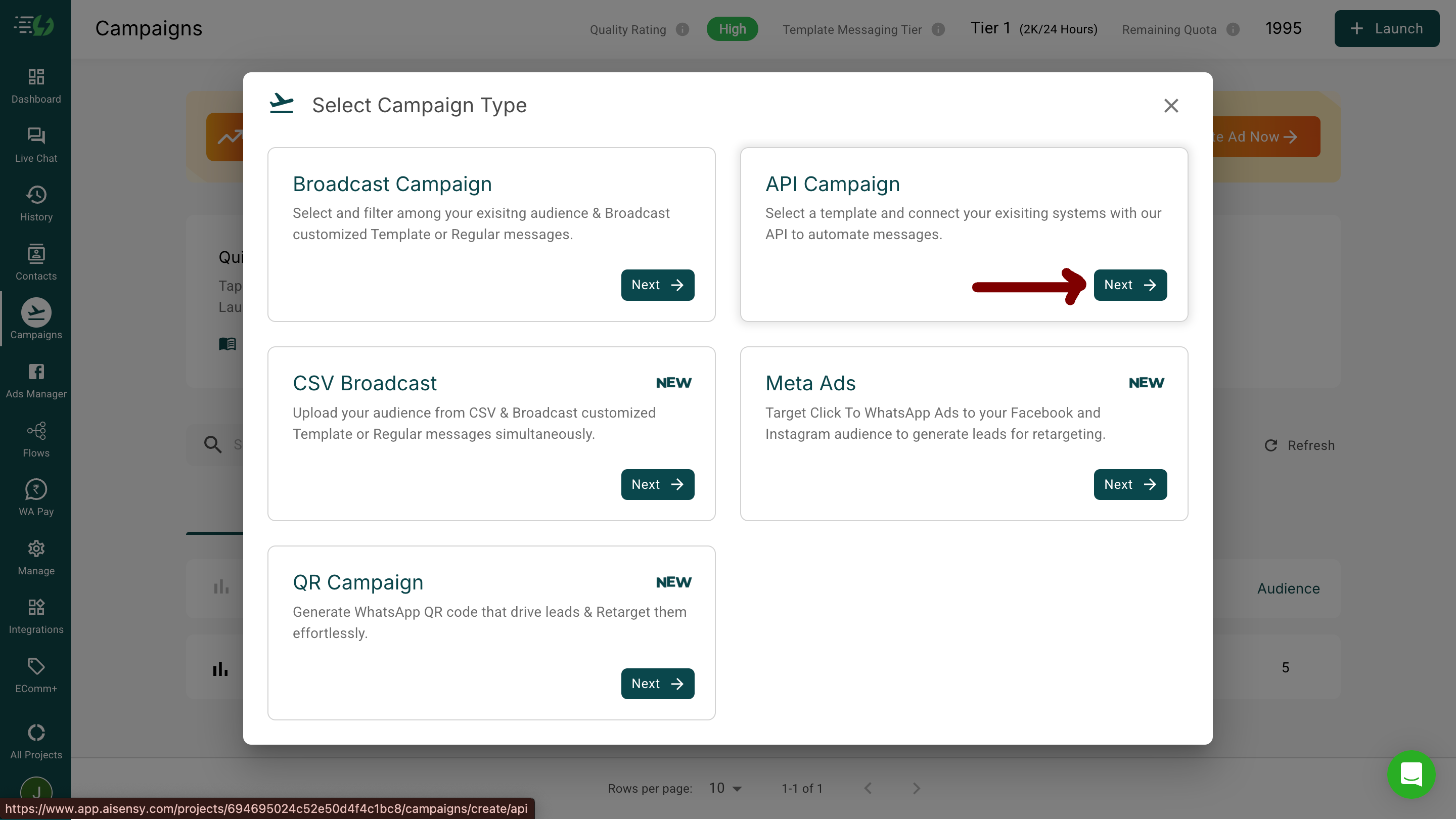
- Select API Campaign
- Enter:
- Campaign Name (must match exactly in CallKaro)
- Select approved template
- Save and activate
Step 4: Connect AI Sensy in CallKaro
- Navigate to Dashboard → Integrations
- Find AI Sensy
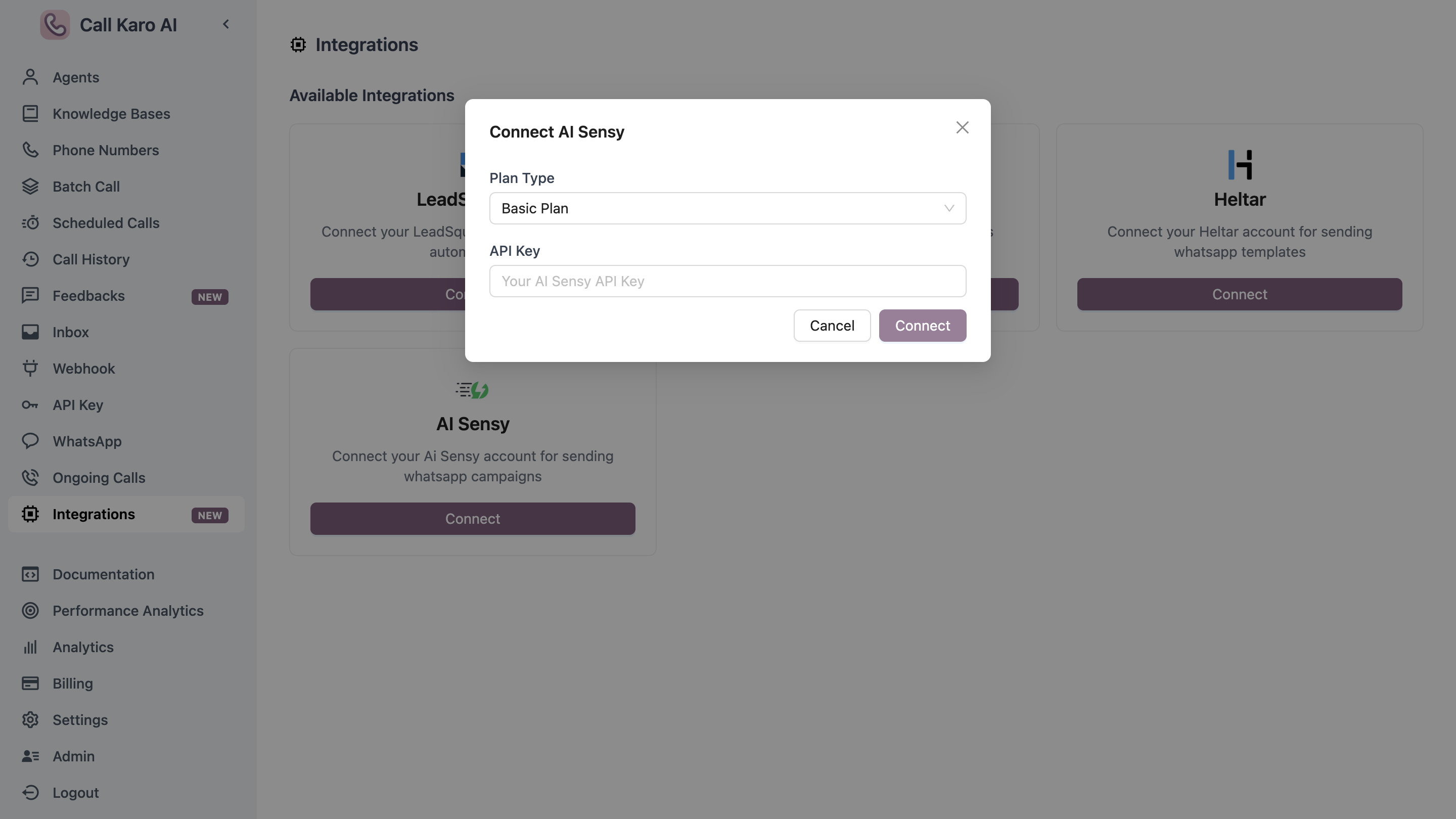
- Click Connect
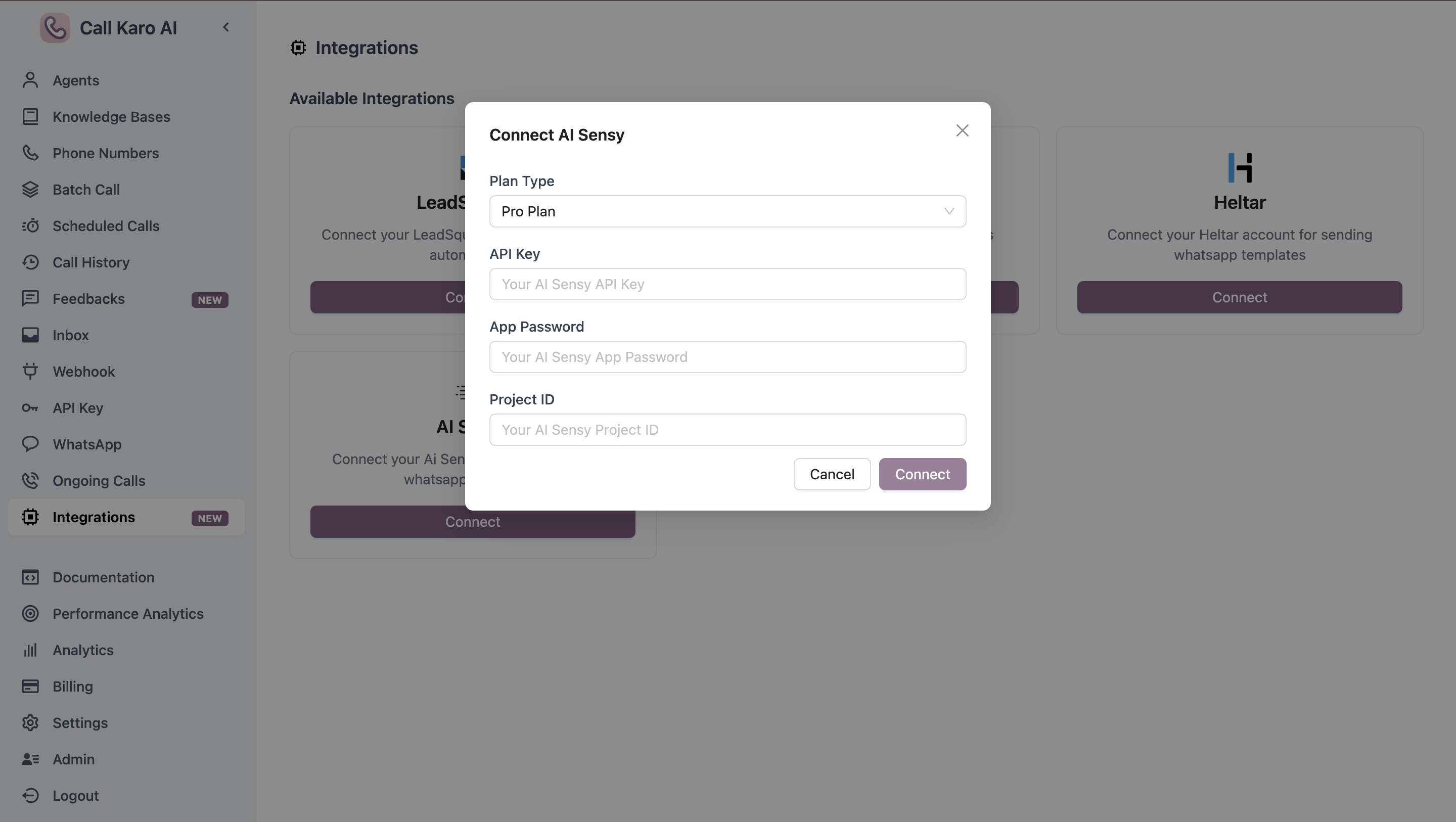
- Select your plan (Basic or Pro)
- Enter credentials:
- Basic: API Key
- Pro: API Key + Project ID + App Password
- Click Save
Step 5: Configure WhatsApp Action on Agent
- Go to Agents → Select your agent
- Navigate to WhatsApp Configuration tab
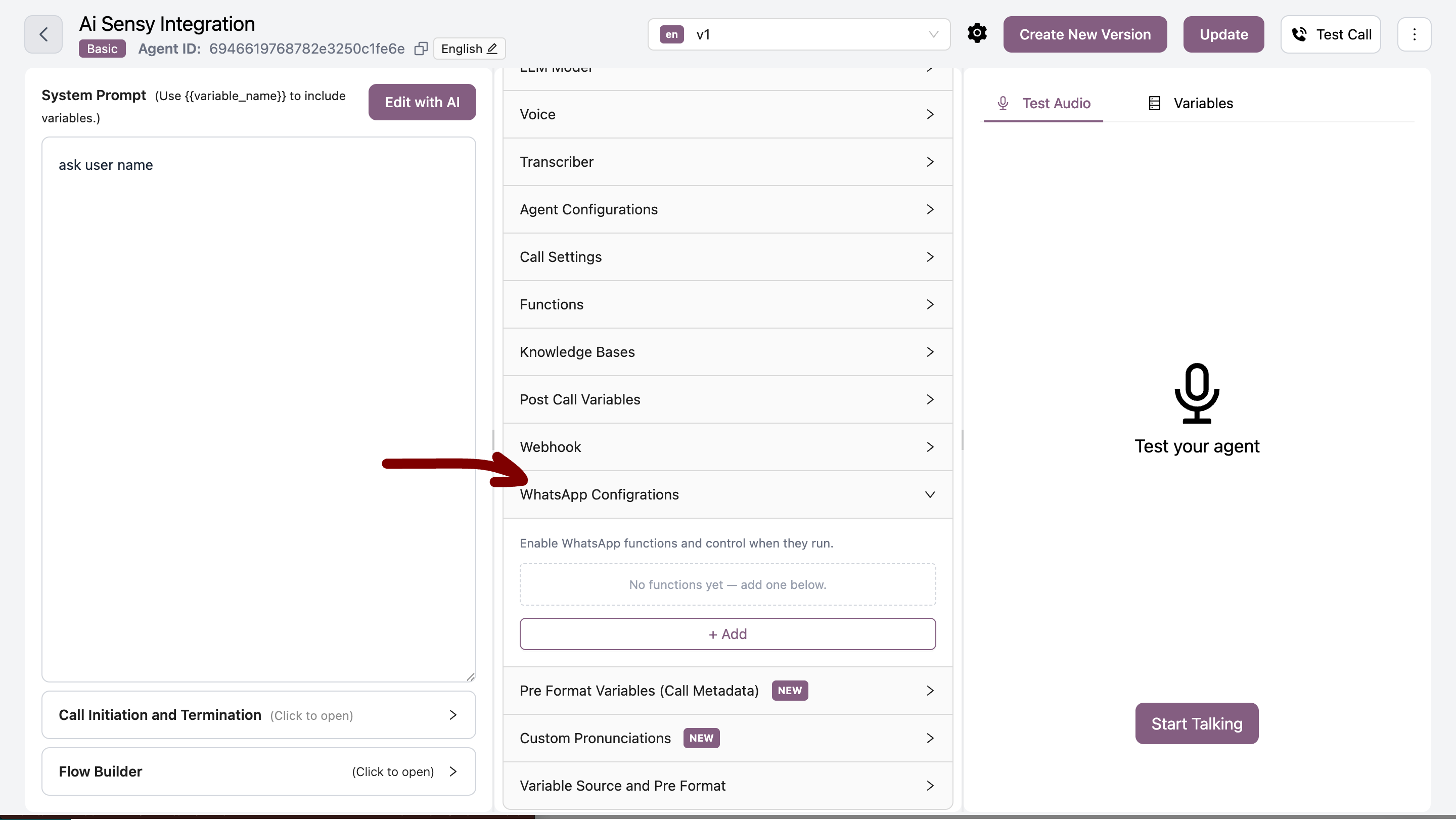
- Click Add to create new WhatsApp action
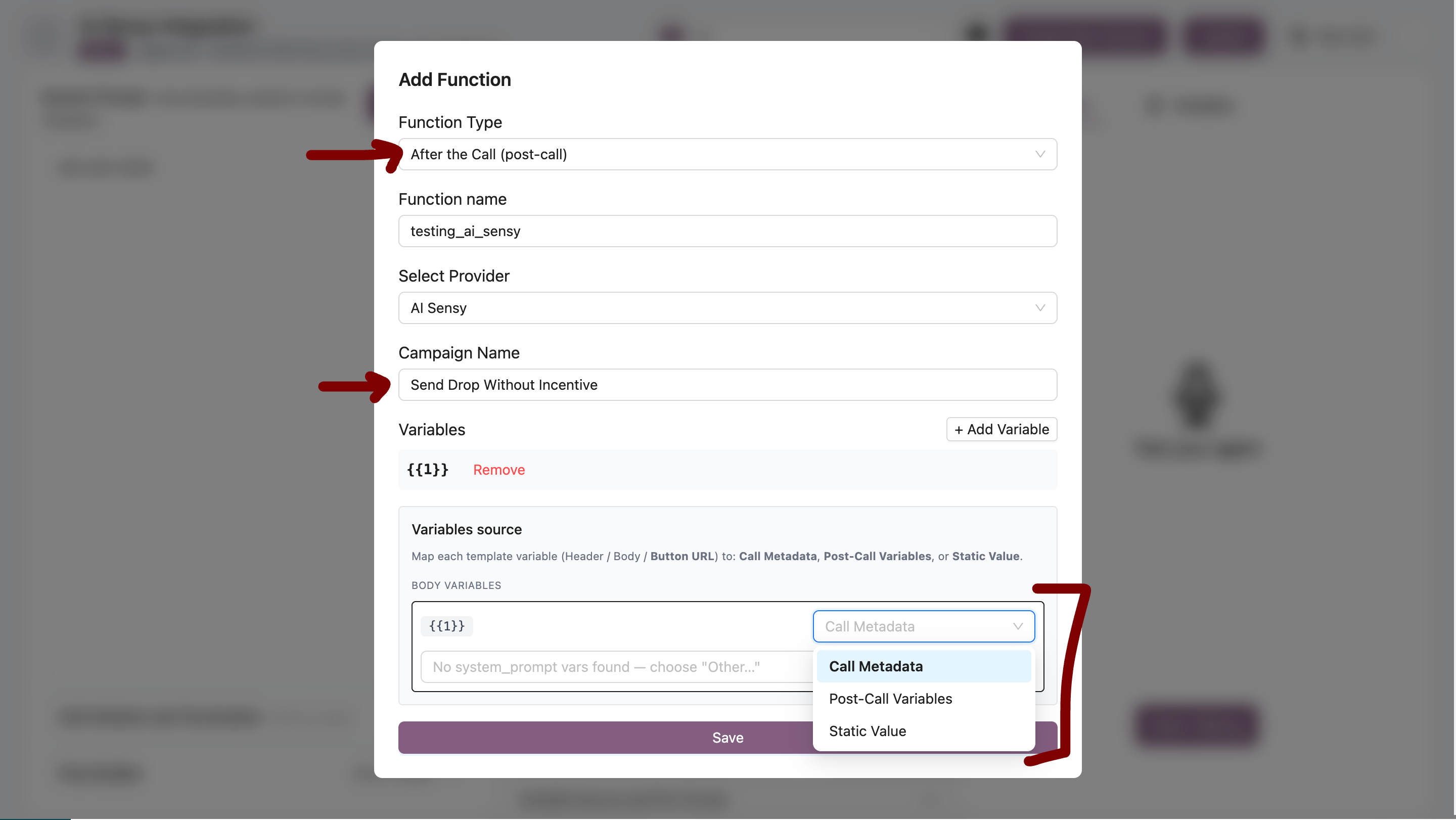
- Select function type:
- In-call - Message sent DURING the call
- Post-call - Message sent AFTER call ends
- Enter Campaign Name (must match AI Sensy exactly)
- Map variables to call data:
{{1}}→ Customer Name{{2}}→ Link/Summary{{3}}→ Additional data
- Click Save
In-call vs Post-call
In-call Messages
When: Sent DURING the active call Use Cases:- Booking confirmation link while on call
- Payment link during conversation
- Immediate reference number
Post-call Messages
When: Sent AFTER call ends Use Cases:- Call summary or transcript
- Follow-up reminders
- Next steps or action items
- Feedback requests
Trigger Outbound Calls from AI Sensy Chatbot
You can let your AI Sensy chatbot place an outbound CallKaro call whenever a user asks to be called. This works from either an AI Agent (as a custom Action) or a Flow (as an API Request node) in AI Sensy.This is a different use case from WhatsApp messaging above — here the chatbot calls the CallKaro API directly to start a phone call, instead of sending a WhatsApp template.
Step 1: Open the API Action in AI Sensy
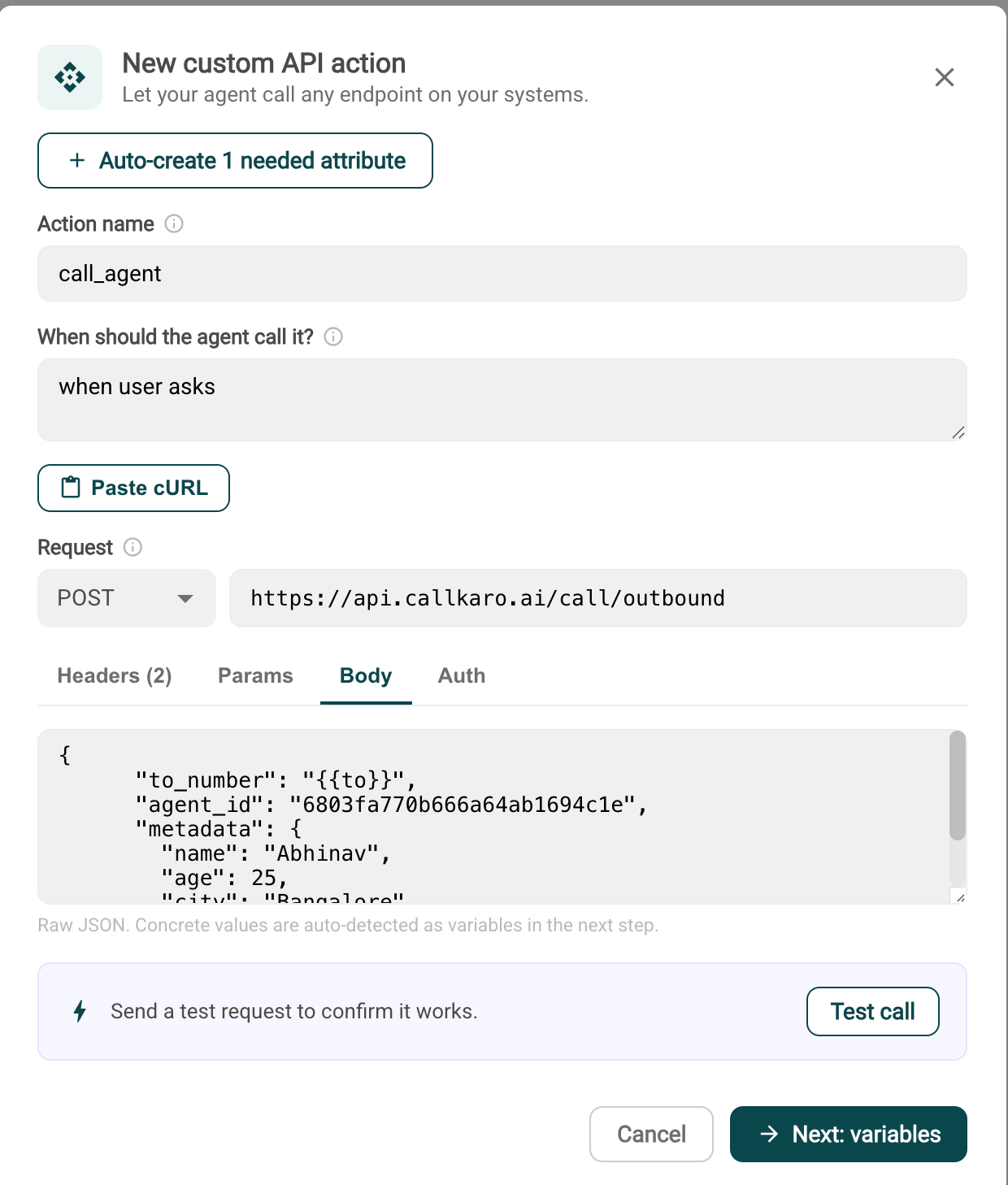
- AI Agent: Go to your agent, open the Actions section, and click + New custom API action.
- Flow: Open your flow and add an API Request node.
Step 2: Configure the Action
- Action name - e.g.
call_agent - When should the agent call it? - describe the trigger, e.g.
when user asks to be called - Request - set method to
POSTand paste the CallKaro outbound call URL, or use Paste cURL with the snippet below
- Replace
your_api_key_herewith your CallKaro API key. - Replace
your_agent_idwith the CallKaro Agent ID this chatbot should call from. Since the agent is constant for a given action, you can leave it fixed. - Update the
metadataobject with whatever variables your CallKaro agent’s prompt expects. Any value can be turned into a variable using{{ }}.
Step 3: Confirm Variables
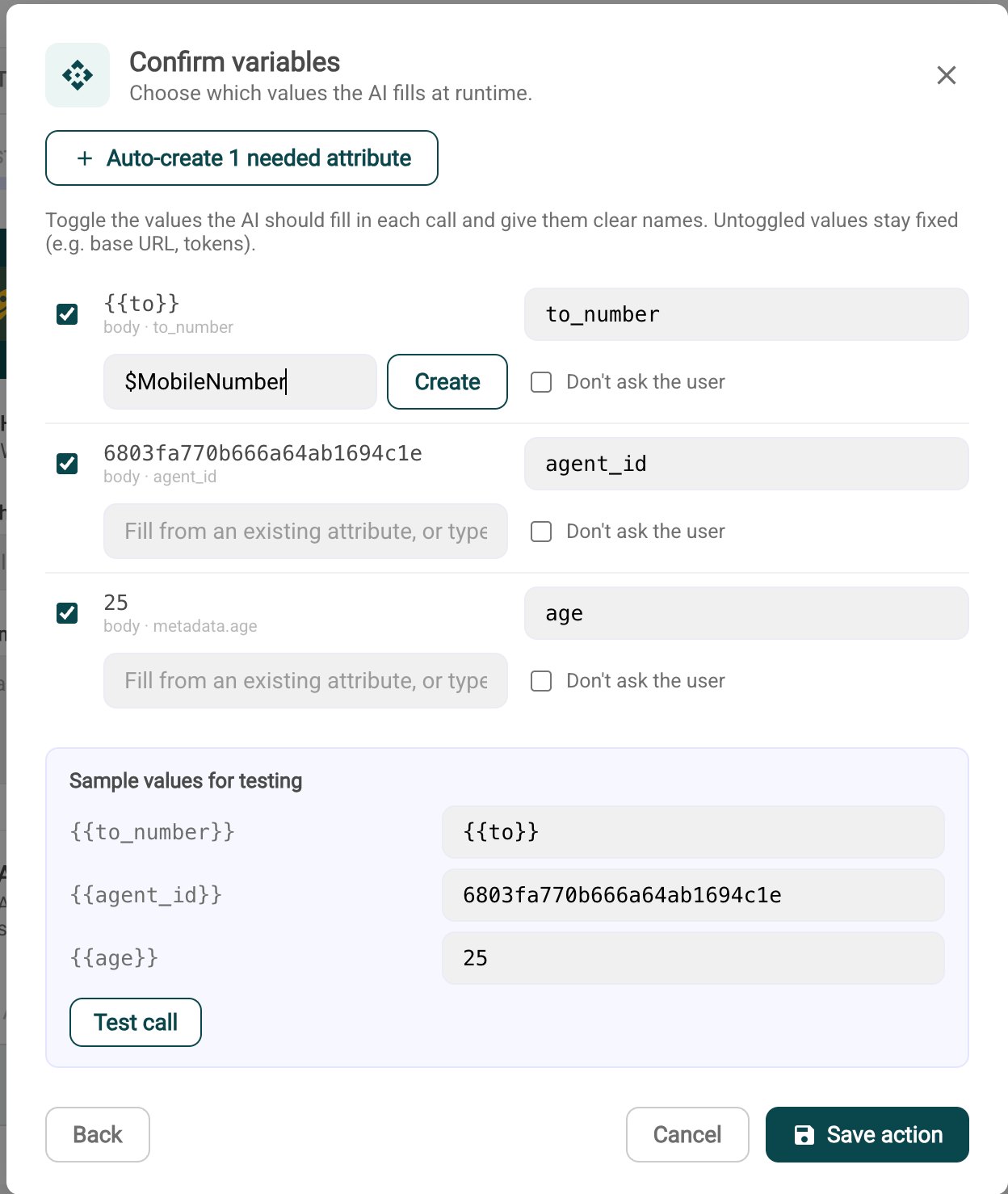
Click Next: variables. AI Sensy auto-detects the{{ }} placeholders in the request body and lets you choose which ones the AI should fill in at runtime:
- Toggle on
{{to}}, rename it toto_number, and bind it to the caller’s mobile number attribute (e.g.$MobileNumber) - click Create if the attribute doesn’t exist yet. - Leave
agent_iduntoggled if it should stay fixed, or toggle it if you want the chatbot to pick between multiple CallKaro agents. - Map any
metadatafields (e.g.name,age,city) to existing AI Sensy attributes, or leave them as fixed values.
Step 4: Test and Save
Use Test call with sample values to confirm the request reaches CallKaro and triggers a call, then click Save action.Best Practices
- Match Campaign Names Exactly - Case-sensitive matching required
- Use Approved Templates Only - Wait for approval before going live -Clear Variable Mapping - Map variables to existing call metadata
- Test Before Live - Make sample calls to verify configuration