What is Call History?
Call History displays all calls made through Callkaro with powerful filters, detailed call information, and export capabilities.Accessing Call History
https://callkaro.ai/dashboard/call-history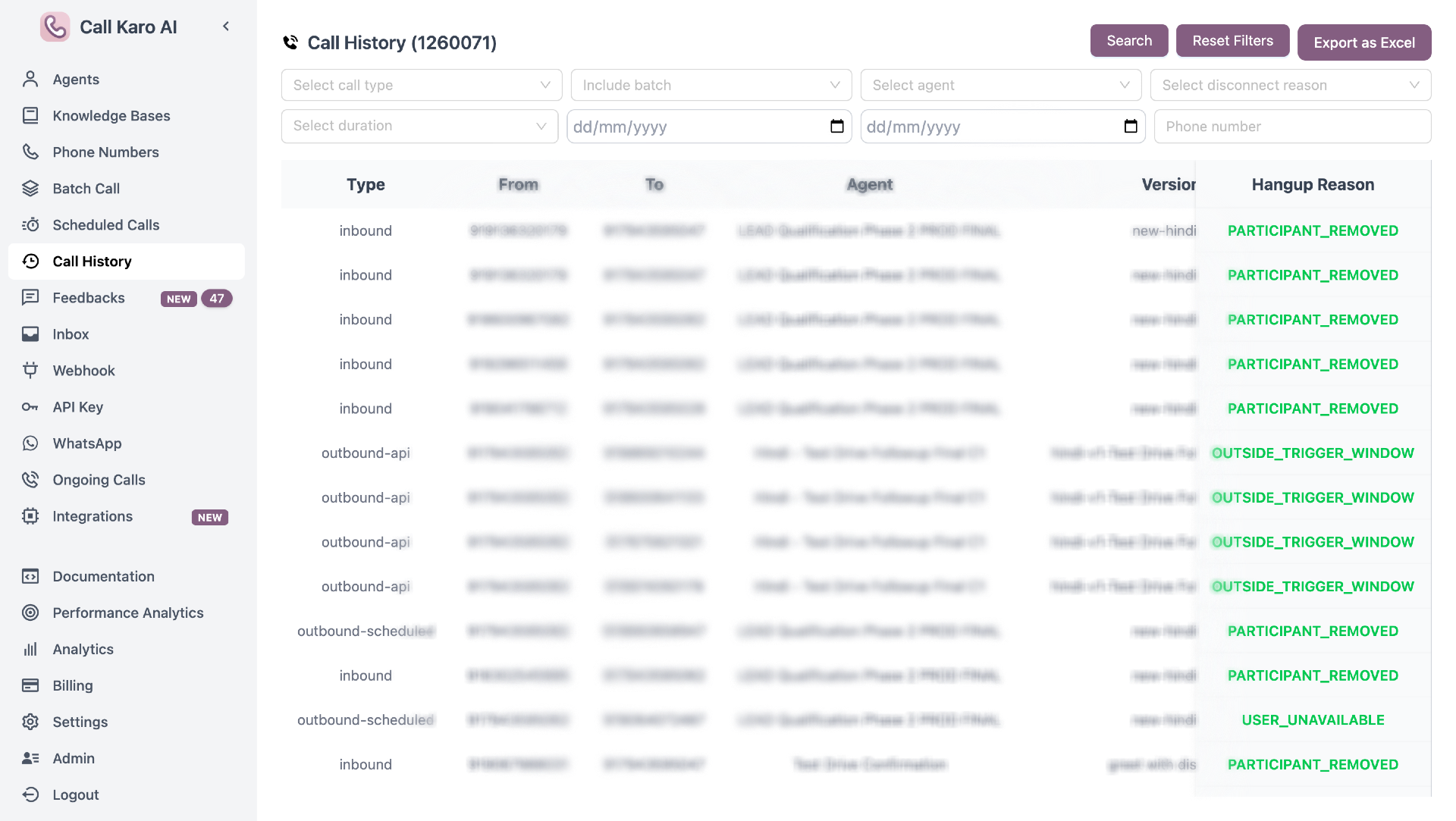
Filters
Call Type
Filter by call source (multiple selection):- Inbound - Calls received by agents
- Outbound - Regular outbound calls
- Outbound API - Calls via API
- Outbound Scheduled - Scheduled calls
- Outbound Test Call - Test calls
- Agent Test - Agent testing from UI
Call Types
View more about Call Types
Include Batch
- All - Both batch and non-batch
- Batch - Only batch campaigns
- Non-Batch - Only individual calls
Agent
Select one or more agents (multiple selection)Disconnect Reason
Filter by hangup reason (multiple selection):- CLIENT_INITIATED
- PARTICIPANT_REMOVED
- SESSION_TIMEOUT
- USER_BUSY
- INVALID_PHONE_NUMBER
- VOICEMAIL_DETECTED
- And more…
Hangup Reasons
View more about Hangup Reasons
Duration
Filter by call length (multiple selection):- Not Connected - 0 seconds
- 1-10s - Very short
- 11-30s - Short
- 31-60s - Medium
- >60s - Long
Date Range
- Start Date - Beginning of date range
- End Date - End of date range
Phone Number
Search by specific phone numberTable Columns
Last Stage Status
Calls categorized into 4 stages:- Converted (Green) - Call connected and conversion status = true
- Connected (Yellow) - Call connected but didn’t convert
- Not Connected (Red) - Call didn’t answer
- Voicemail - Reached voicemail
Call Details Sidebar
Click any row to open detailed sidebar showing:Recording
- Audio player for call recording
- Download recording button
- Copy recording URL
Transcription
Full call conversation transcriptPost Call Data
All post-call variables and valuesCall Metadata
Additional call informationFunctions Called
Details of functions executed during callExport to Excel
Click Export as Excel to download all filtered calls with:- Standard columns (Type, Phone, Agent, Version, Date, Time, Duration, etc.)
- All post-call variables
- All call metadata
- All function calls
- Email modal appears
- Enter email address
- Excel file sent to email