Overview
Connect your HubSpot CRM to automatically trigger AI calls when new contacts are created. HubSpot integration requires a developer account and private app setup. How It Works:- Convert to HubSpot developer account
- Create private app with required scopes
- Configure webhook for contact creation
- Copy access token to CallKaro
- Map contact fields to agent variables
Requirements
- HubSpot account (can be converted to developer account)
- Access to HubSpot app settings
- CallKaro API key
Step 1: Convert to Developer Account
You can convert your current HubSpot account to a developer account to access app creation features.Converting to a developer account is free and enables private app creation.
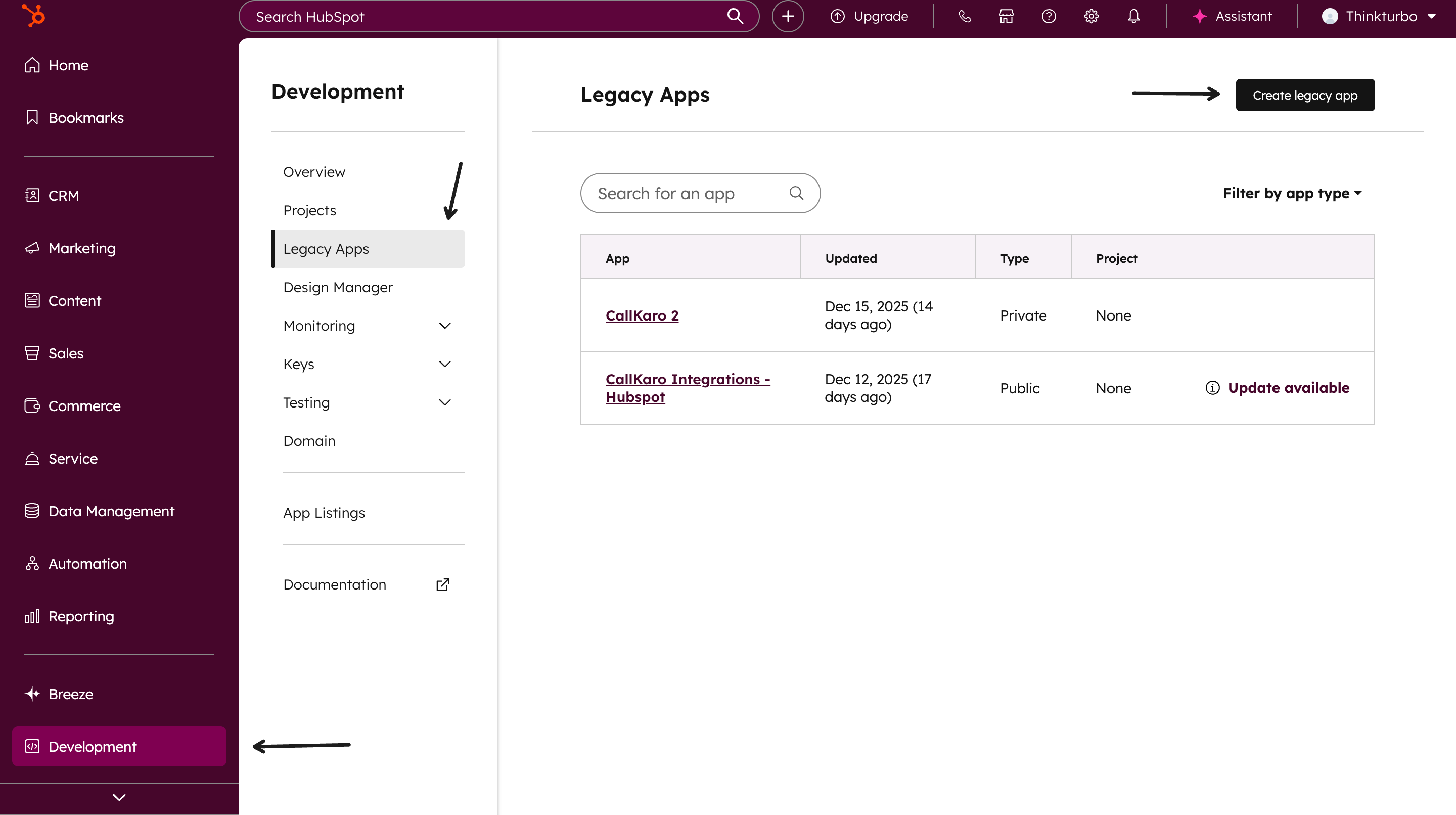
Step 2: Navigate to Legacy Apps
- Log in to your HubSpot account
- Go to Developer → Legacy Apps
- Click Create App
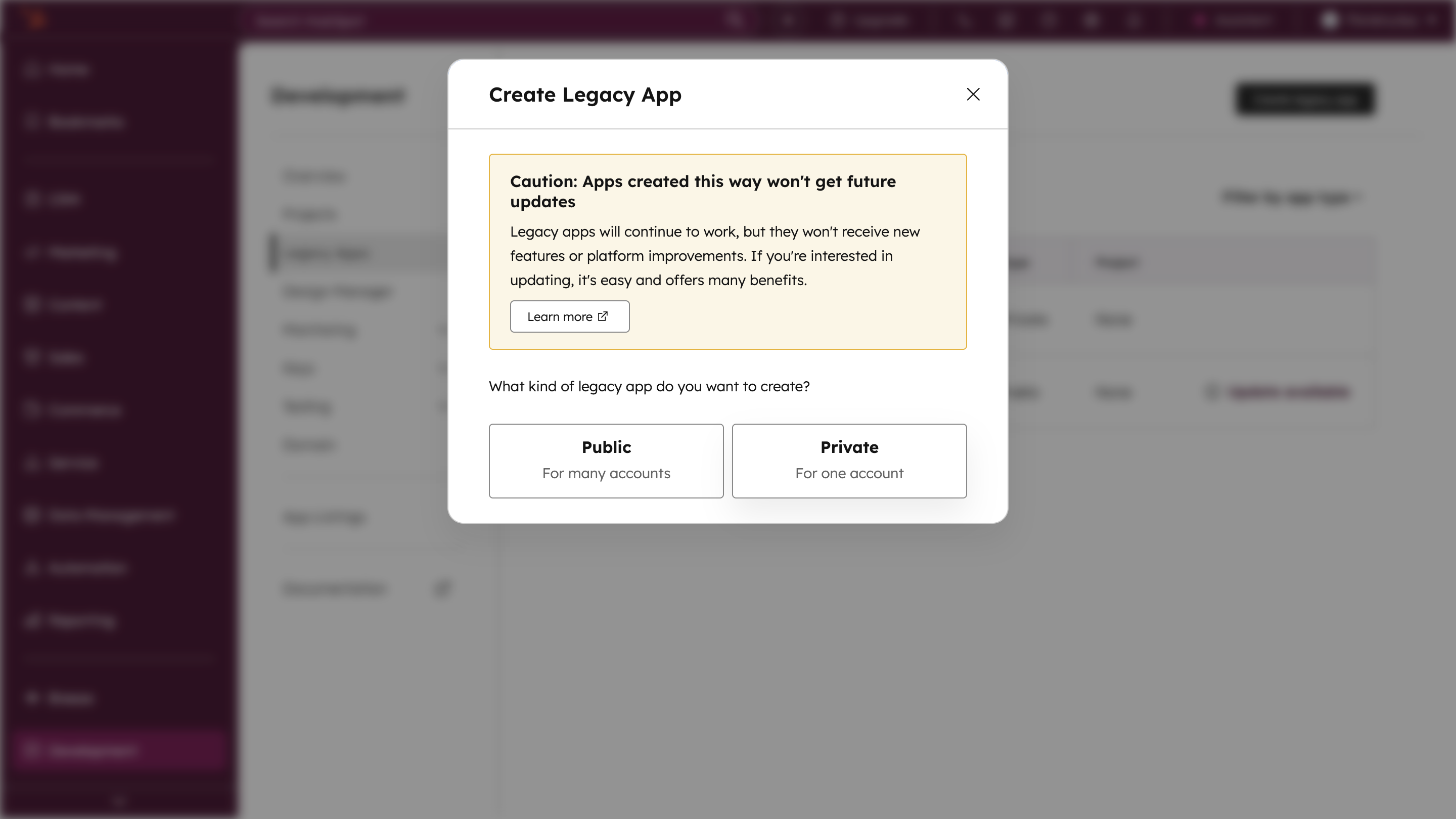
Step 3: Create Private App
- Click Create App
- Choose Private app type
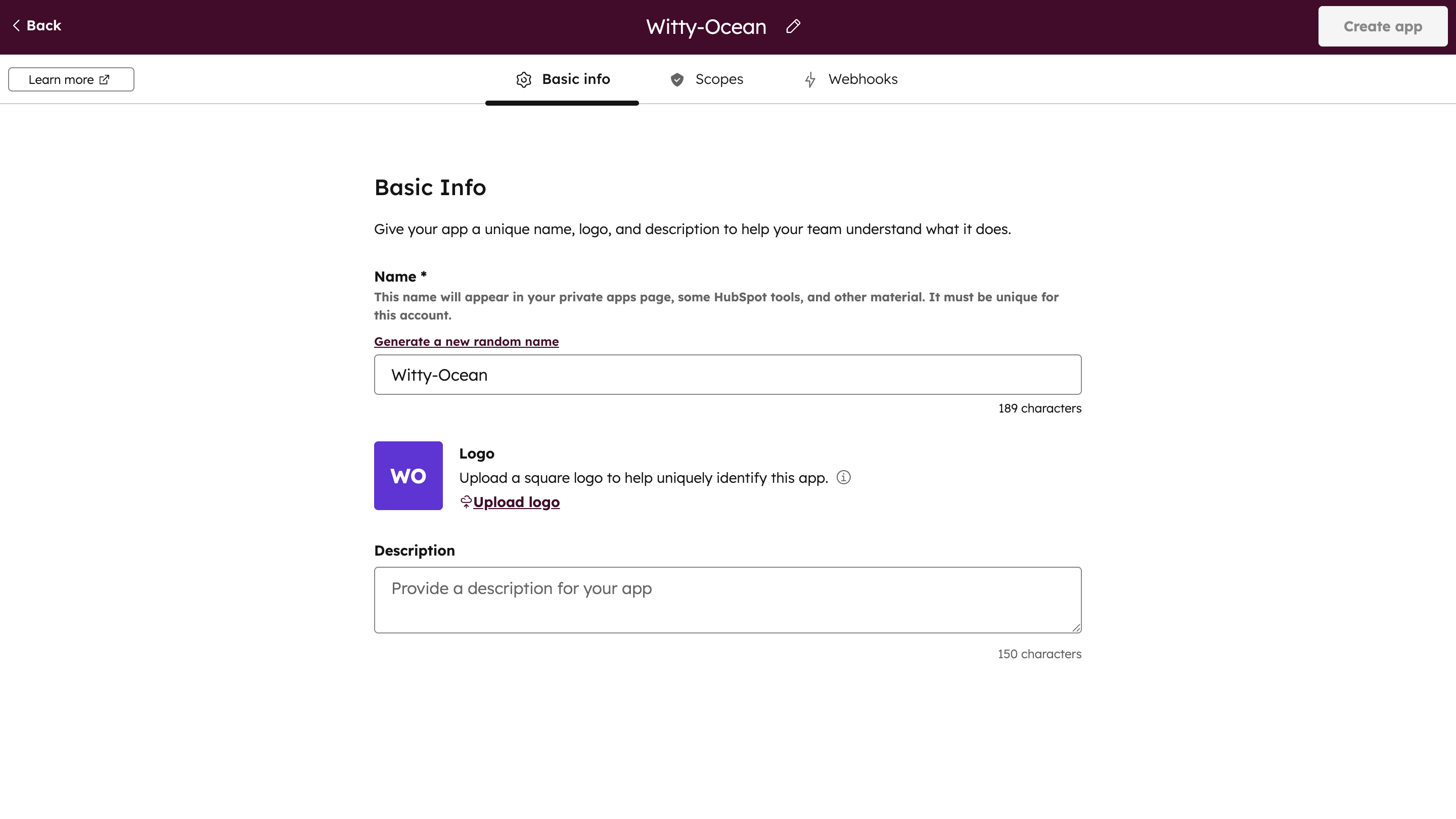
Step 4: Enter Basic Information
Fill in your app details:- App Name - Name for your integration (e.g., “CallKaro AI Integration”)
- Logo - Optional app logo
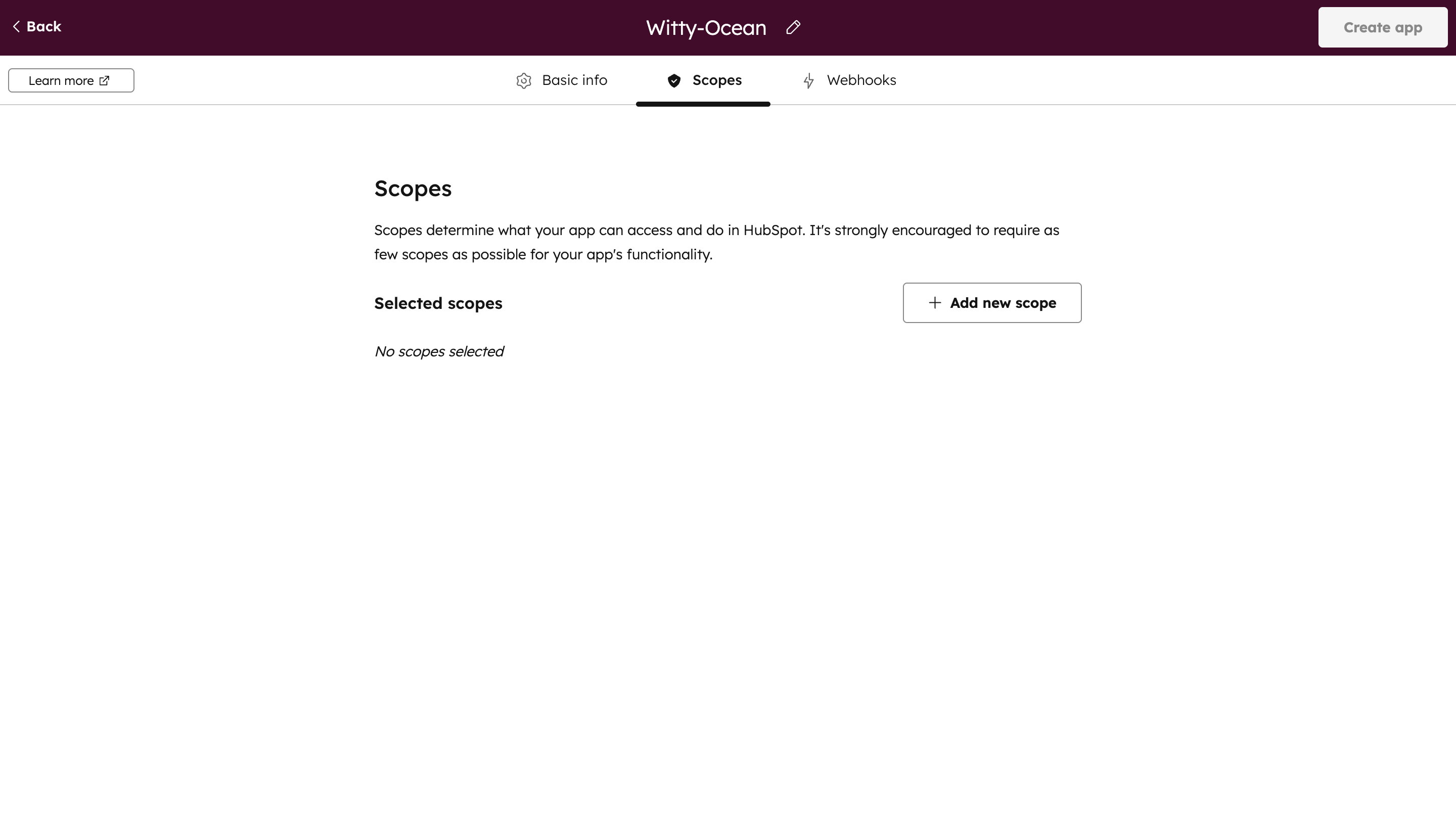
Step 5: Add Required Scopes
- Navigate to Scopes tab
- Click + Add New Scope
Step 6: Select Contact Scopes
Search for “contact” and add these scopes:crm.objects.contacts.readcrm.objects.contacts.writecrm.schemas.contacts.readcrm.schemas.contacts.write
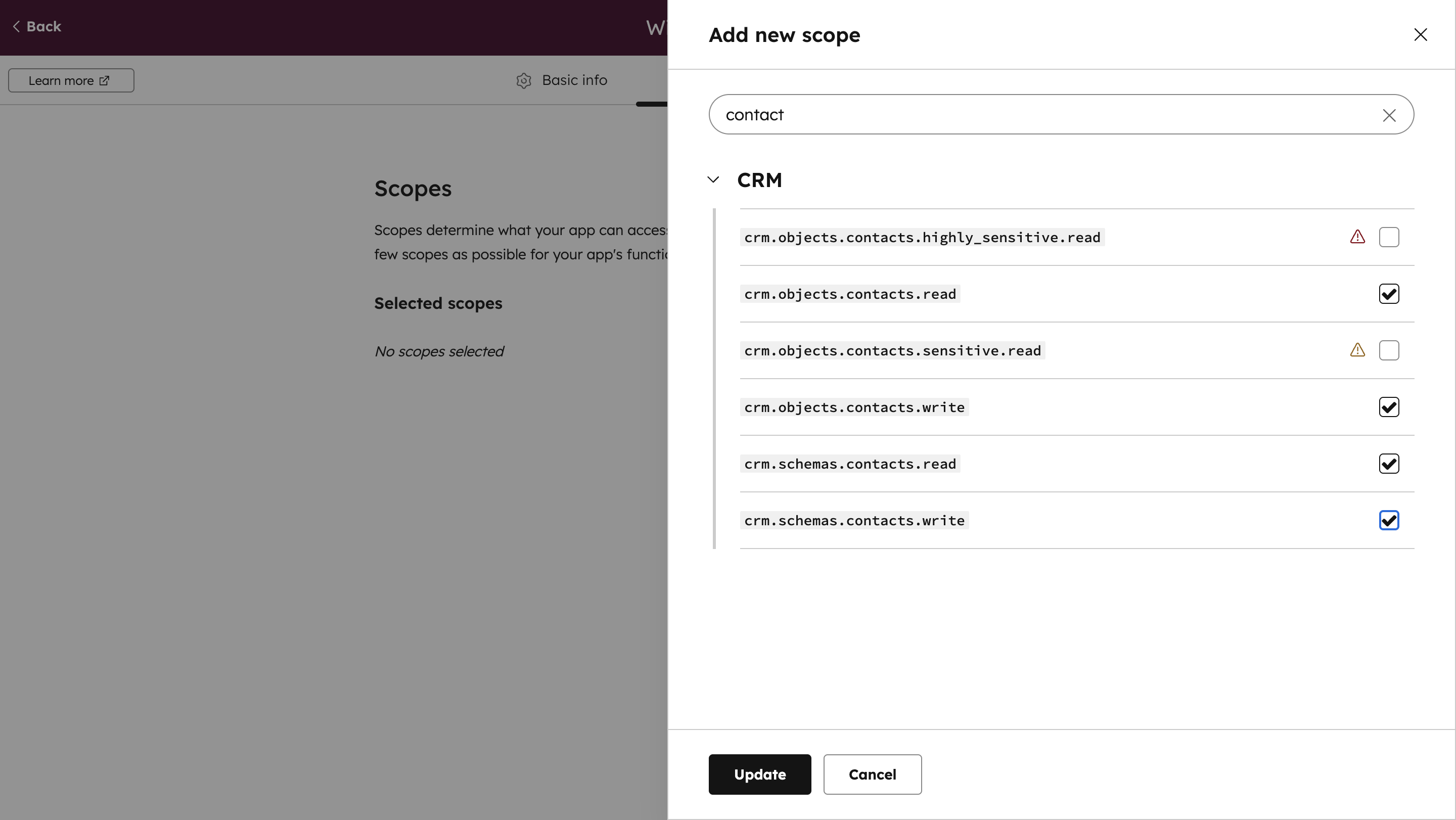
These scopes allow CallKaro to read contact data when new contacts are created.
Step 7: Configure Webhook URL
- Navigate to Webhooks tab
- Enter your CallKaro webhook URL:
YOUR_AGENT_ID- Your CallKaro agent IDYOUR_API_KEY- Your CallKaro API key (found in Dashboard → API Keys)
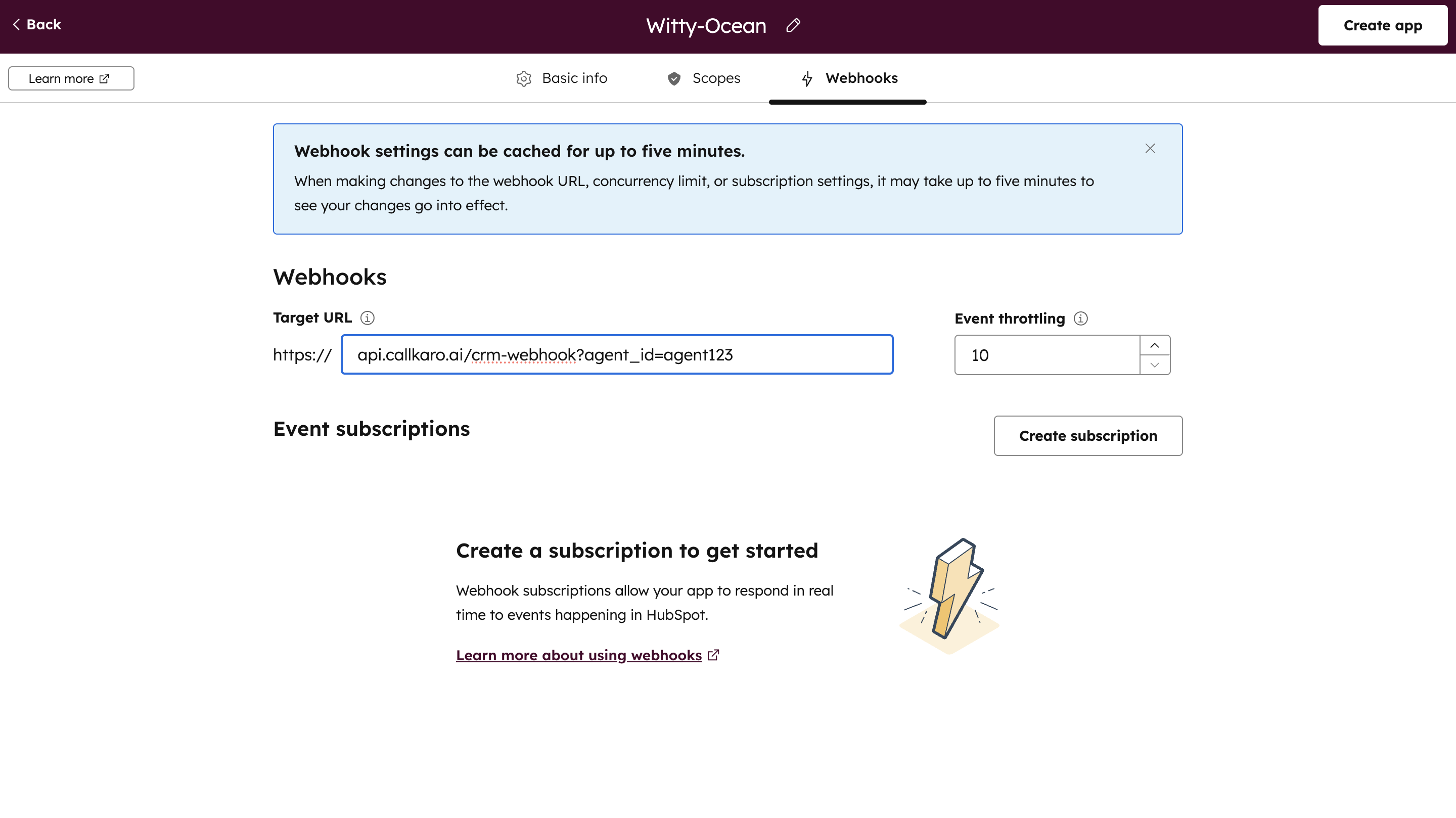
Step 8: Create Webhook Subscription
- Click Create Subscription
- Choose trigger event: eg. Contact Created
- This determines when the webhook fires
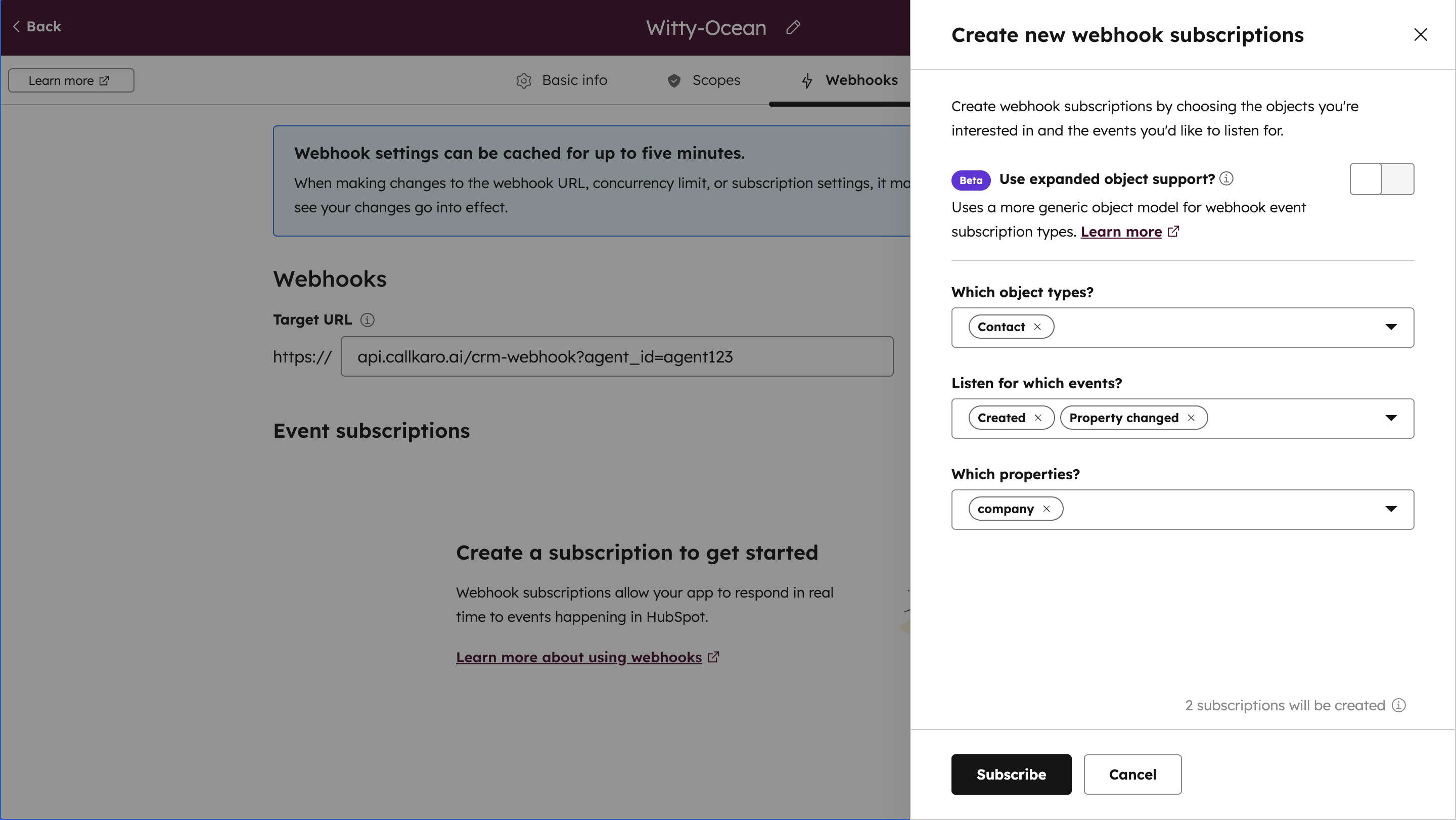
Step 9: Finalize App Creation
- Click Create App
- Review settings and click Continue Creating
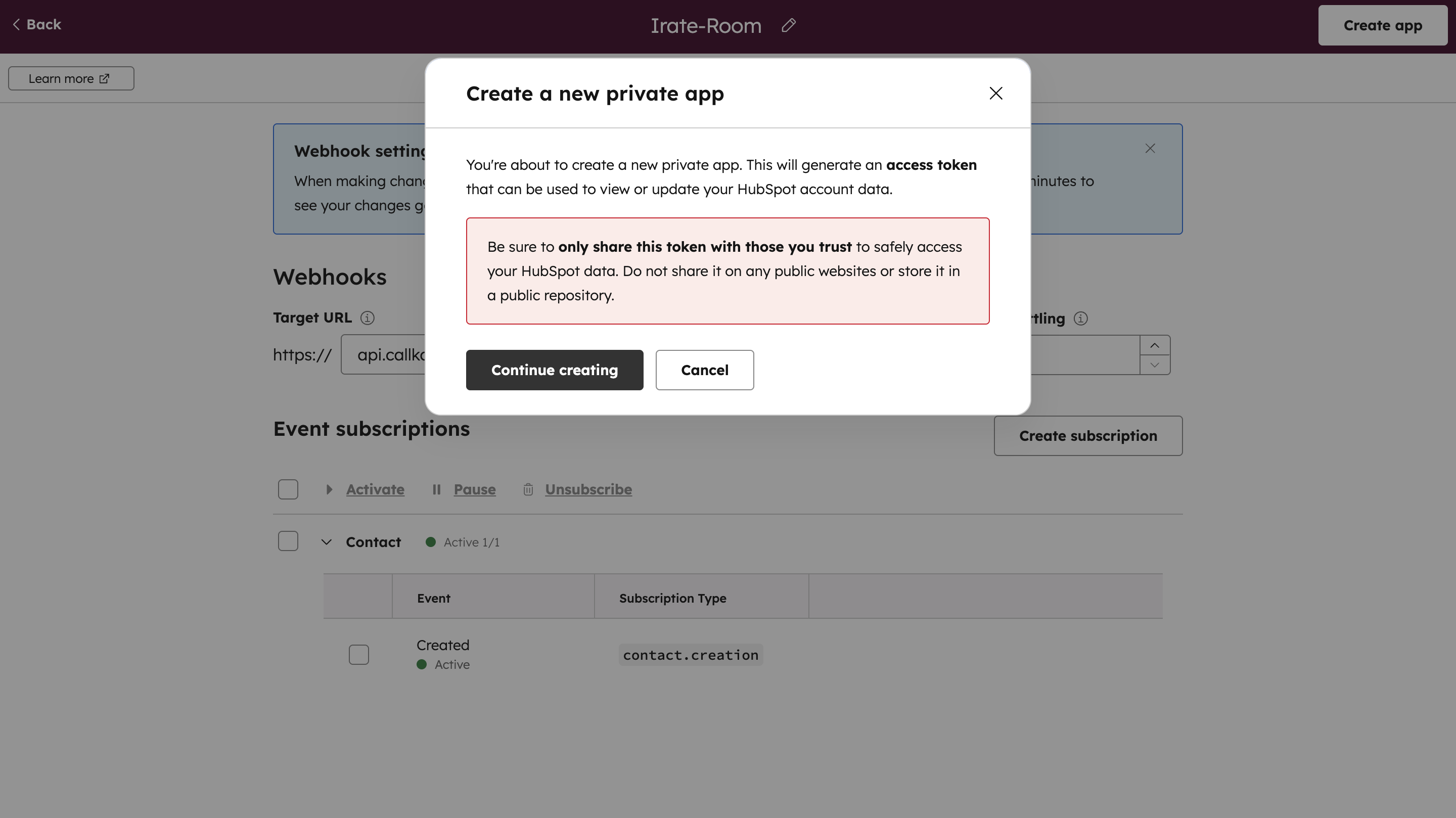
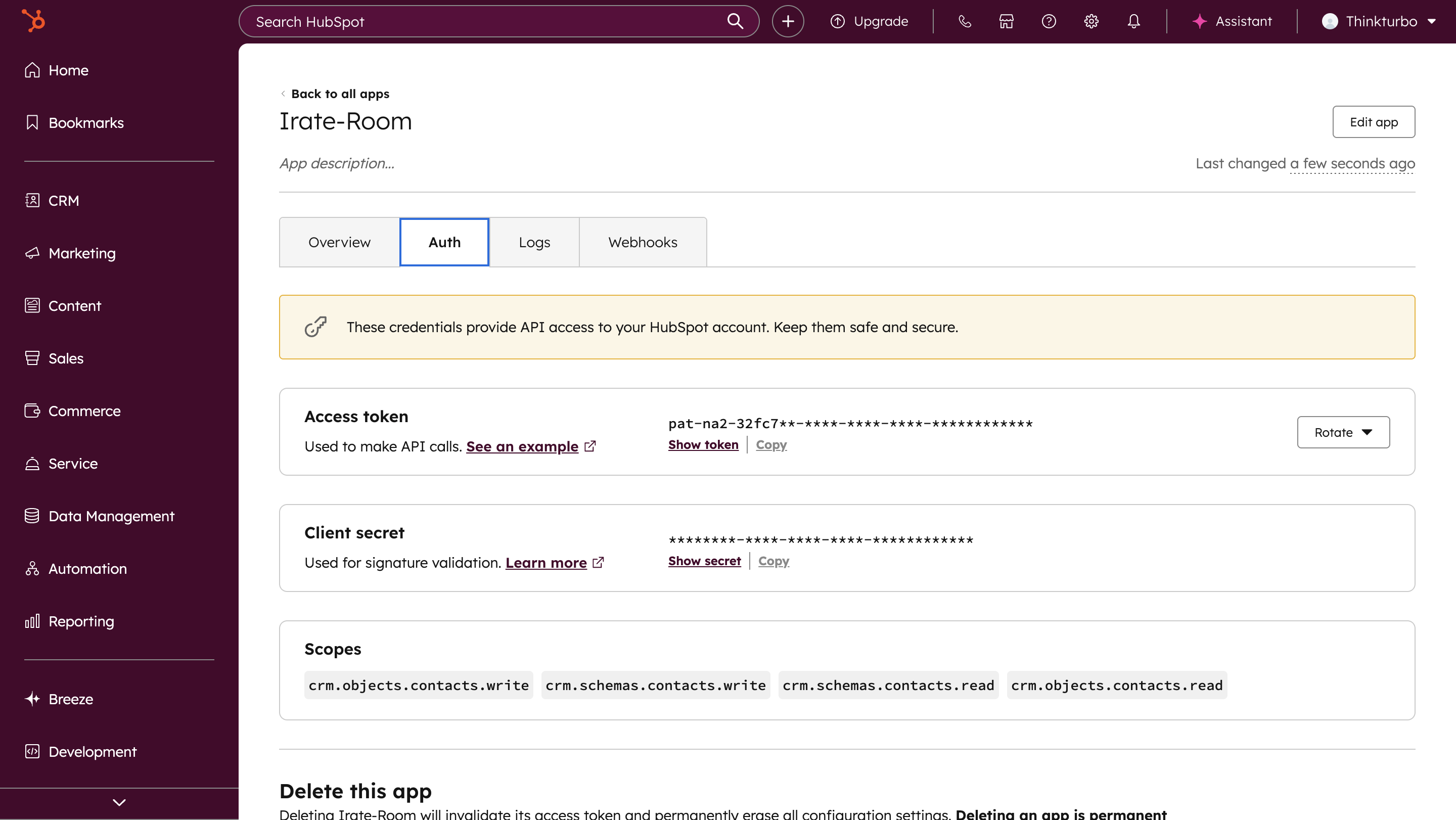
Step 10: Copy Access Token
- Navigate to Auth section in your new app
- Copy the Access Token
- Save it securely - you’ll need it for CallKaro
Step 11: Connect in CallKaro Dashboard
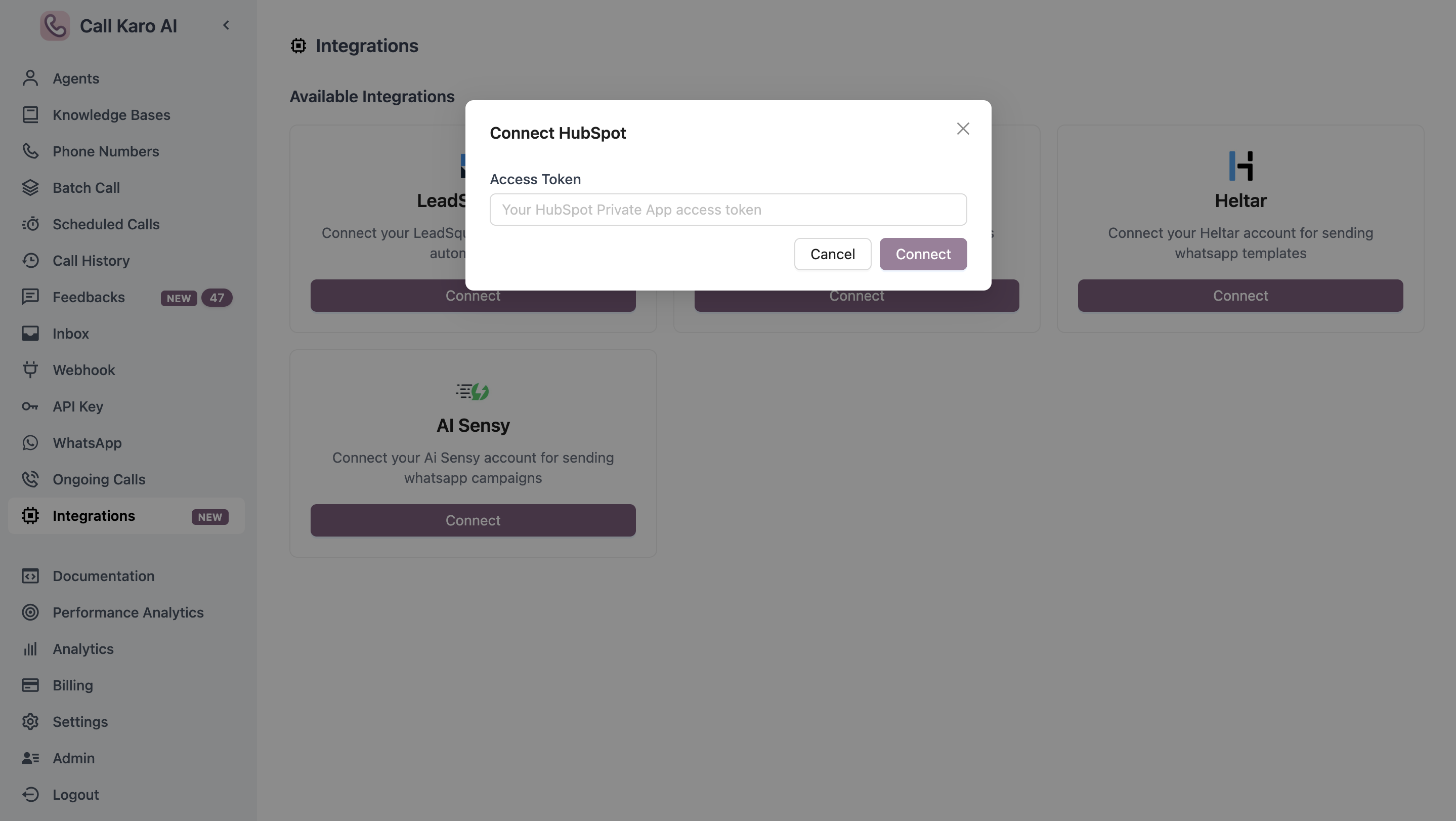
- Go to CallKaro Dashboard → Integrations
- Find HubSpot integration
- Click Connect
- Paste your Access Token
- Click Save
Step 12: Configure Variable Mapping
Map HubSpot contact fields to your agent’s call metadata variables.- Go to your agent configuration
- Navigate to Variable Source tab
- Add variable mappings:
- Variable Name:
firstname - Source:
hubspot - HubSpot Field:
firstname
- Variable Name:
Variable Source Configuration
Learn how to map CRM fields to agent variables
Common Field Mappings
Advanced Parameters
Add optional parameters to control call behavior (same as webhook URL):
Example with parameters:
Testing
- Create a test contact in HubSpot
- Check CallKaro Dashboard → Call History
- Verify call was triggered with correct data
- Review call details to confirm field mapping
Troubleshooting
Webhook not triggering
Webhook not triggering
Solutions:
- Verify webhook URL is correct
- Check agent ID and API key
- Ensure app has required scopes
- Confirm webhook subscription is active
Access token invalid
Access token invalid
Solutions:
- Regenerate access token in HubSpot app
- Update token in CallKaro integrations
- Verify app is not deleted or disabled
Fields not mapping
Fields not mapping
Solutions:
- Check variable source is set to
hubspot - Verify HubSpot field names are correct
- Ensure contact has values for mapped fields
- Test with contacts that have all required data