Overview
Conditional triggers let you control exactly when post-call WhatsApp messages send. Instead of sending after every call, messages only send when all conditions match.Conditional triggers only apply to post-call WhatsApp functions. In-call functions use AI-triggered descriptions instead.
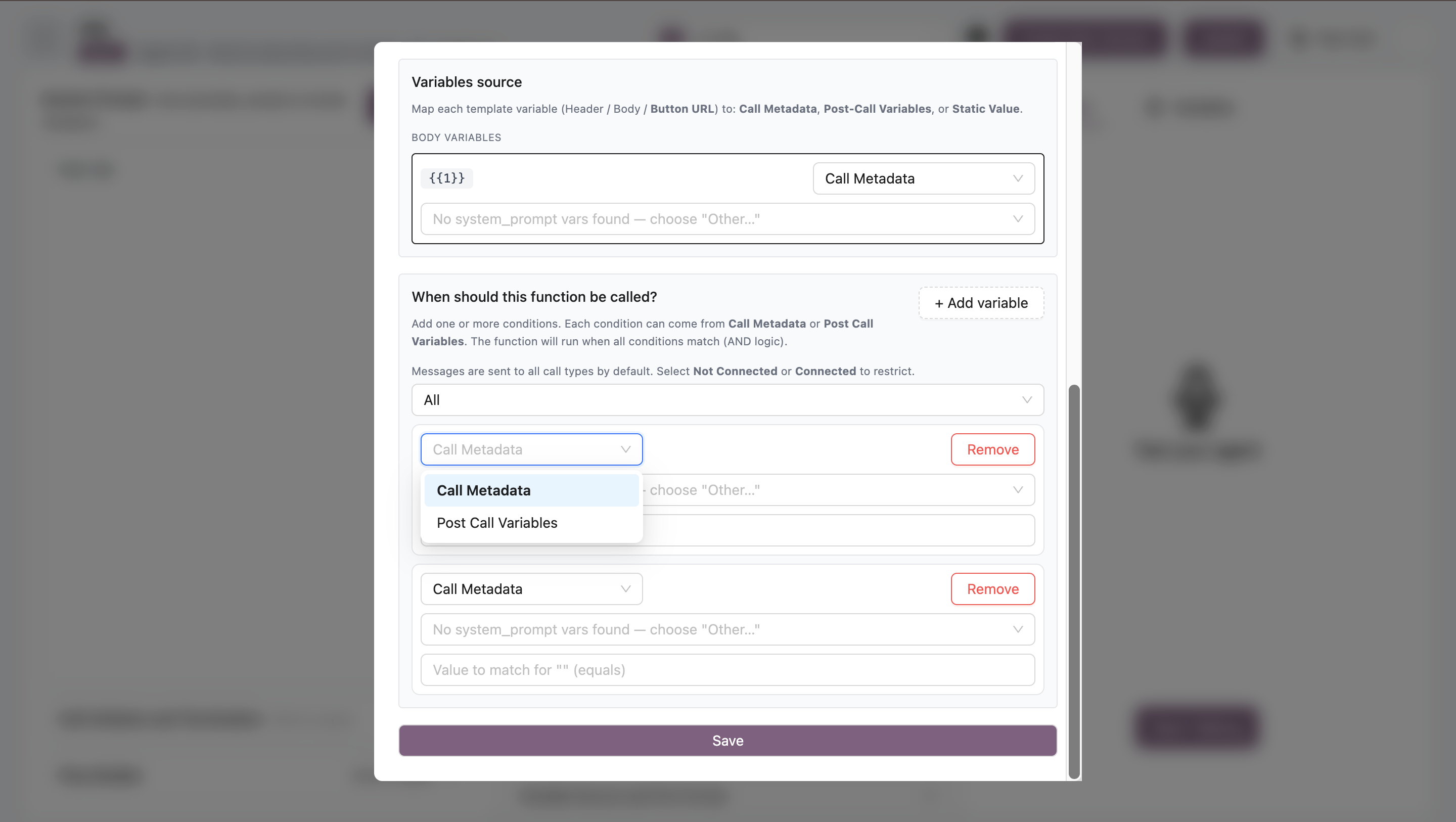
How It Works
Logic: All conditions must match (AND logic)Call Type Filter
Filter messages by call connection status:Options
All (Default)- Send for all calls
- Connected and not connected
- Only send when call was answered
call_duration > 0- Customer spoke with AI
- Only send for missed/failed calls
call_duration = 0- Voicemail, busy, no answer
Use Cases
Connected Only:- Appointment confirmations (only if booked)
- Survey links (only for completed calls)
- Thank you messages (only after conversation)
- Missed call follow-up
- “We tried to reach you” messages
- Callback request confirmations
Variable Conditions
Add conditions based on call data. Messages only send when values match exactly.Condition Sources
1. Call Metadata Customer data from your system. Example Conditions:lead_sourceequals"website"customer_typeequals"premium"regionequals"west"
appointment_bookedequalstrueinterestedequalstrueconfirmationequalstrue-objection_typeequals"price"
Adding Conditions
Condition Examples
Example 1: Appointment Confirmation
Send only when:- Call Type: Connected
- Post-Call Variable:
appointment_bookedequalstrue
- Customer answered the call
- AND appointment was actually booked
Example 2: Not Interested Follow-Up
Send only when:- Call Type: Connected
- Post-Call Variable:
interestedequalsfalse - Call Metadata:
lead_sourceequals"referral"
- Customer answered
- AND showed no interest
- AND came from referral program
Example 3: Missed Call Message
Send only when:- Call Type: Not Connected
Example 4: Premium Customer Survey
Send only when:- Call Type: Connected
- Call Metadata:
customer_typeequals"premium" - Post-Call Variable:
call_completedequalstrue
- Call was connected
- AND customer is premium tier
- AND call reached natural completion
AND Logic
All conditions must match for message to send. Example:Boolean Variables
For true/false post-call variables: Options:truefalse
interestedequalstrue- Send only when interestedcallback_requestedequalstrue- Send only when callback wanted
Use Cases
Confirmation Messages
When to send:- Connected calls only
- When action was completed
Follow-Up Surveys
When to send:- Connected calls only
- Call was completed successfully
Callback Requests
When to send:- Connected or not connected
- Customer requested callback
Sales Follow-Up
When to send:- Connected calls
- Customer showed interest
- No immediate purchase
Best Practices
- Start simple - Begin with call type + one variable
- Test thoroughly - Make test calls to verify conditions
- Use connected filter - Most messages should filter for connected calls
- Verify variables exist - Ensure post-call variables are configured
- Monitor delivery - Check if messages send as expected
- Add escape conditions - Don’t send if already sent elsewhere
Multiple Functions
You can create multiple post-call WhatsApp functions, each with different conditions: Example Setup: Function 1:appointment_confirmation
- Connected +
appointment_booked = true
interested_follow_up
- Connected +
interested = true+appointment_booked = false
not_interested_feedback
- Connected +
interested = false
missed_call_message
- Not Connected