Overview
Post-call WhatsApp functions send messages after AI calls end. You control exactly when messages send using conditions. Common Use Cases:- Appointment confirmations
- Booking details
- Follow-up surveys
- Next steps documentation
- Thank you messages
How It Works
Configuration
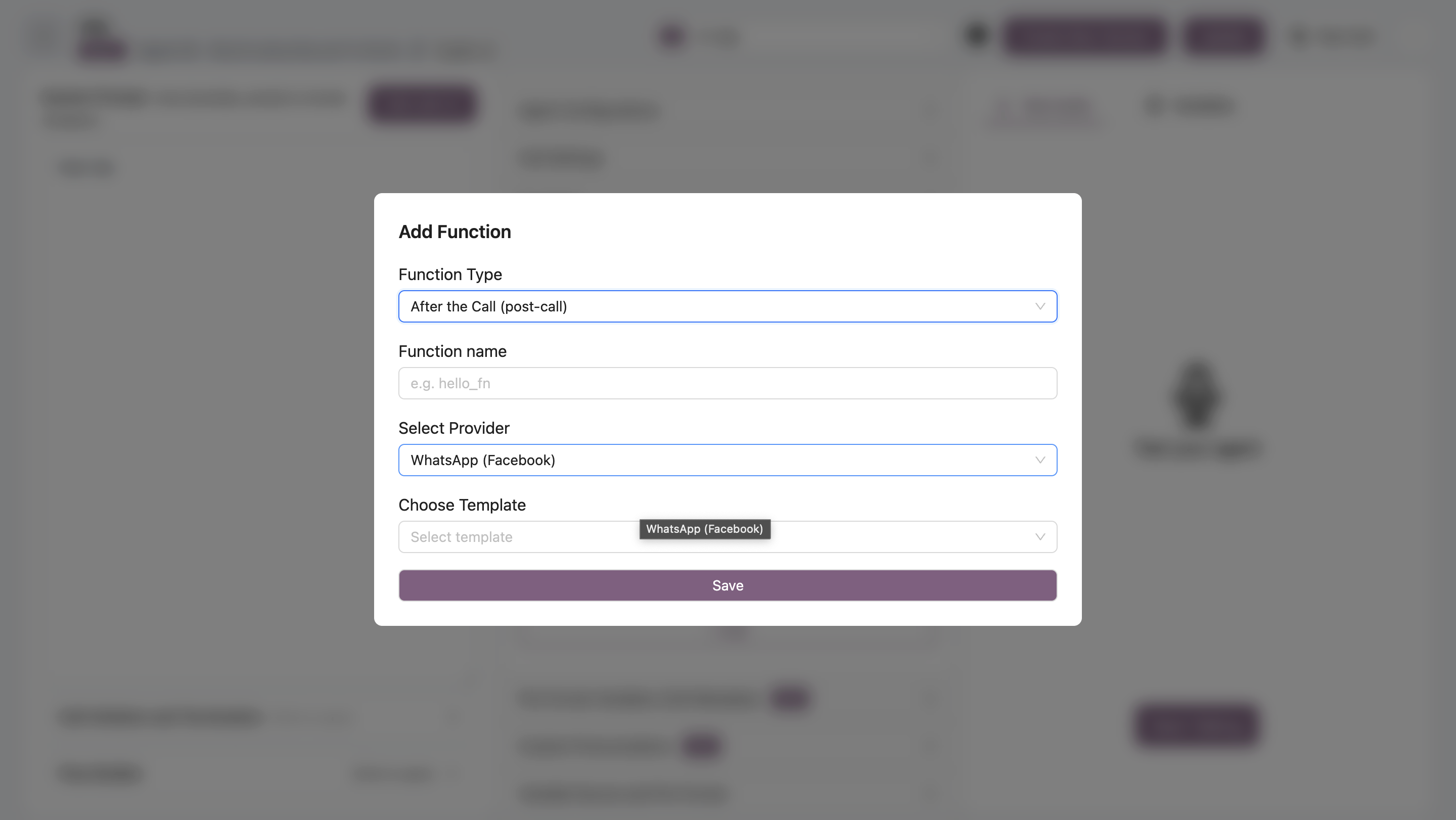
Variable Sources
Post-call functions can use three variable sources:1. Call Metadata
Customer information from your system. Example:customer_namecustomer_emaillead_id
2. Post-Call Variables
AI-extracted data from the call conversation. Example:appointment_date- Date customer selectedappointment_time- Time customer selectedinterested- Whether customer showed interestconfirmation- Whether customer confirmed
3. Static Values
Fixed text that doesn’t change. Example:- Company name
- Support contact
- Website URL
Variable Mapping Guide
Detailed guide on mapping template variables
Conditional Sending
Control when post-call messages send using conditions.Call Type Filter
Options:- All - Send for all calls (default)
- Connected - Only send for connected calls (duration > 0)
- Not Connected - Only send for missed/failed calls
Variable Conditions
Add conditions based on:- Call Metadata - Customer data fields
- Post-Call Variables - AI-extracted information
- Call Type: Connected
- Post-Call Variable:
appointment_bookedequalstrue - Call Metadata:
lead_sourceequals"website"
Conditional Triggers
Complete guide on conditional message sending
Example: Appointment Confirmation
Function Name:appointment_confirmation
Template: (WhatsApp template with 3 variables)
{{1}}→ Call Metadata:customer_name{{2}}→ Post-Call Variables:appointment_date{{3}}→ Post-Call Variables:appointment_time
- Call Type: Connected (only for successful calls)
- Post-Call Variable:
appointment_bookedequalstrue
- Call was connected (customer answered)
- AND appointment was actually booked
Example: Follow-Up Survey
Function Name:satisfaction_survey
Template:
{{1}}→ Call Metadata:customer_name
- Call Type: Connected
- Post-Call Variable:
call_completedequalstrue
Provider-Specific Notes
WhatsApp (Facebook)
- Templates must be approved by Meta
- Create in Meta Business Manager
- Only APPROVED templates available
Heltar
- Templates from Heltar dashboard
- No Meta approval needed
AI Sensy
Basic Plan:- Enter campaign name manually
- Add variables as needed
- Select from existing campaigns
- Variables from campaign template
Best Practices
- Add conditions - Don’t send to everyone, be selective
- Connected calls - Usually filter for connected calls only
- Verify data - Ensure post-call variables exist before using
- Clear templates - Make messages actionable
- Add opt-out - Include unsubscribe option for marketing messages
- Test conditions - Verify messages send when expected
Multiple Messages
You can create multiple post-call functions with different conditions: Example Setup:- Booking Confirmation - Only when
appointment_booked = true - Not Interested Follow-Up - Only when
interested = false - Callback Request - Only when
callback_requested = true