Overview
In-call WhatsApp functions send messages during active AI calls. The AI agent automatically triggers the message based on the description you provide. Common Use Cases:- Send OTP for phone verification
- Share payment links
- Send documents or forms
- Provide reference numbers
- Share meeting links
How It Works
Configuration
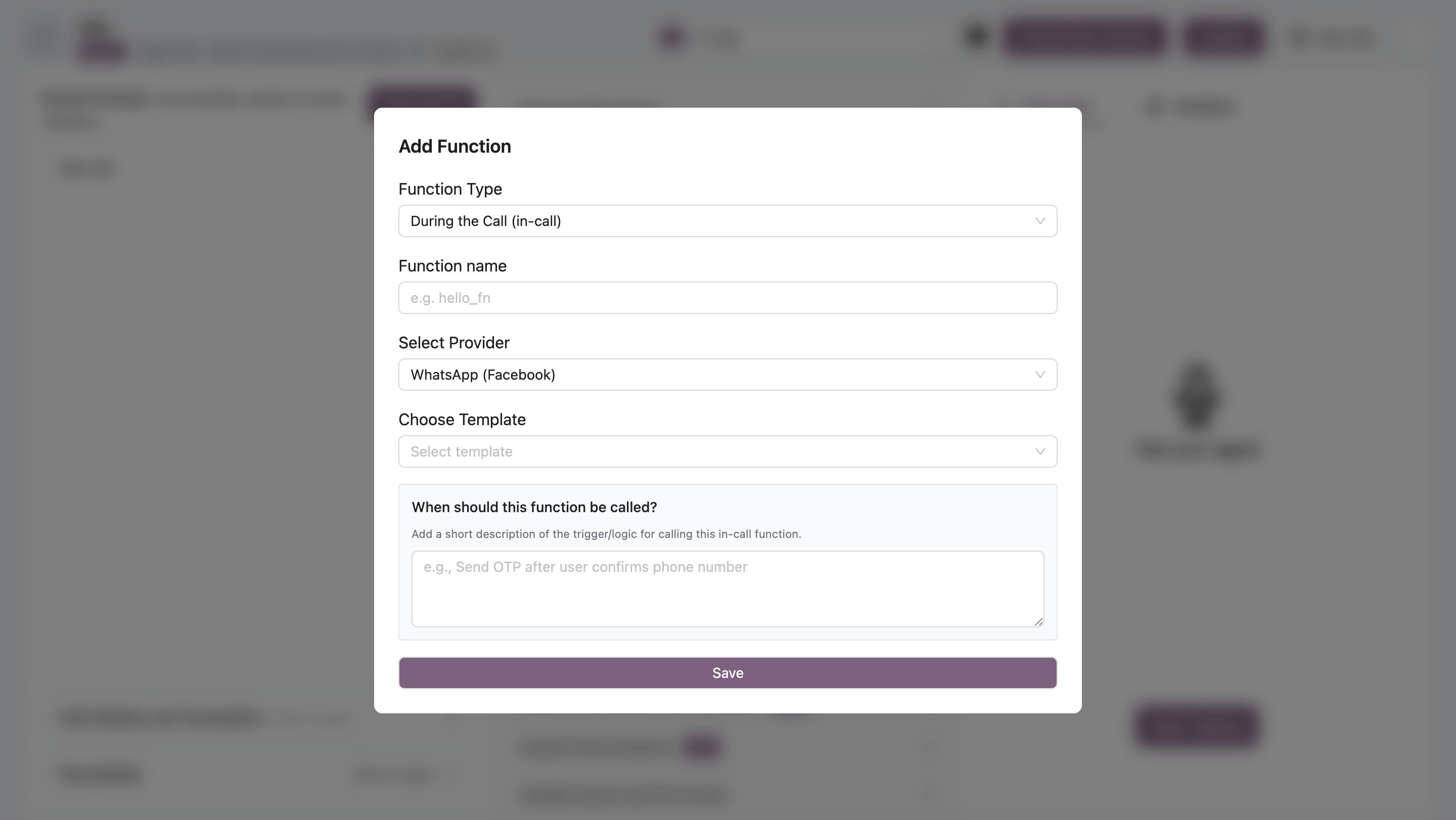
Description (AI Trigger)
The description tells the AI when to send the WhatsApp message. Example Descriptions: For OTP:Variable Sources
In-call functions can use three variable sources:1. Call Metadata
Customer information from your system (name, email, phone, etc.) Example:customer_name- From call metadatacustomer_email- From call metadata
2. In-Call Variables (Dynamic)
Data extracted from the live conversation. Configuration:- Variable Name: What data to extract (e.g.,
otp_code) - Description: Tell AI what to look for
3. Static Values
Fixed text that doesn’t change. Example:- Company name
- Support email
- Website URL
Variable Mapping Guide
Detailed guide on mapping template variables
Example: Send OTP
Function Name:send_otp
Template: (WhatsApp template with 2 variables)
{{1}}→ In-Call Variables- Name:
otp_code - Description: “6-digit verification code generated during call”
- Name:
{{2}}→ Static Value- Value:
support@company.com
- Value:
Provider-Specific Notes
WhatsApp (Facebook)
- Templates must be approved by Meta
- Create in Meta Business Manager
- Only APPROVED templates available
Heltar
- Templates from Heltar dashboard
- No Meta approval needed
AI Sensy
Basic Plan:- Enter campaign name manually
- Add variables as needed
- Select from existing campaigns
- Variables from campaign template
Best Practices
- Specific descriptions - Be clear about when to send
- Test in-call variables - Verify AI extracts data correctly
- Keep templates simple - Short, actionable messages
- Include context - Tell customer why they received the message
- Add support contact - Provide help if issues arise