Overview
The Keep Call on Hold function allows your AI agent to temporarily pause the conversation and place the customer on hold. This is useful when the agent needs time to process information, wait for external API responses, or simulate human-like pauses. Use Cases:- Wait for external API responses
- Give time for backend processing
- Simulate realistic hold times during booking confirmations
- Pause before transferring to another department
Configuration
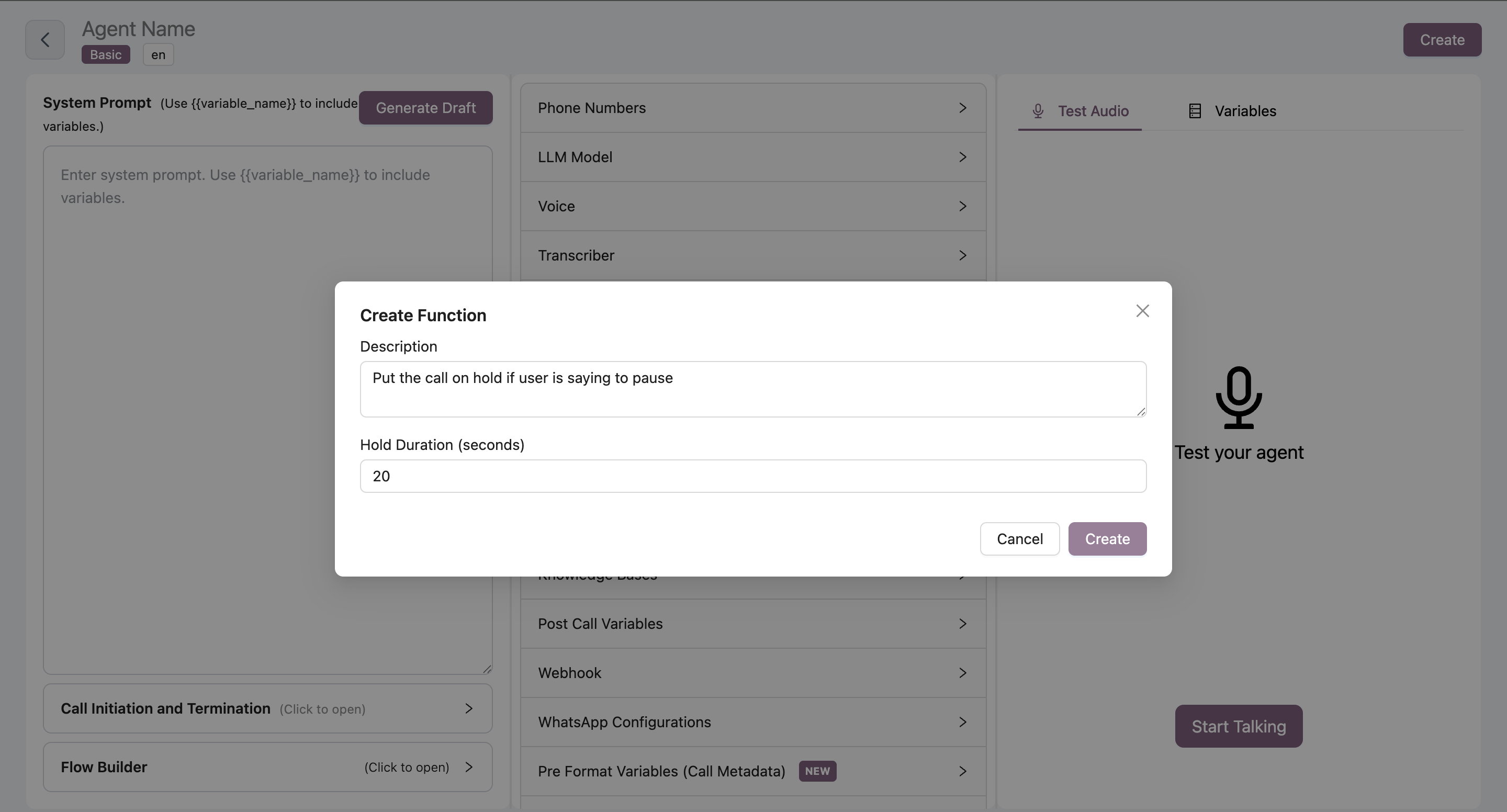
Add Keep Call on Hold Function
Navigate to your agent → Functions tab → Click Add → Select “Keep Call on Hold”
Configure Hold Duration
Set the hold duration in seconds
- Enter the number of seconds (e.g., 5, 10, 15)
- Duration starts when function is triggered
- Default value: 0 seconds
Best Practices
Set Appropriate Duration
Set Appropriate Duration
- Keep hold times reasonable (typically 5-15 seconds)
- Longer holds may frustrate customers
- Match duration to expected processing time
Inform the Customer
Inform the Customer
Configure your agent’s system prompt to inform customers before placing them on hold:Example:
Use with Other Functions
Use with Other Functions
Combine with other functions for realistic workflows:
- Hold → Check Availability → Book Meeting
- Hold → Transfer Call