Overview
The Transfer Call function allows your AI agent to transfer calls to human agents or other phone numbers when needed. This is useful for escalations, specialized support, or connecting customers to the right department. Use Cases:- Escalate complex queries to human agents
- Transfer to sales department
- Connect to technical support
- Route to specific team members
Configuration
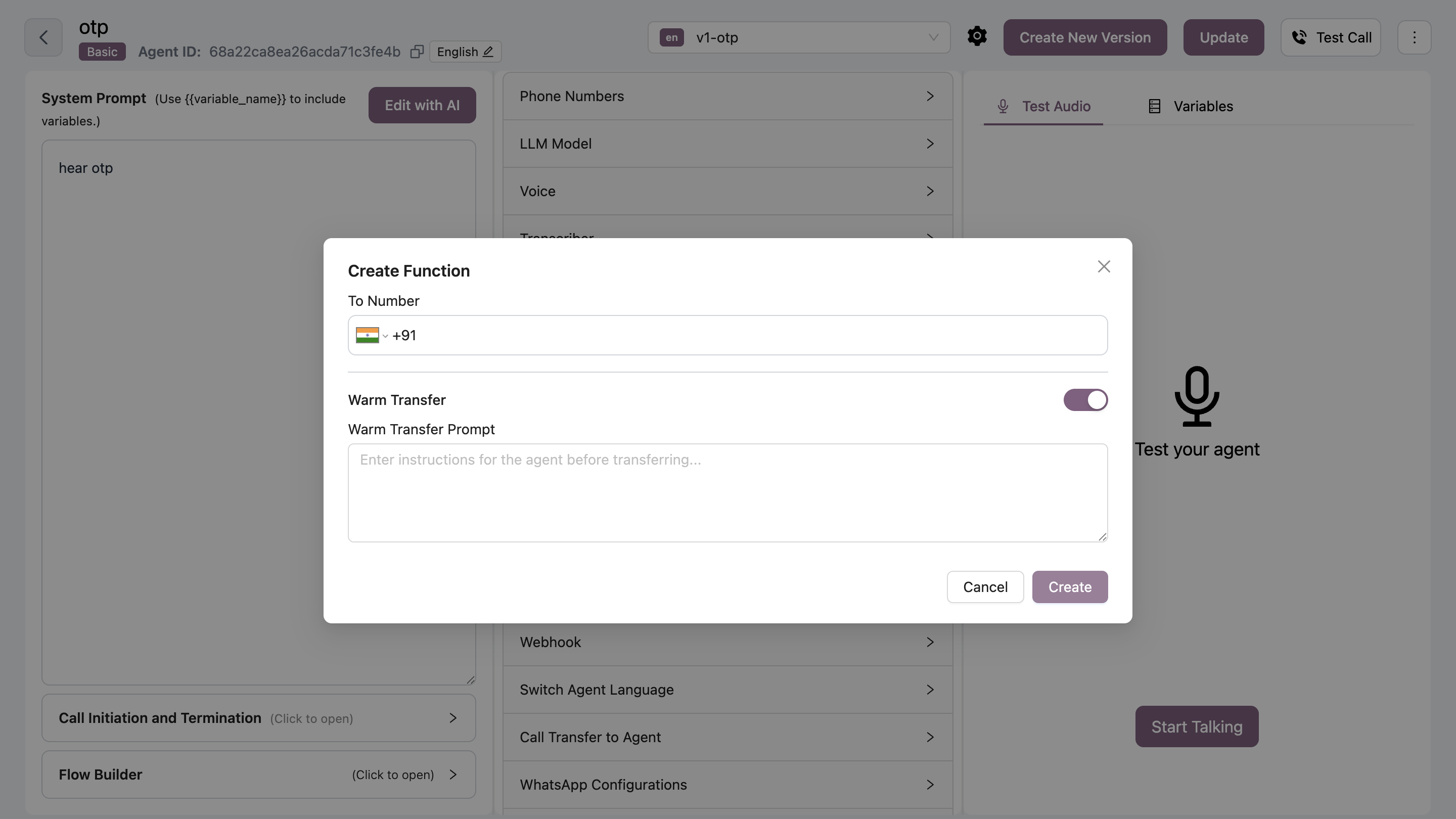
Set Phone Number
Enter the phone number to transfer calls to
- International format:
+919876543210 - Include country code
Warm Transfer
Warm transfer allows the AI agent to brief the human agent before connecting the customer. How it works:- AI agent identifies need to transfer
- AI calls the transfer number first
- AI provides context to the human agent
- Customer is connected to the human agent
Enable Warm Transfer
- Toggle Warm Transfer switch
- Enter Warm Transfer Prompt: