What is Send Next Trial?
Send Next Trial allows you to retry calls to contacts who didn’t connect or didn’t convert in previous attempts. You can filter which contacts to retry based on hangup reasons or post-call variable values.Accessing Send Next Trial
Navigate to the batch call dashboard: Dashboard → Batch Calls → [Select Batch] → Batch Call Dashboard → Send Next Trial Section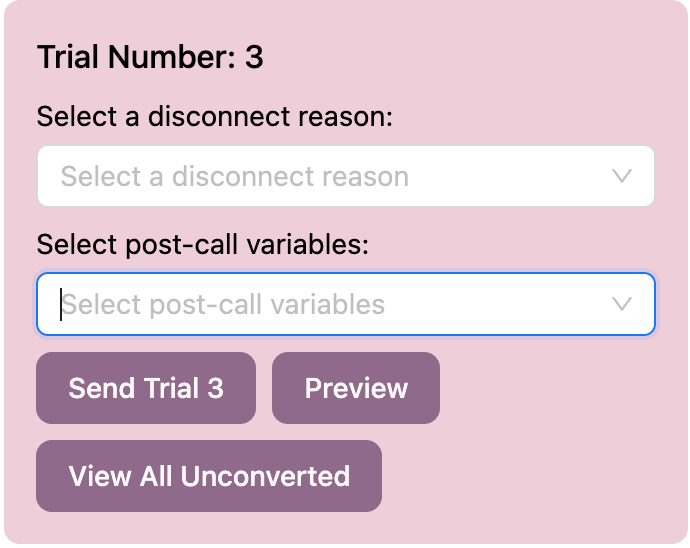
How to Send Next Trial
1. Select Disconnect Reasons
Choose which hangup reasons to retry:USER_UNAVAILABLE- Phone rang but client didn’t answerUSER_REJECTED- Call was rejected by the clientVOICEMAIL_DETECTED- Call reached voicemail- And other hangup reasons
2. Select Post-Call Variables
Choose contacts based on post-call variable values:- Select boolean post-call variables from your agent
- Only contacts where the variable is
truewill be included
3. Preview Contacts
Click Preview to see the list of contacts that will be retried based on your selections:- View phone numbers and metadata
- Select/deselect specific contacts
- Select all or individually choose which contacts to include
- All contacts are selected by default
4. Send Trial
Click Send Trial [Number] to queue the retry calls:Selection Logic
Contacts are included if they match:- Any selected hangup reason OR
- Any selected post-call variable (value = true)
- Selected reasons:
USER_UNAVAILABLE,USER_REJECTED - Selected variables:
interested,callback_requested - Result: Contacts with any of these conditions will be included