What is the Recordings Page?
The Recordings page displays all call recordings from a batch call campaign. You can filter, search, and export call data with detailed information about each call.Accessing Recordings
Navigate to the batch call recordings page: Dashboard → Batch Calls → [Select Batch] → View (Recordings Column)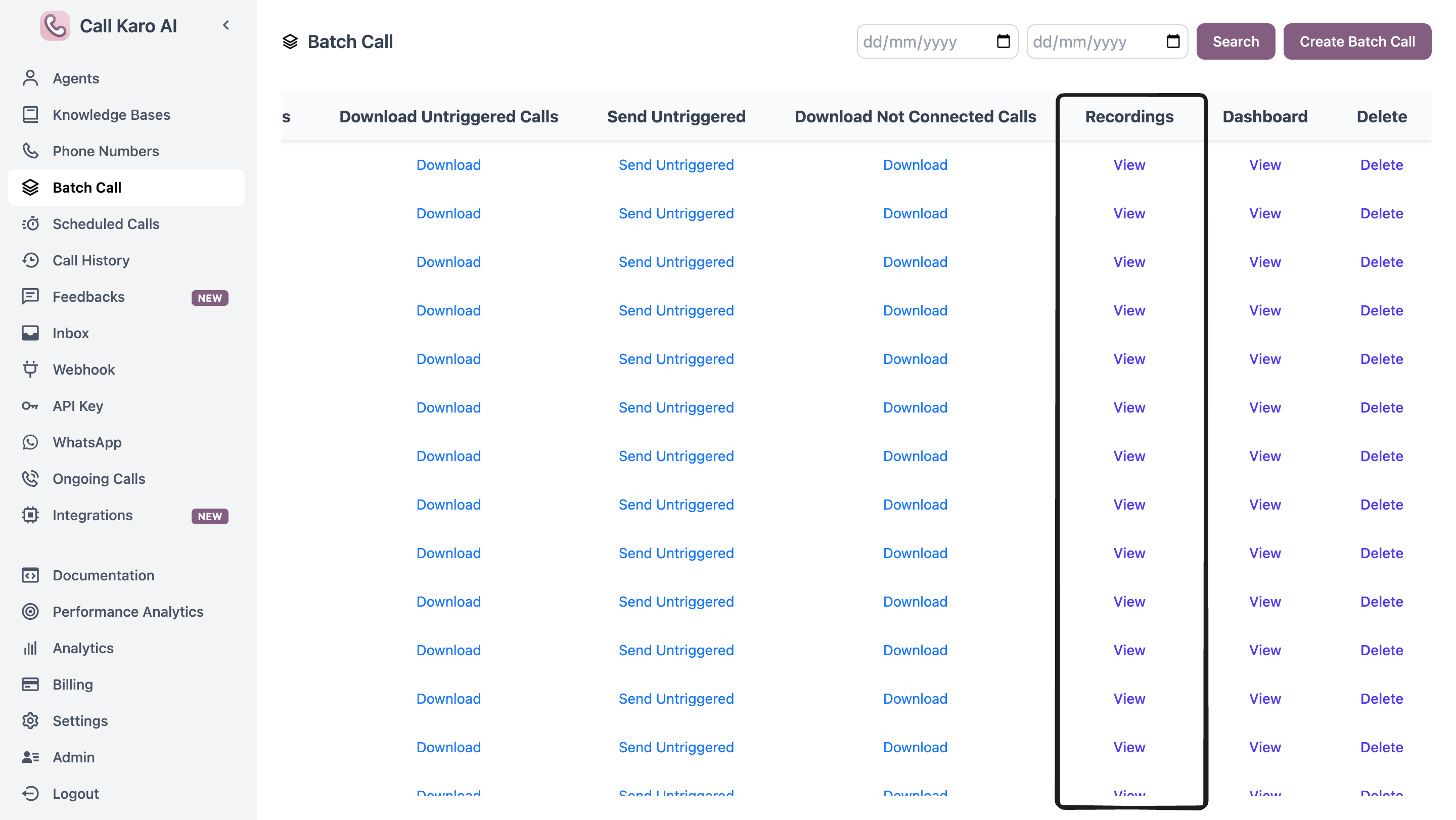
Filters
Version Filter
Select specific agent versions to view only calls made with those versions.Duration Filter
Filter calls by duration:- Not Connected - 0 seconds
- 1-10s - Very short calls
- 11-30s - Short calls
- 31-60s - Medium calls
- >60s - Long calls
Trial Filter
Filter by trial number (Trial 1, Trial 2, Trial 3, etc.) or Inbound calls.Hangup Reason Filter
Filter by disconnect reason (USER_UNAVAILABLE, CLIENT_INITIATED, VOICEMAIL_DETECTED, etc.).
Phone Number Search
Enter a phone number to find specific calls.Funnel Metrics Filter
Toggle funnel metrics to filter calls:- Click metric name to enable/disable filter
- Use switch to filter by
trueorfalsevalue - Multiple metrics can be active
Table Columns
Actions
Search
Click Search to apply all selected filters and reload the table.Dashboard
Navigate to the batch call dashboard with analytics and charts.Export as Excel
Download all filtered recordings as an Excel file with:- All call details
- Metadata fields
- Post-call variables
- Function calls (if any)
How to Use
- Select Filters - Choose versions, durations, trials, hangup reasons, phone number
- Toggle Funnel Metrics - Click metric names and set true/false filters
- Click Search - Apply filters to table
- Click Row - Open call details sidebar
- Export - Download filtered results